How to Process Payment Through Vendor Payable Report
1. Overview
The Vendor Payable Aging Report in Inaya is a financial tool that displays all outstanding payments owed to vendors, categorized by the age of the debt. The Payment module enables you to process vendor payments efficiently after goods have been received and bills have been created. This feature ensures timely vendor settlements, maintains good supplier relationships, and creates a complete audit trail of all payment transactions.
2. Why Is It Important to Process Payments Through Vendor Payable Report?
Aspect | Importance |
|---|---|
Centralized Overview | View all vendor payables in one place with aging categories (0-30, 31-60, 61-90, >90 days) |
Aging Management | Prioritize overdue payments to maintain good vendor relationships and avoid penalties |
Cash Flow Control | Make informed decisions about which payments to prioritize based on available cash |
Payment Accuracy | Process payments directly from the report, reducing data entry errors |
Audit Trail | Creates a complete record for compliance and financial auditing |
Financial Visibility | Clear view of total outstanding liabilities by vendor and aging period |
3. Requirements Before You Start
Prerequisites Checklist
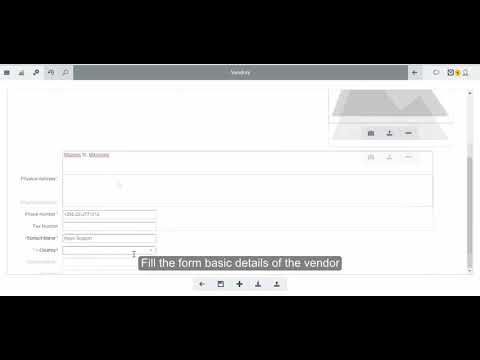
Vendor Records: Vendors must be registered in the system. Study How to Create a Vendor for details.
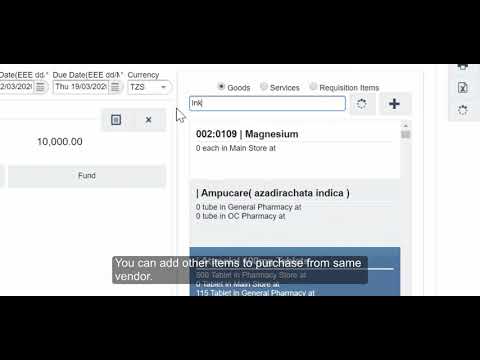
Purchase Orders: Purchase orders must be created and approved. Study How to Create a Purchase Order for details.
Bills/Invoices: Vendor bills must be entered and matched to purchase orders.
Cash Box Setup: At least you are configured with one cash box with sufficient balance.
User Permissions: The user performing the transaction must have permission to process payments. Configure via System Administrator.
4. Scenarios and Examples
Scenario 1 — Processing Payment for an Overdue Vendor
Field | Value |
|---|---|
Vendor | EPIC BUSINESS RESOURCES LTD |
Aging Category | > 90 DAYS |
Amount Due | 3,750,000.00 TZS |
Bill Date | 23/08/2026 |
Context: EPIC BUSINESS RESOURCES LTD has an outstanding invoice that is over 90 days overdue. The finance team needs to process this payment to clear the aging debt and maintain good vendor relations.
5. Step-by-Step Guide: Processing Payment Through Vendor Payable Report
Step 1 — Navigate to Payable Aging Report
Click on Reports from the Menu options.
Scroll down to Aging Reports, then select Payable Aging Report to open the report page.
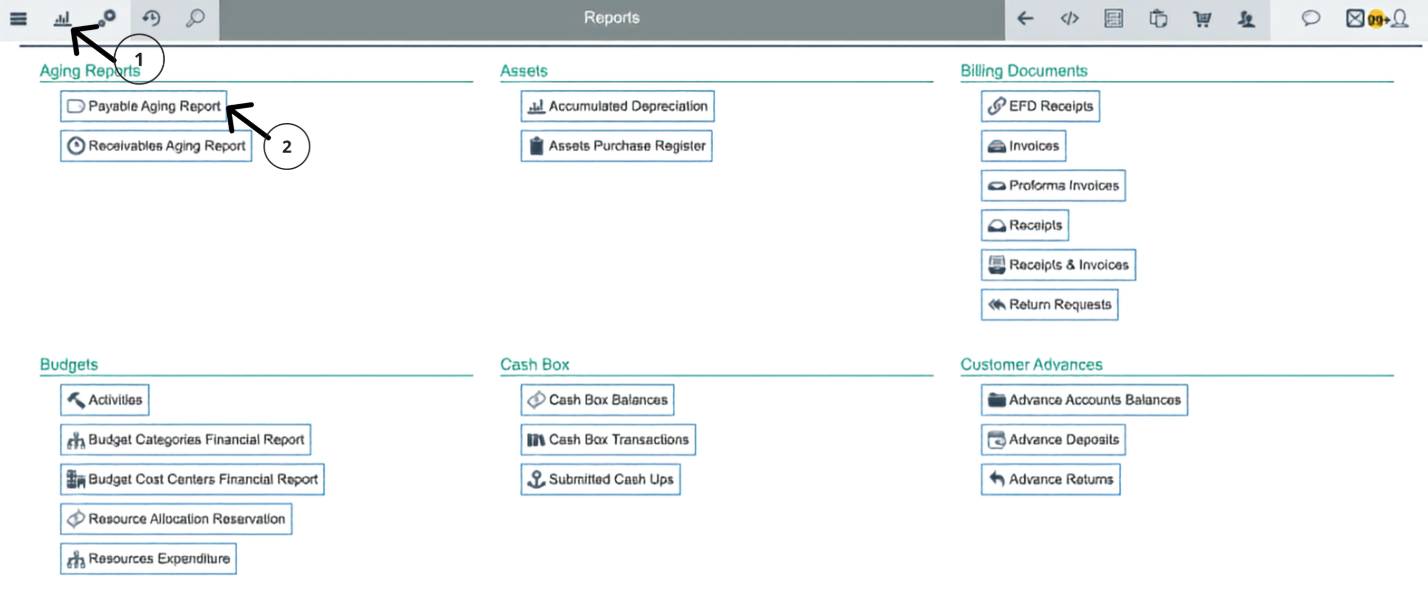
Alternatively, click the Search icon in the top-left corner, type
Payable Aging Reportinto the search box, and select Payable Aging Report from the results.
Step 2 — Set the 'As Of' Date
Once the Payable Aging Report opens, locate the "As Of" date field at the top of the report.

Set the "As Of" date to the end of the month when the bill was created. For example, if the PO was generated in August, set the "As Of" date to 31/08/2026 or later.
If Bill Was Created In | Set "As Of" Date To |
|---|---|
January 2026 | 31/01/2026 or later |
July 2026 | 31/07/2026 or later |
August 2026 | 31/08/2026 or later |
September 2026 | 30/09/2026 or later |
Step 3 — Review the Payable Aging Report
After setting the correct "As Of" date, review the list of all vendors with outstanding balances.
Check the aging columns to identify which vendors have outstanding payments:
0 - 30 DAYS: Current payables (not yet overdue) — bills created within the last 30 days
31 - 60 DAYS: Payables that are 1-2 months overdue
61 - 90 DAYS: Payables that are 2-3 months overdue
> 90 DAYS: Payables that are over 3 months overdue — HIGHEST PRIORITY
Use the Search bar to find a specific vendor by name, or scroll through the list.
Aging Category | Description | Priority Level |
|---|---|---|
0 - 30 DAYS | Bill created within last 30 days | Low — Not yet overdue |
31 - 60 DAYS | Bill created 31-60 days ago | Medium — Consider paying soon |
61 - 90 DAYS | Bill created 61-90 days ago | High — Prioritize payment |
> 90 DAYS | Bill created over 90 days ago | CRITICAL — Pay immediately |
Step 4 — Select the Vendor and Click the Correct Aging Column
Find the vendor you want to pay in the report.
⚠️ VERY IMPORTANT — Click the Correct Aging Column:
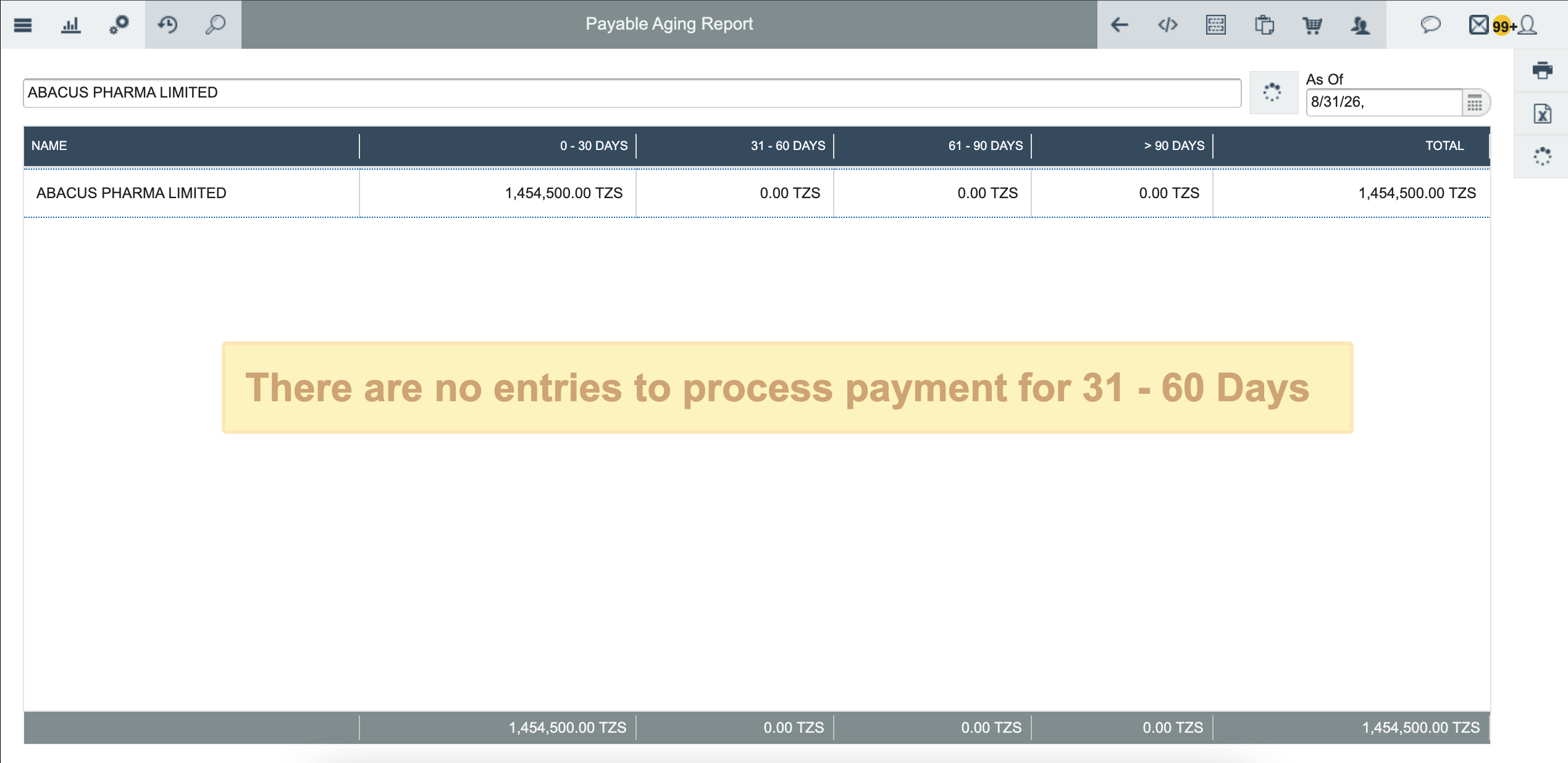
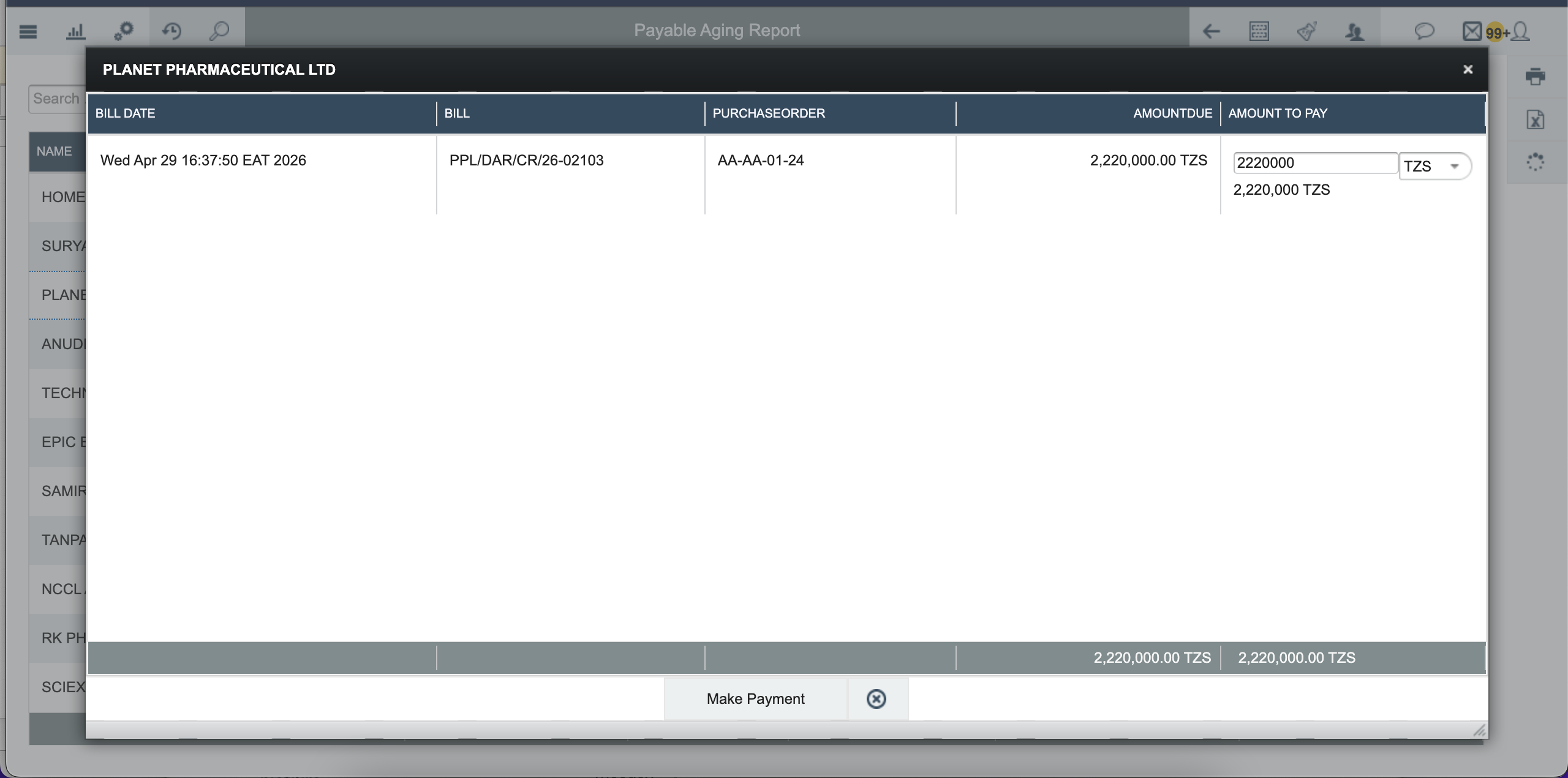
Click on the aging column that contains the amount for that vendor it will appear like the image below then click make payment
Step 5 — Payment Dialog Appears
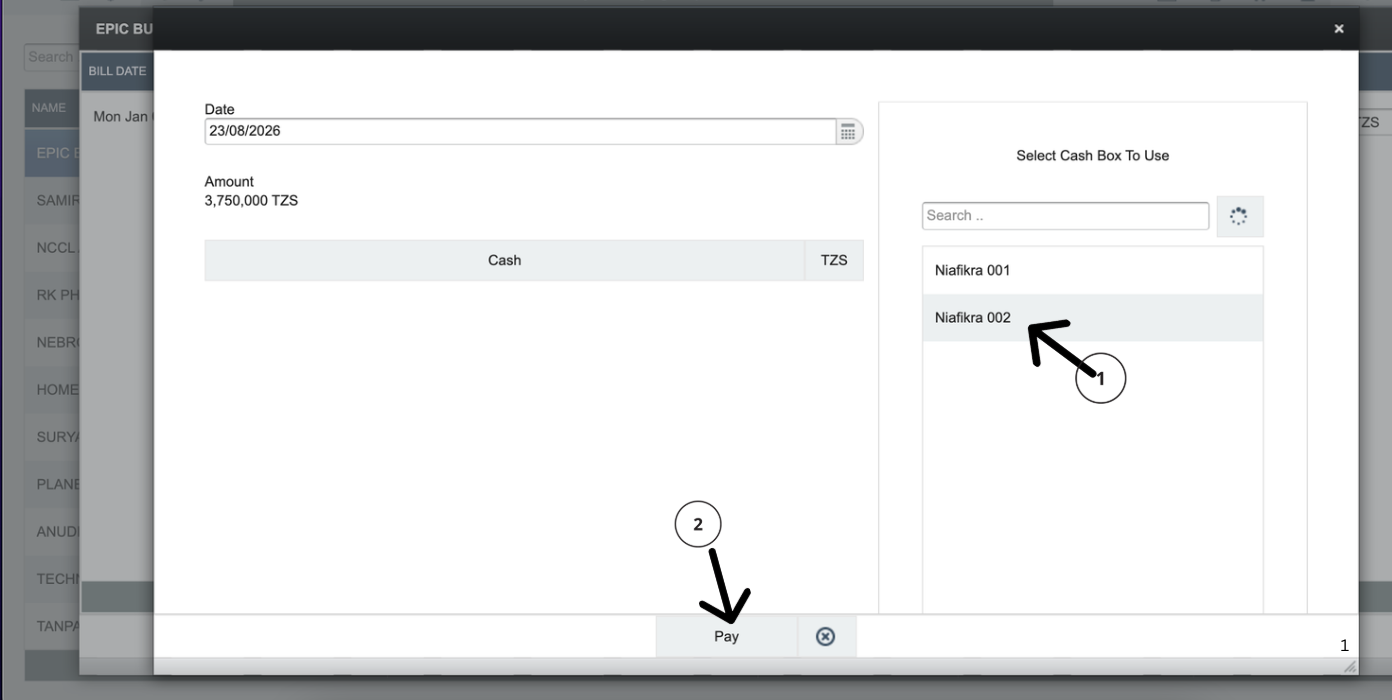
After clicking the correct aging category, a payment dialog will appear.
If you operate multiple cash boxes: Select one from the dropdown list (e.g., Niafikra 001 or Niafikra 002)
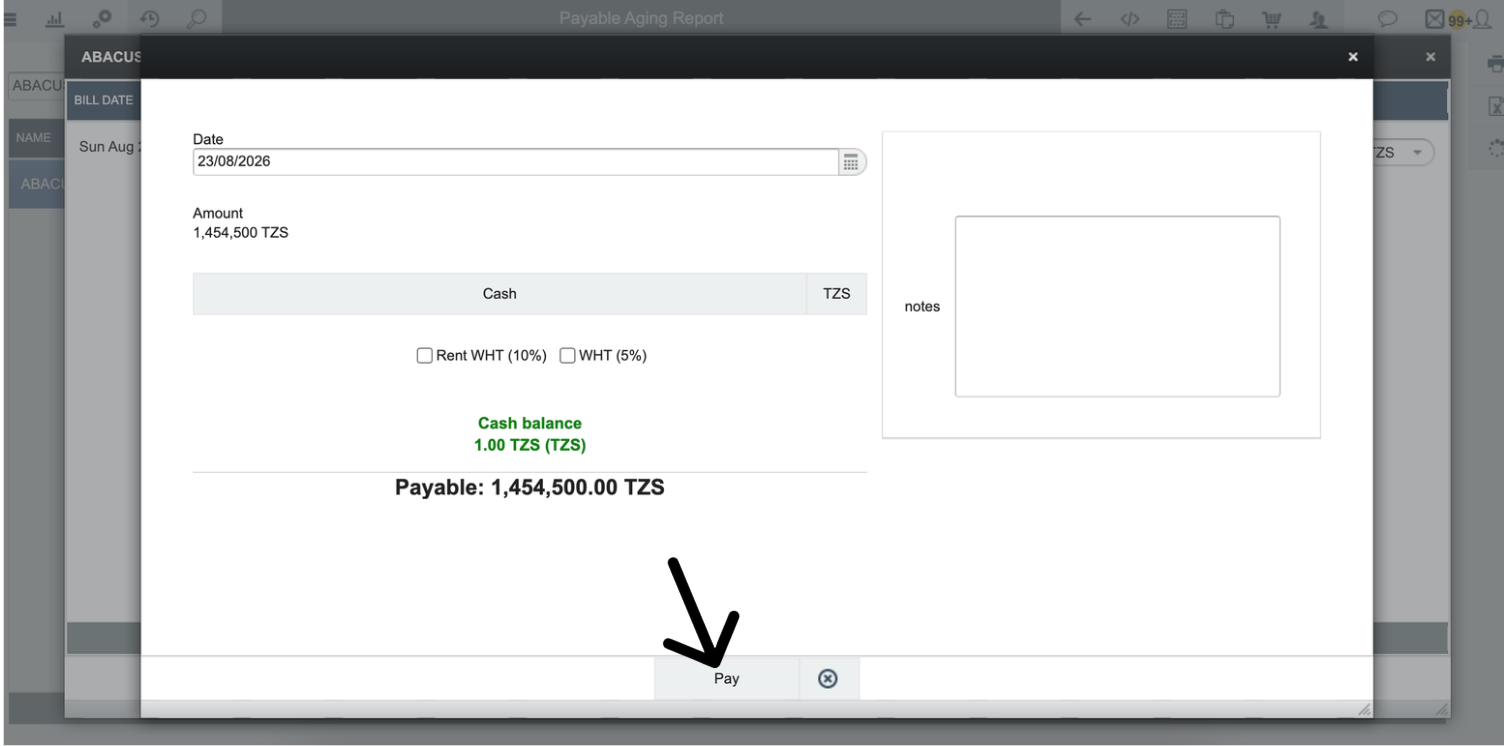
If you operate only ONE cash box: The system will display the cash box automatically
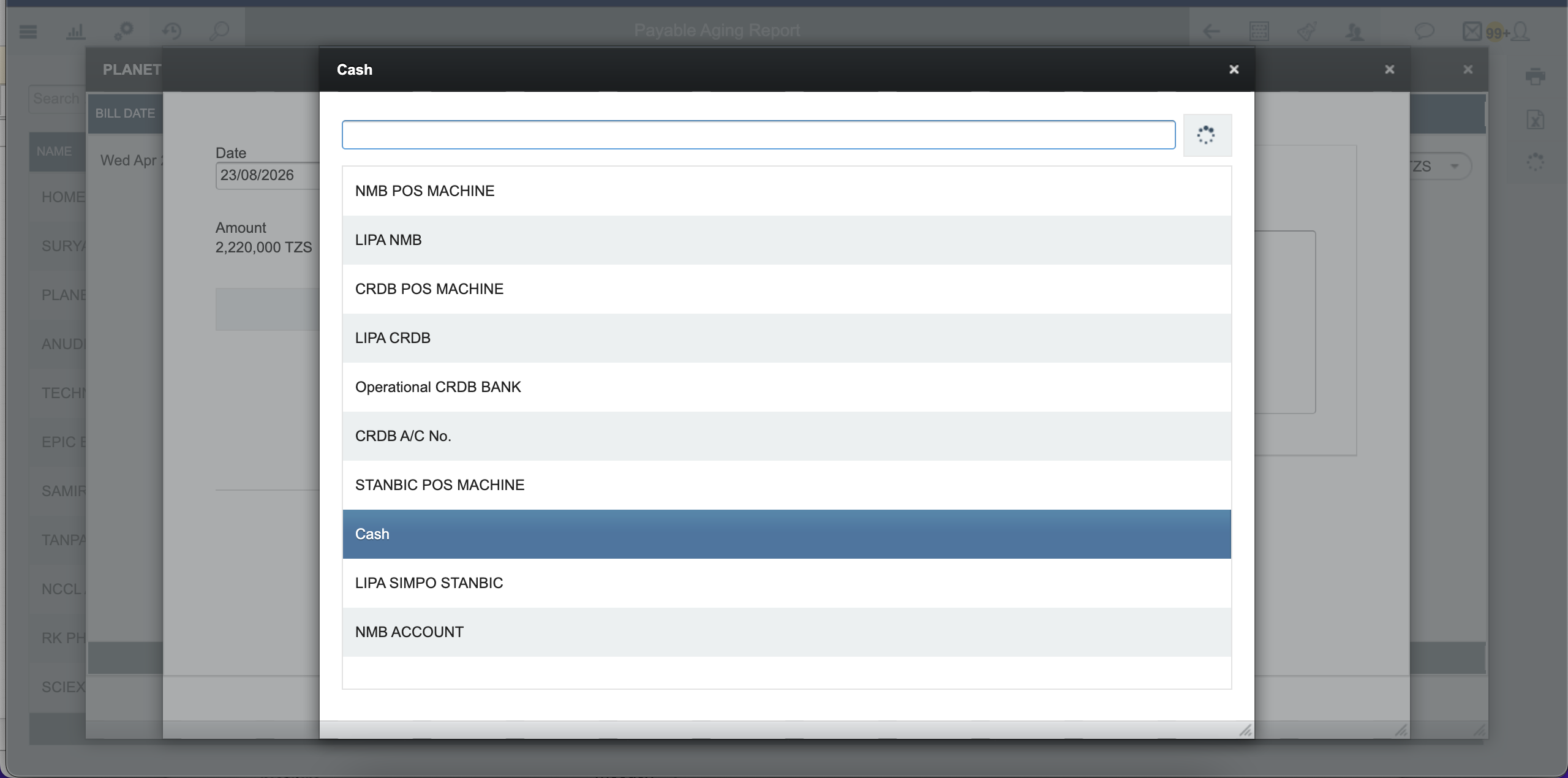
Click on the Cash to choose different payment method where the payment will come from.
Step 6 — Review Payment Screen
After selecting the cash box, the payment screen will appear with complete details.
The payment screen displays:
Vendor Name: ABACUS PHARMA LIMITED
Date: 23/08/2026
Amount: 1,454,500 TZS
Cash balance: 1.00 TZS (the current balance in the selected cash box)
Payable: 1,454,500.00 TZS (total amount due)
If applicable, select withholding tax (WHT) options:
Rent WHT (10%): For rental payments — check this box if the payment is for rent
WHT (5%): For standard withholding tax — check this box if withholding tax applies
You can also add Notes to the payment for future reference.
Step 7A — Payment Fails: Insufficient Balance
📌 If the cash box has insufficient balance:
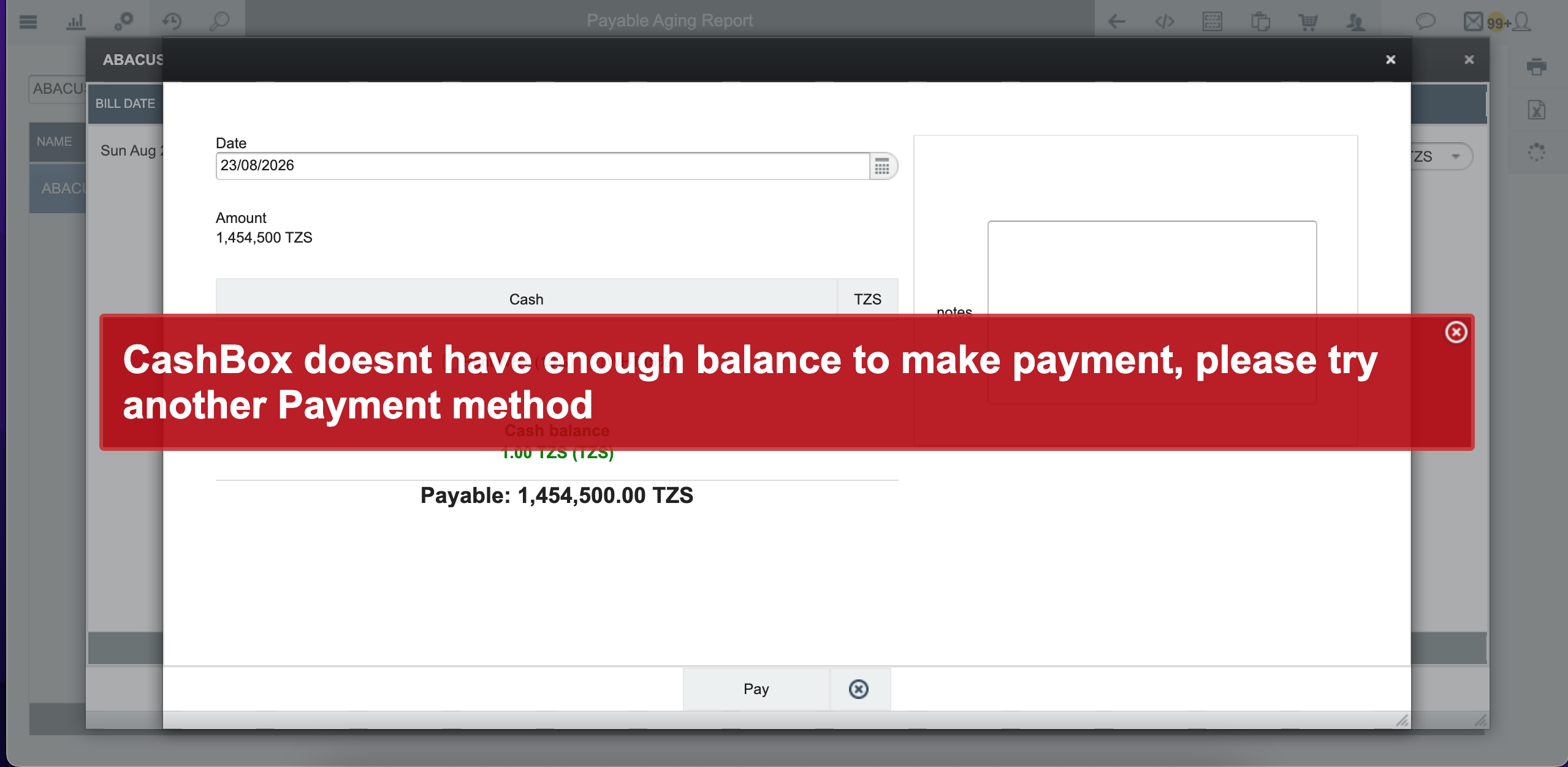
Solution Options:
Select a different cash box with sufficient balance
Top up the cash box before processing payment
Use an alternative payment method
Close the error message to return to the payment screen and select a different cash box or different payment method.
Step 7B — Payment Success: Payment Voucher Generated
If the cash box has sufficient balance:
Click the Pay button to complete the payment.
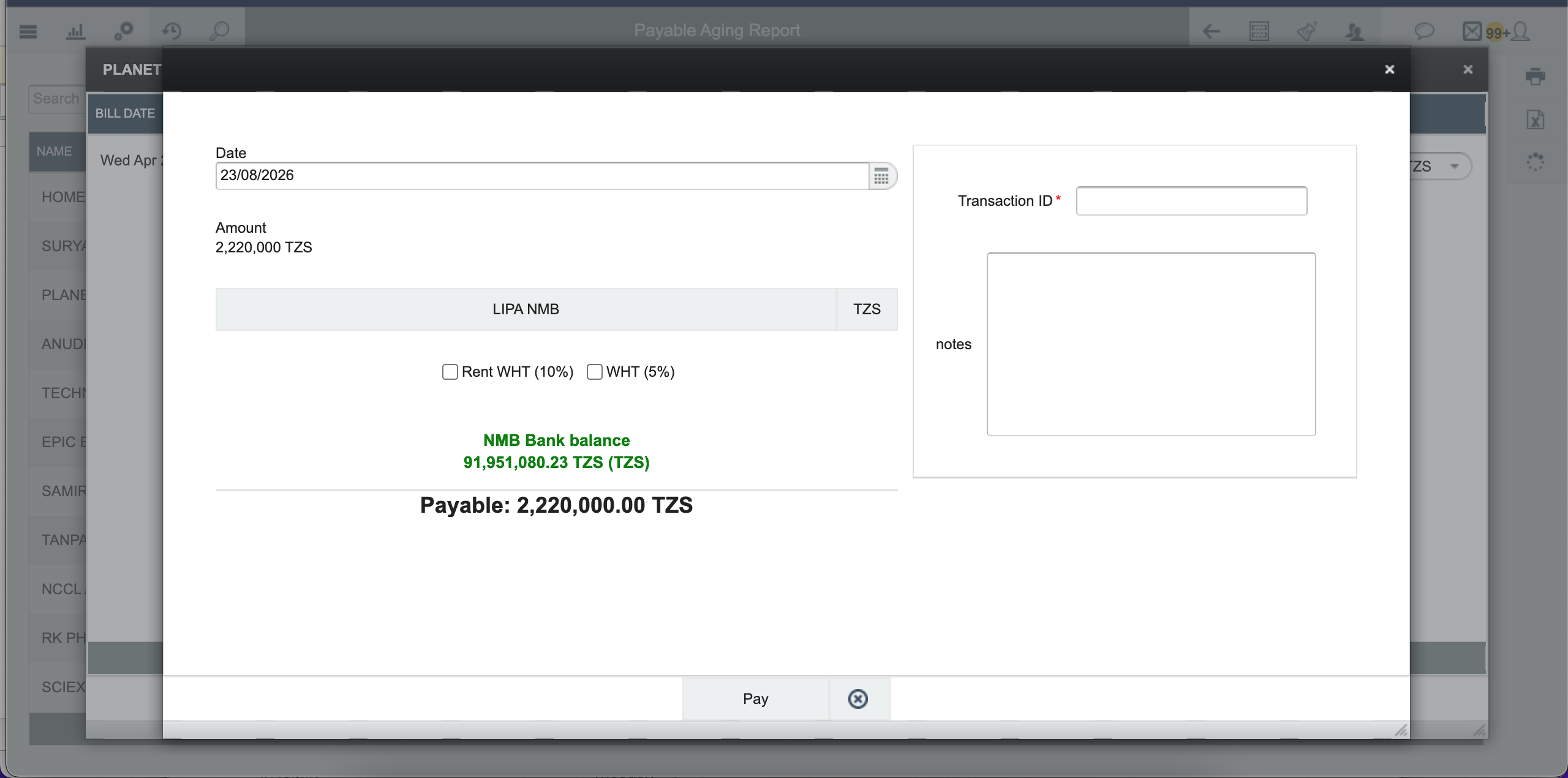
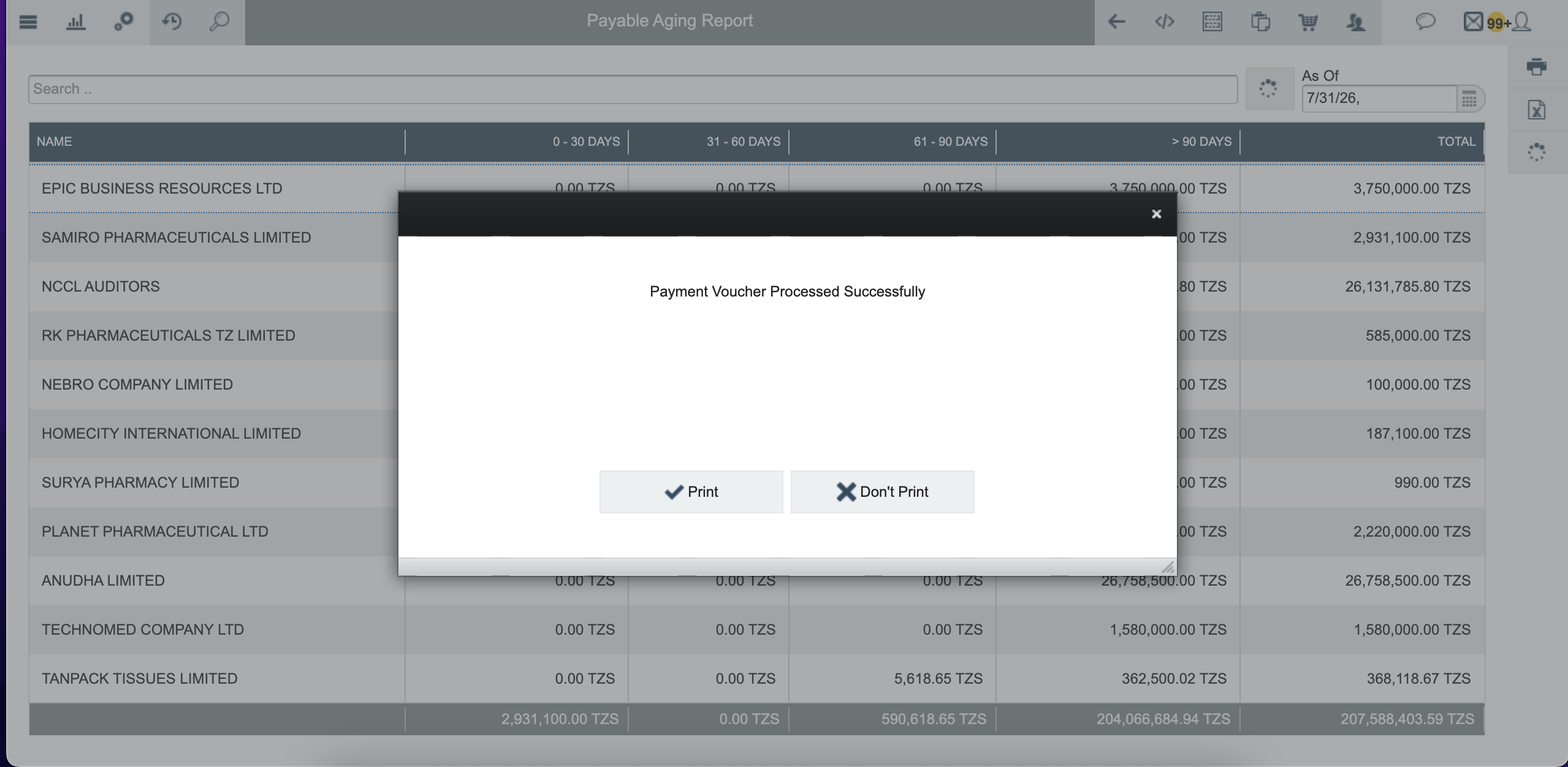
The system processes the payment and displays a confirmation message:
📌 "Payment Voucher Processed Successfully"
After successful payment, you will see the following options:
Print: Click to print the payment voucher
Don't Print: Skip printing the voucher
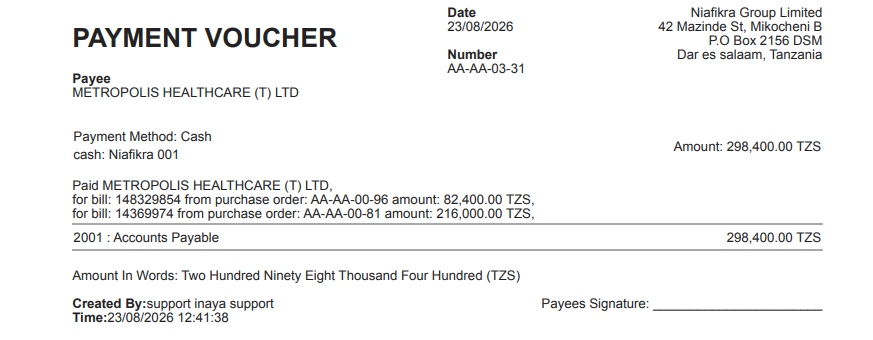
Step 8 — Payment Voucher Generated
After successful payment, a Payment Voucher is generated with a unique voucher number.
6. What Happens After Saving?
SN | Action | Result | Impact |
|---|---|---|---|
1 | Payment Voucher Generated | A payment voucher is created with a unique number | Financial record established |
2 | Vendor Balance Reduced | The vendor's outstanding balance decreases by the payment amount | Accounts payable updated |
3 | Cash Box Balance Reduced | The selected cash box balance decreases by the payment amount | Cash balance updated |
4 | Aging Report Updated | The vendor is removed from the aging report (if fully paid) | Report refreshed |
5 | Audit Trail Created | Complete record of the transaction is logged | Full audit trail established |
6 | Payment Receipt Available | Print or view the payment voucher/receipt | Documentation for records |
Complete Example — Processing Payment for EPIC BUSINESS RESOURCES LTD
Scenario: The finance team needs to pay EPIC BUSINESS RESOURCES LTD for an overdue invoice of 3,750,000.00 TZS that is over 90 days old.
End-to-End Walkthrough
Navigate to Reports → Aging Reports → Payable Aging Report.
Set the "As Of" date to 31/08/2026 to ensure the bill appears in the report.
Review the report and locate EPIC BUSINESS RESOURCES LTD in the > 90 DAYS column with 3,750,000.00 TZS.
Click on the > 90 DAYS column for EPIC BUSINESS RESOURCES LTD.
Select Cash Box: Niafikra 001 from the dropdown.
Review payment details: Name, Bill Date, Amount, Cash.
Click Pay to process the payment.
The system displays: "Payment Voucher Processed Successfully".
Choose Print or Don't Print for the payment voucher.
Before Payment
EPIC BUSINESS RESOURCES LTD: 3,750,000.00 TZS (> 90 DAYS)
Niafikra 001 Balance: 5,000,000.00 TZS
After Payment
EPIC BUSINESS RESOURCES LTD: 0.00 TZS (removed from report)
Niafikra 001 Balance: 1,250,000.00 TZS
Payment Voucher: AA-AA-03-31 created
Vendor record updated
7. Configuration Reference
7.1 Cash Box Settings Affecting Payments
SN | Setting | Purpose | Where to Configure |
|---|---|---|---|
1 | Cash Box Name | Identifies the cash box | Cash Box module |
2 | Opening Balance | Initial cash balance | Cash Box module |
3 | Current Balance | Available cash for payments | Cash Box → Balances |
4 | Currency | Currency of the cash box | Cash Box module |
5 | Status | Active or inactive status | Cash Box module |
7.2 Aging Report Settings Affecting Payments
SN | Setting | Purpose | Where to Configure |
|---|---|---|---|
1 | As Of Date | Cutoff date for bill inclusion | Report header |
2 | Aging Periods | Time buckets (0-30, 31-60, etc.) | System configuration |
3 | Vendor Filter | Filter by vendor name | Search bar |
4 | Currency Filter | Filter by currency | Report header |
8. Common Problems and Solutions
Troubleshooting
Vendor not showing in report — Error: Vendor missing from aging report. Cause: "As Of" date is before bill creation date. Solution: Set "As Of" date to the end of the month when the bill was created (e.g., if bill was in August, set to 31/08/2026).
Error when clicking column — Error: "There are no entries to process payment for 31 - 60 Days". Cause: Clicked on the wrong aging category (e.g., clicked 0-30 DAYS when the amount is in 31-60 DAYS). Solution: Click on the specific aging column where the amount appears.
Insufficient balance error — Error: "CashBox doesn't have enough balance to make payment". Cause: Selected cash box has insufficient funds. Solution: Select a different cash box, top up the cash box, or use an alternative payment method.
Cannot see Pay button — Pay button not visible in the payment dialog. Cause: User does not have payment processing permission. Solution: Contact system administrator to grant payment processing permission.
Payment voucher not generated — Voucher missing after successful payment. Cause: System error or network interruption. Solution: Check "Invoice Payments" report to verify if payment was recorded. If not, reprocess payment.
Amount mismatch — Payment amount does not match the bill amount. Cause: Partial payment or bill not fully matched to purchase order. Solution: Verify bill details in "Billing Documents → Invoices" before processing payment.
9. Quick Reference
10. Checklist Before Processing Payment
☐ | Check |
|---|---|
☐ | Goods have been received from the vendor |
☐ | Vendor bill/invoice has been entered into the system |
☐ | "As Of" date is set to the correct month (end of month when bill was created) |
☐ | Vendor appears in the correct aging category |
☐ | Clicked on the correct aging column (where the amount appears) |
☐ | Selected cash box has sufficient balance |
☐ | Cash box balance is greater than or equal to the payment amount |
☐ | Withholding tax (WHT) options are correctly applied (if applicable) |
☐ | User has payment processing permission |
10.1 Quick Step Reference
Payment Processing at a Glance
Navigate to Reports → Aging Reports → Payable Aging Report.
Set the "As Of" date to the end of the month when the bill was created.
Locate the vendor you want to pay in the report.
Click on the aging column where the amount appears for that vendor.
Select the cash box to use for payment.
Review all payment details (vendor, date, amount, cash box balance).
Apply WHT if applicable (Rent WHT 10% or WHT 5%).
Click Pay to process the payment.
Confirm payment was successful and voucher was generated.
Choose Print or Don't Print for the payment voucher.
10.2 Key Terms
SN | Term | Definition |
|---|---|---|
1 | Payable Aging Report | Report showing vendor payables categorized by age of debt (0-30, 31-60, 61-90, >90 days) |
2 | As Of Date | The cutoff date used to determine which bills appear in the aging report |
3 | Aging Categories | Time periods: 0-30 DAYS, 31-60 DAYS, 61-90 DAYS, and >90 DAYS |
4 | Cash Box | Physical or virtual cash account used to make payments |
5 | Payment Voucher | Official document recording a payment transaction with a unique number |
6 | Withholding Tax (WHT) | Tax deducted at source from certain types of payments (5% or 10% for rent) |
7 | Purchase Order (PO) | Document authorizing the purchase of goods or services from a vendor |
8 | Accounts Payable | Money owed to vendors for goods or services received |
9 | Vendor | Supplier or service provider to whom payment is due |
10 | Goods Receipt | Process of accepting and recording delivered goods into the facility |