How to Create and Manage Purchase Orders
1. Overview
Purchase Order (PO)
A Purchase Order (PO) is a legally binding commercial document issued by a buyer to a vendor. It specifies the types, quantities, and agreed prices of products or services being ordered and serves as the official contract that initiates the procurement process.
Navigation Path:
Key concepts covered in this guide:
Creating a new Purchase Order for goods.
Understanding PO lifecycles and payment statuses.
Receiving items against a PO (including batch and expiry logging).
Tracking quantities: Pending, Received, Accepted, and Returned.
Purchase Order Lifecycle Flow
2. Why Is Purchase Order Management Important?
Proper PO management keeps procurement transparent, spending under control, and inventory accurate.
Benefit | Description |
|---|---|
Legal & Financial Control | Creates a formal, auditable record of what was ordered, from whom, and at what cost. |
Spend Visibility | Prevents unauthorised purchases by requiring documented orders. |
Inventory Accuracy | Tracks expected deliveries and matches them to actual receipts. |
Receiving Efficiency | Provides receiving staff with clear quantities and batch requirements. |
Invoice Reconciliation | Links vendor invoices to original orders for accurate payment processing. |
Audit Trail | Every status change and receiving action is logged for compliance. |
3. Requirements to Create and Process a Purchase Order
Requirement | Description |
|---|---|
Vendor Record | The supplier must already exist in Inaya (see Vendor guide). |
Inventory Items | All ordered items must be set up in the system. |
User Permissions | User must have access to create POs, receive goods, and update statuses. |
Store Configuration | Receiving stores must be configured and active. |
Unit of Measure | Items must have defined inventory units (e.g., Tablet, Bottle). |
Batch/Expiry Tracking (if used) | Batch and expiry fields must be enabled for relevant items. |
4. Scenarios and Examples
Scenario 1: Creating a PO for Pharmaceutical Items
The procurement officer orders VITAMIN B COMPLEX tablets from INAYA PHARMACY LIMITED.
Vendor: INAYA PHARMACY LIMITED
Item: VITAMIN B COMPLEX
Unit: Tablet
Quantity ordered: 1 (example)
PO Status: Draft → Waiting Delivery
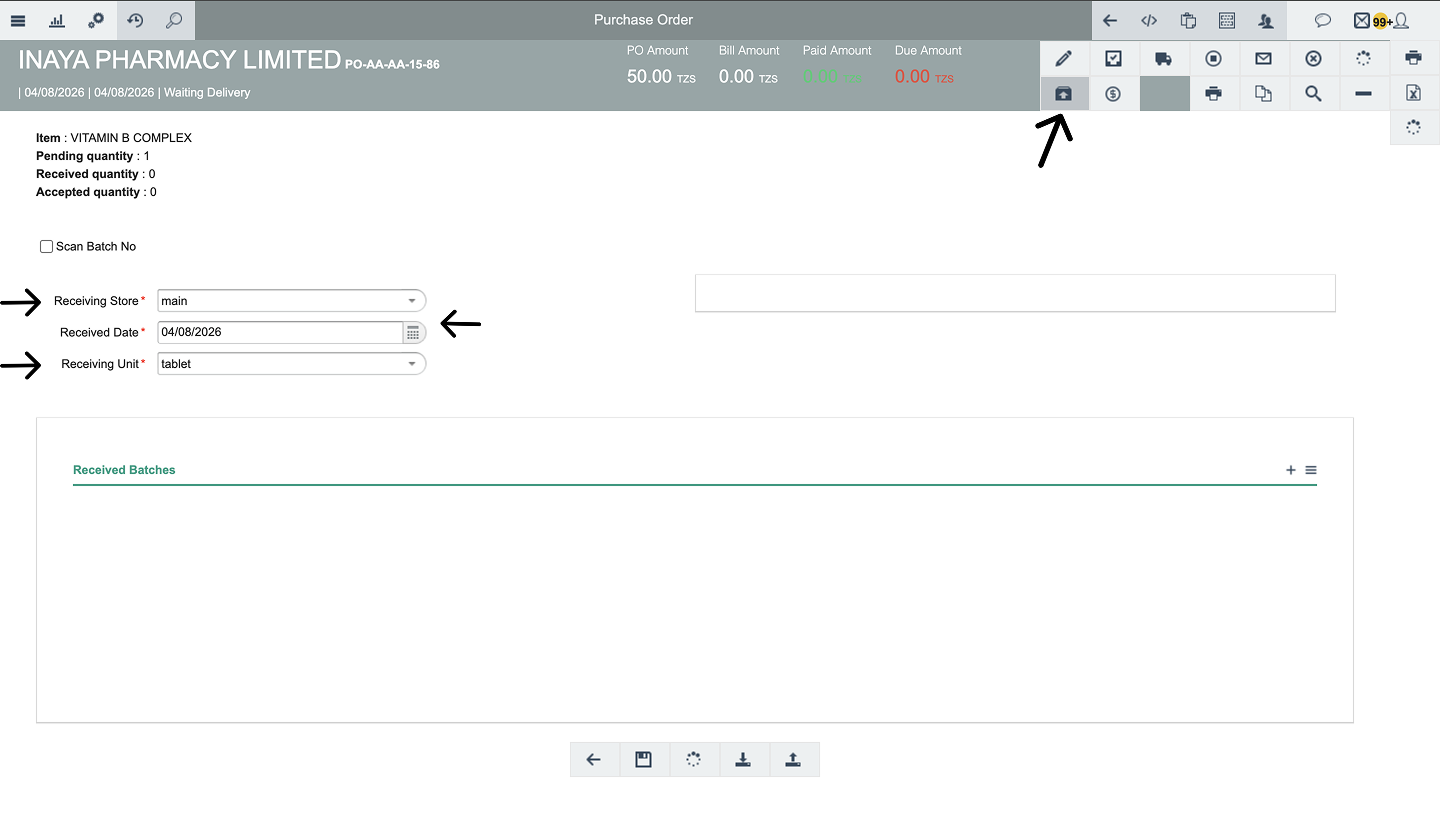
Scenario 2: Receiving Goods Against a PO
When the shipment arrives, the receiving officer inspects the delivery and records:
Store: main
Delivery Date: 04/08/2026
Batch: 3454654
Quantity accepted: 1
Expiry Date: 01/08/2030
PO Status after saving: Completely Delivered
PO and Payment Statuses
PO Status | Description | Payment Status | Meaning |
|---|---|---|---|
Draft | PO is being prepared; items can be added or modified. | Not Billed | Goods received but no vendor invoice registered against the PO yet. |
Waiting Delivery | PO has been approved and sent to the vendor; goods are awaited. | Billed | Invoice received and entered; awaiting payment. |
Completely Delivered | All ordered items have been received, inspected, and accepted into stock. | Partially Paid | A portion of the invoice has been settled. |
Paid | Full invoice amount has been paid. |
5. Step-by-Step Guide
The process is divided into two parts: A. Creating a Purchase Order and B. Receiving Items (Goods Receipt).
Part A: Create a New Purchase Order
Step 1: Navigate to Purchase Orders
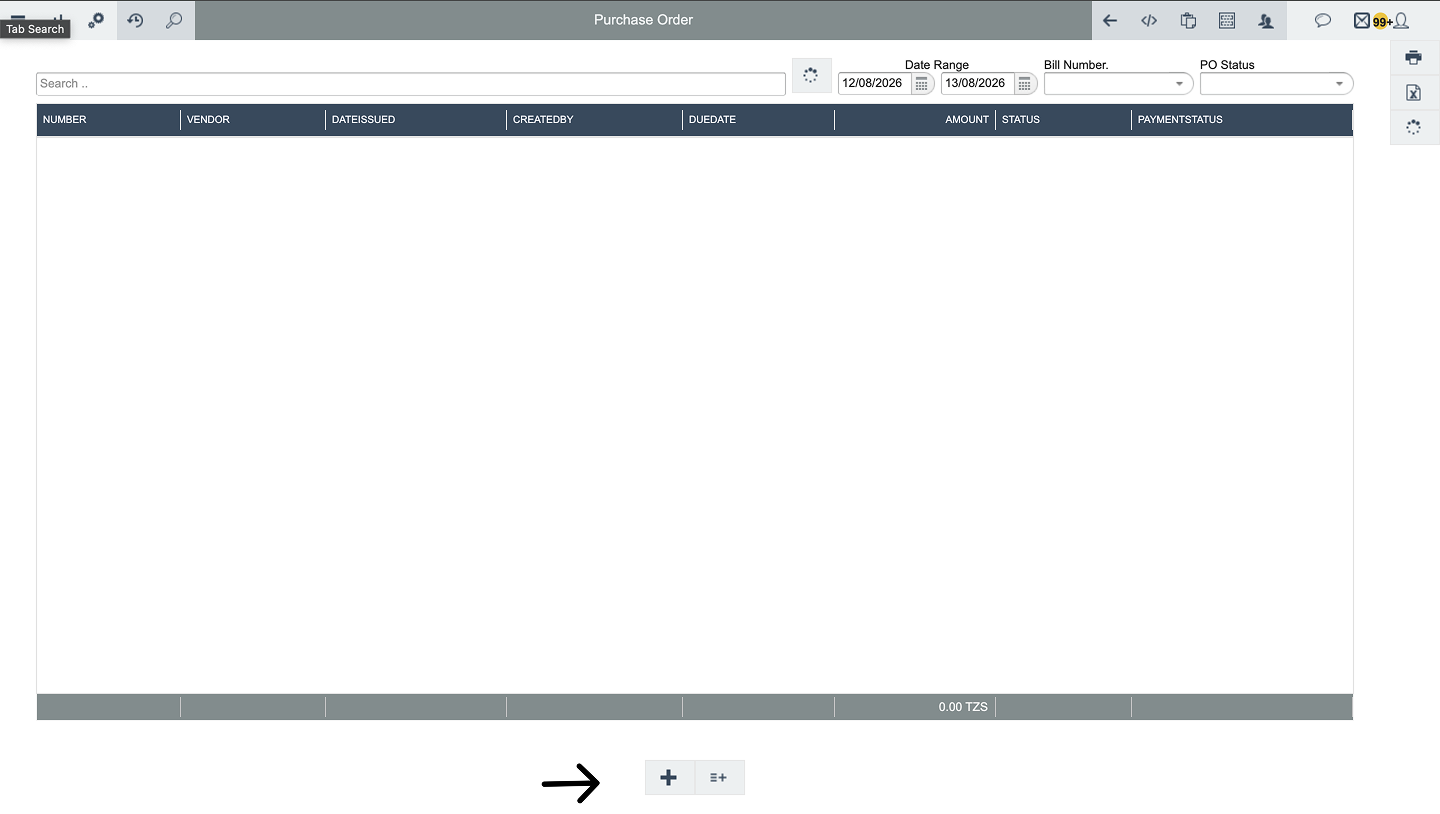
Go to Main Menu → Finance → Purchase → Purchase Orders.

Step 2: Initiate a New PO
Click the plus (+) icon to start a new order. Select Goods as the order type (for physical items).
Step 3: Select the Vendor
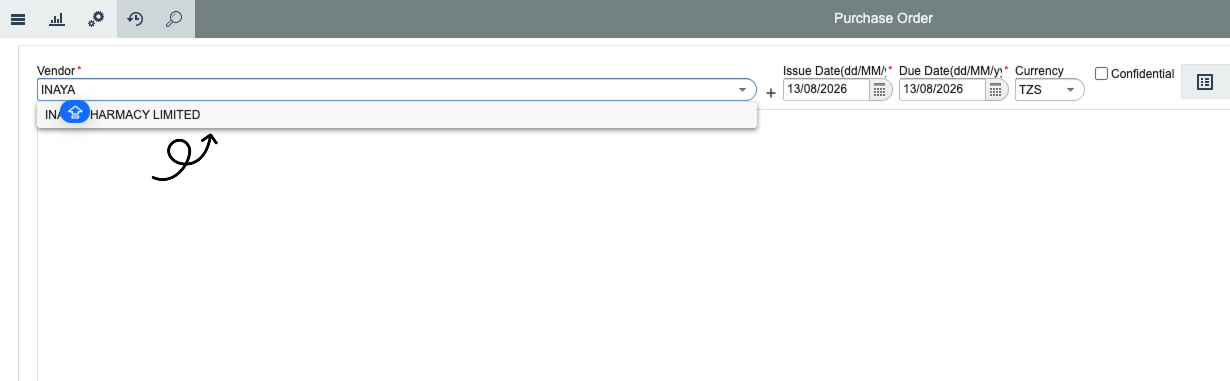
Choose the supplier from the vendor list, e.g., INAYA PHARMACY LIMITED. in number 1
Step 4: Add Line Items
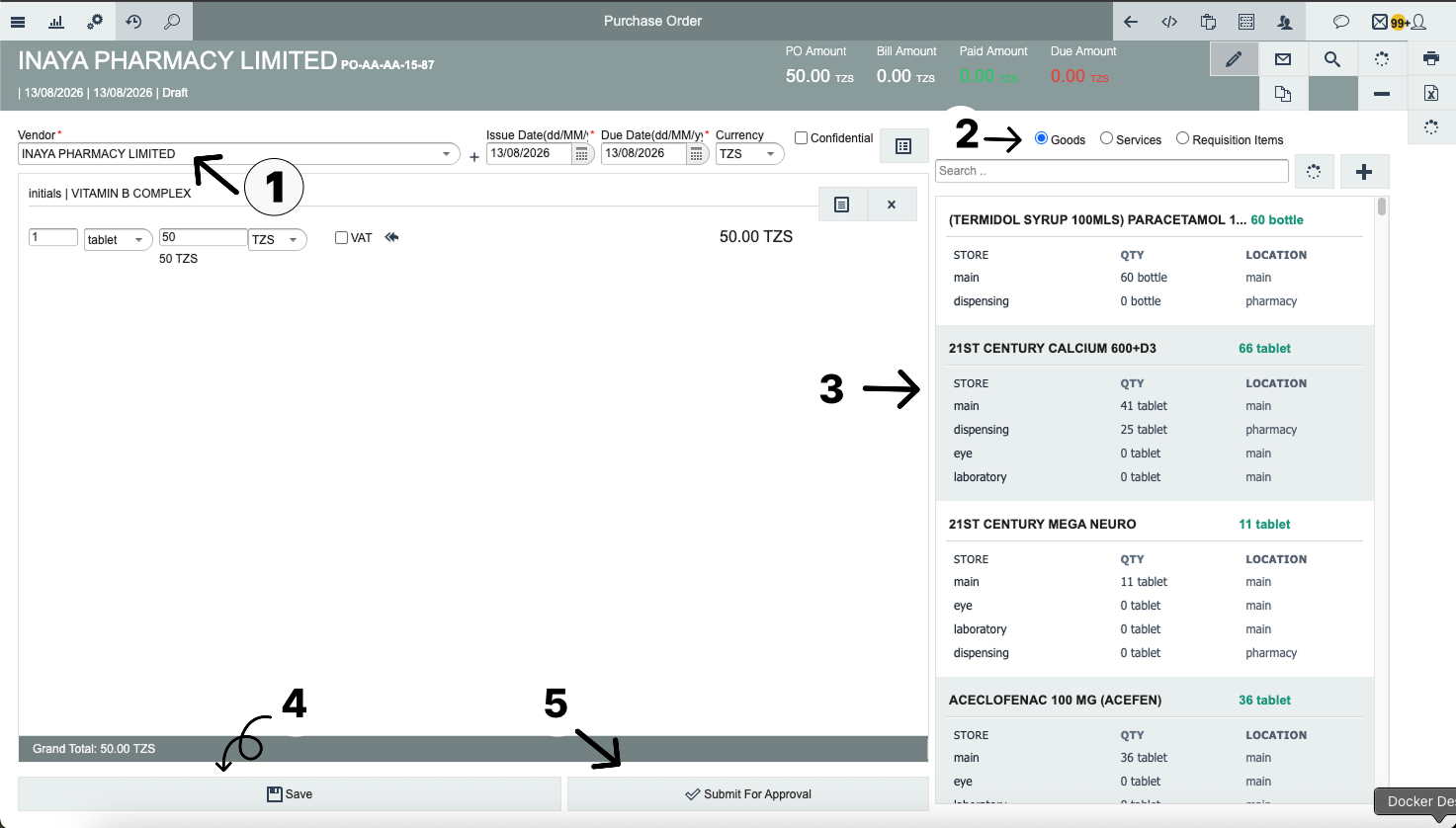
Search for and select the item (e.g., VITAMIN B COMPLEX). -Then tap on the line items area to add goods on the left it will be added automatically to the main
Enter the quantity required .g., 1).
Verify the unit of measure (e.g., Tablet).
Confirm or enter the agreed unit price.
You can repeat by add multiple items as you want.
Step 5: Save as Draft and Submit
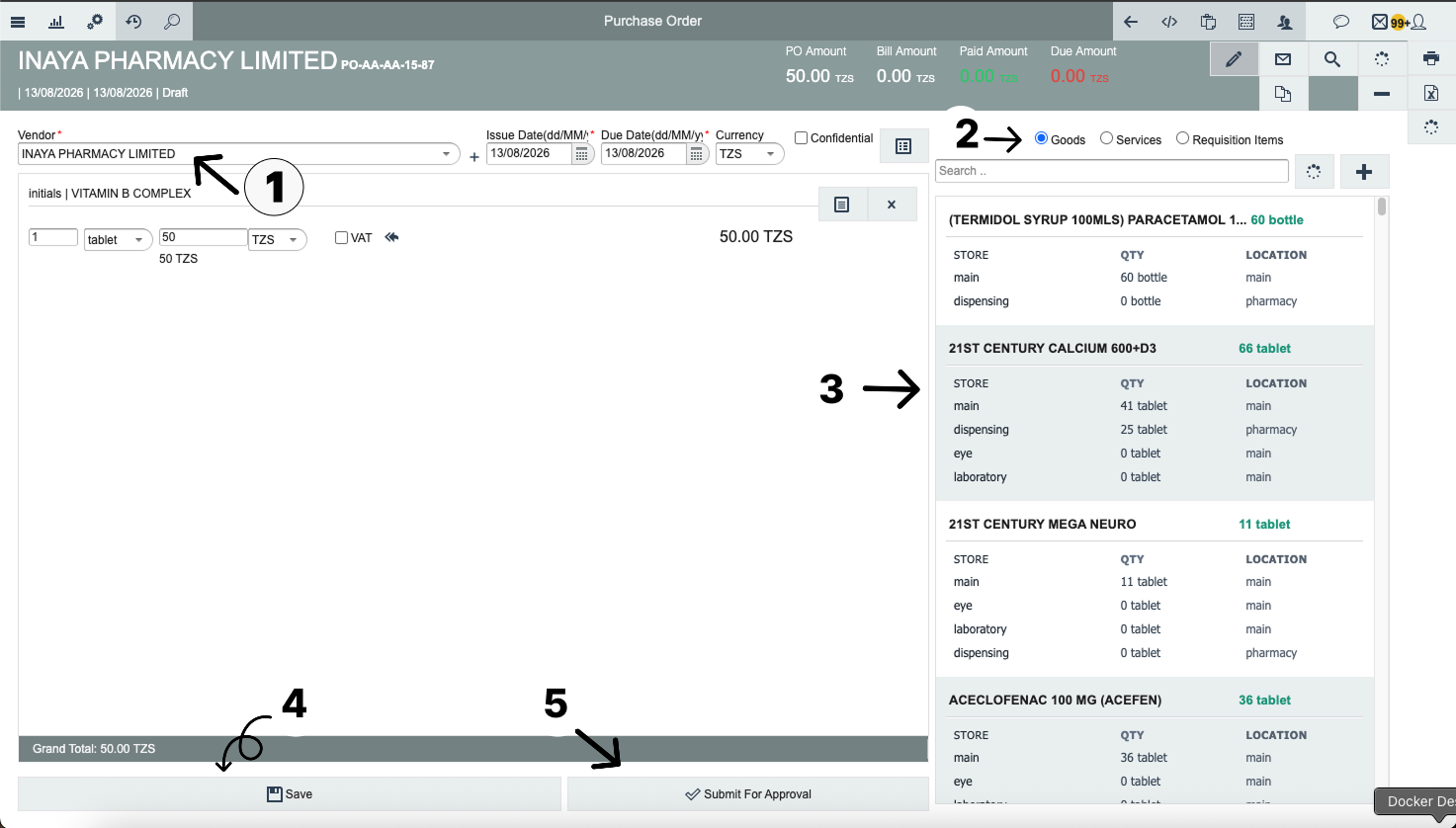
Review the order details. The PO will be saved with the status Draft. When ready, submit it for approval. Once approved, the status changes to Waiting Delivery.
8. What Happens After Saving?
After Creating a PO
Event | Outcome |
|---|---|
PO Created (Draft) | PO visible in list; items and vendor locked but editable. |
PO Submitted | Status becomes Waiting Delivery; vendor can be notified. |
Audit Trail | Creation and submission timestamps logged with user details. |
After Receiving Goods
Event | Outcome |
|---|---|
Inventory Updated | Accepted quantity added to the selected store’s stock. |
PO Status Updated | Changes to Completely Delivered if all pending items are accepted. |
Batch/Expiry Stored | Batch number and expiry date linked to stock for traceability. |
Payment Status | Remains Not Billed until an invoice is recorded against the PO. |
Audit & Movement Log | Full receiving details recorded for financial and inventory audits. |
9. Configurations
Configuration | Recommendation |
|---|---|
PO Approval Workflow | Enable approval steps before a PO moves from Draft to Waiting Delivery. |
Default Pricing | Preload vendor-specific prices to avoid manual entry errors. |
Batch/Expiry Mandatory | Require batch numbers and expiry dates for pharmaceuticals and perishables. |
Over-Receiving Tolerance | Set limits for how much extra quantity can be accepted beyond the ordered amount. |
User Permissions | Separate roles for PO creation, approval, and goods receipt. |
Automatic Status Update | Configure the system to auto-set Completely Delivered when received equals ordered. |
Notification Triggers | Alert relevant users when a PO is awaiting delivery or when goods are received. |
10. Common Problems and Solutions
No. | Problem | Possible Cause | Solution |
|---|---|---|---|
1 | Vendor not appearing in PO creation | Vendor record not active or missing | Ensure vendor exists in Vendors module and is active. |
2 | Wrong unit selected | Unit mismatch with item configuration | Select the unit that matches the inventory unit of measure. |
3 | Received quantity exceeds ordered | Over-receiving tolerance not set | Return the excess or adjust PO; configure tolerance if needed. |
4 | Batch/expiry not editable | Item not flagged for batch tracking | Enable batch tracking in item configuration before receiving. |
5 | PO status remains “Waiting Delivery” | Purchase order not yet received from the system | Receive the remaining quantity or close the PO manually. |
6 | Payment status stuck at “Not Billed” | Invoice not yet entered against the PO | Navigate to the billing/invoice module and link the vendor invoice. |
11. Best Practices
1. Always Use a PO for Significant Purchases
This creates a clear paper trail and protects against unauthorised spending.
2. Keep POs in Draft Until Final
Double-check items, quantities, and pricing before submitting.
3. Inspect Goods Thoroughly on Receipt
Physically verify quantities, check for damage, and match batch/expiry details before entering data.
4. Log Batch and Expiry Immediately
Enter batch information during receiving to ensure stock traceability and avoid later data cleanup.
5. Reconcile Received vs. Accepted
Never accept damaged or expired items into inventory—record them as Return Quantity.
6. Complete Receipts Promptly
Avoid leaving POs in Waiting Delivery status indefinitely; this skews pending stock reports.
7. Link Invoices to POs
For accurate financials, always attach vendor bills to the corresponding PO.
8. Review Purchase Reports Regularly
Monitor PO statuses, pending deliveries, and over/under-receiving trends.
Quick Reference
Step | Action |
|---|---|
1 | Navigate to Finance → Purchase → Purchase Orders. |
2 | Click + and select Goods to create a new PO. |
3 | Select the vendor (e.g., INAYA PHARMACY LIMITED). |
4 | Add item(s), quantity, and unit (e.g., VITAMIN B COMPLEX, 1 Tablet). |
5 | Save as Draft; submit for approval → status: Waiting Delivery. |
6 | On delivery: filter and open the PO. |
7 | Review Pending vs. Accepted quantities. |
8 | Enter store, date, batch (3454654), qty accepted, expiry (01/08/2030). |
9 | Save receipt → inventory updated, status: Completely Delivered. |
10 | Later, link vendor invoice to update payment status. |