How to process a payment for a specific Purchase Order (PO)
1. Overview
The Payment Processing module in Inaya allows you to make payments directly from a Purchase Order (PO) after a bill has been recorded and approved. This feature provides a streamlined way to settle vendor invoices directly from the PO without navigating through multiple reports. You can process payments using various payment methods including cash, bank transfers, or mobile money, with full support for withholding tax (WHT) deductions and payment voucher generation.
2. Why Is It Important to Process Payments for Specific Purchase Orders?
Aspect | Importance |
|---|---|
Direct Payment | Process payments directly from the PO without navigating through multiple reports |
Payment Accuracy | Ensure payments are made against the correct PO and vendor |
Multiple Payment Methods | Support for cash, bank transfers, mobile money, and POS payments |
Withholding Tax Management | Apply WHT (5% or 10%) directly during payment processing |
Audit Trail | Complete record of payment with transaction IDs and voucher numbers |
Real-time Status Updates | Payment status updates instantly from "Not Paid" to "Fully Paid" |
3. Requirements Before You Start
Prerequisites Checklist
Purchase Order: A Purchase Order must exist and be approved. Study how to create a purchase order for details.
Bill Recorded: A bill must be recorded against the PO. Study how to record a bill for a PO for details.
Bill Approved: The bill must be approved. Study purchase order approval for details.
Payment Method Setup: Payment methods must be configured (Cash, Bank Accounts, Mobile Money, POS).
Sufficient Balance: The selected payment method must have sufficient balance to cover the payment.
Transaction ID (if applicable): For non-cash payments, you must have the transaction ID/reference number.
User Permissions: The user performing the transaction must have permission to process payments.
4. Scenarios and Examples
Scenario 1 — Processing Payment Using Cash Box (Insufficient Balance)
Field | Value |
|---|---|
Vendor | KAIRUKI PHARMACEUTICALS INDUSTRY LIMITED |
PO Number | AA-AA-02-13 |
PO Amount | 836,000.00 TZS |
Payment Method | Cash |
Cash Balance | 1.00 TZS |
Result | ❌ FAILS — Insufficient Balance |
Context: The user attempts to pay using a cash box with only 1.00 TZS balance. The system displays an error message: "CashBox doesn't have enough cash to make payment."
Scenario 2 — Processing Payment Using Bank Transfer (Successful)
Field | Value |
|---|---|
Vendor | KAIRUKI PHARMACEUTICALS INDUSTRY LIMITED |
PO Number | AA-AA-02-13 |
PO Amount | 836,000.00 TZS |
Payment Method | LIPA NMB (Bank Transfer) |
Bank Balance | 91,951,080.23 TZS |
Transaction ID | bill123HTK |
Result | ✅ SUCCESS — Payment Voucher Generated |
Context: The user selects LIPA NMB as the payment method with sufficient balance. The system requires a Transaction ID for reconciliation. After entering the Transaction ID and clicking Pay, the payment is successful.
5. Step-by-Step Guide: Processing Payment for a Specific Purchase Order
Step 1 — Navigate to Purchase Orders
Open the Main Menu from the sidebar.
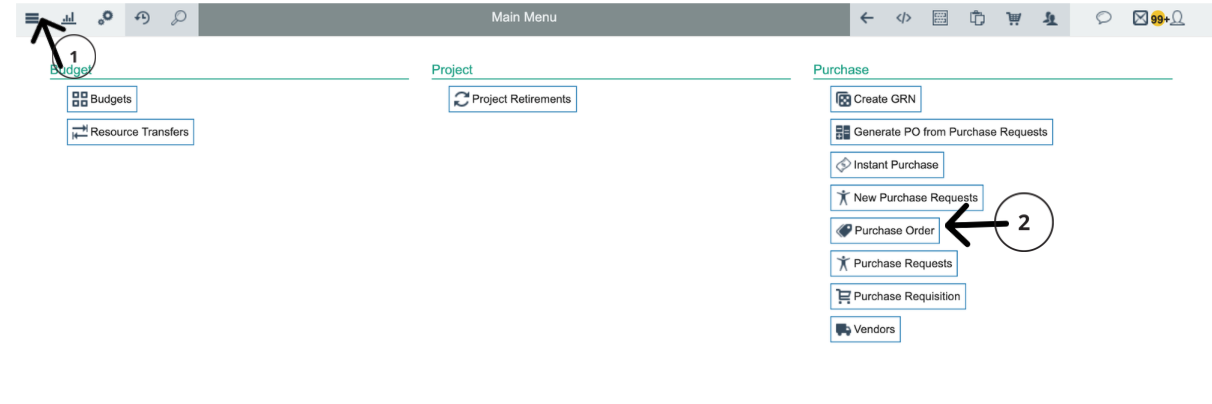
Scroll down to Purchase, then select Purchase Order to open the Purchase Orders page.
Alternatively, click the Search icon in the top-left corner, type
Purchase Orderinto the search box, and select Purchase Order from the results.
Step 2 — Locate the PO with 'Not Paid' Status
In the Purchase Orders list, examine the Payment Status column.
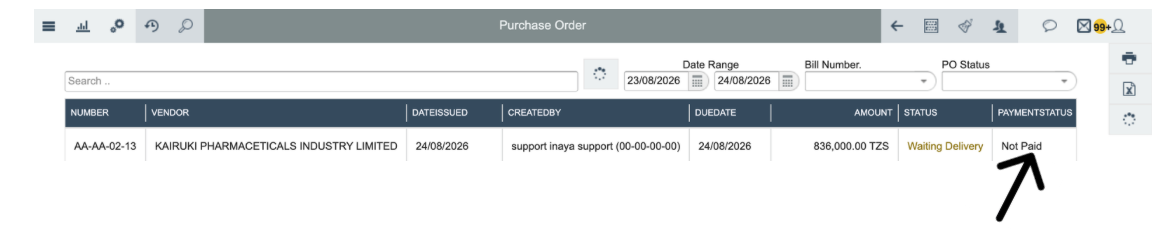
Look for the PO with Payment Status = "Not Paid". This means a bill exists but payment has not been made yet.
Example: PO Number AA-AA-02-13 for KAIRUKI PHARMACEUTICALS INDUSTRY LIMITED with amount 836,000.00 TZS and Payment Status = "Not Paid".
Step 3 — Open the Purchase Order
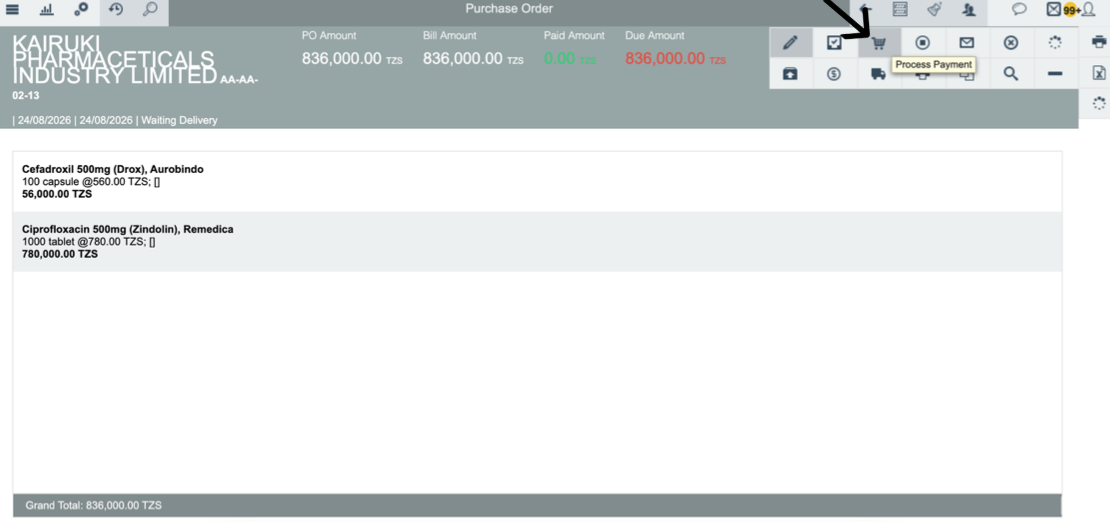
Click on the Purchase Order number (e.g., AA-AA-02-13) to open its details.
The PO details page displays:
PO Amount: 836,000.00 TZS
Bill Amount: 836,000.00 TZS
Paid Amount: 0.00 TZS
Due Amount: 836,000.00 TZS
Click the Process Payment button to start the payment process.
Step 4 — Click Plus/Add to Start Payment
After clicking Process Payment, the payment section will open.
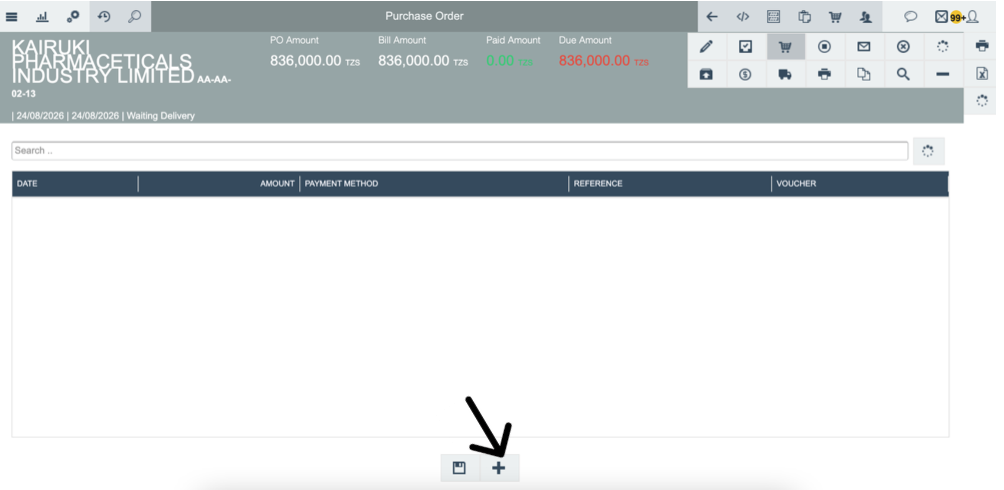
Click the + (Plus) or Add button to start entering payment details.
Step 5 — Enter Payment Details and Click Save
The payment entry screen will appear.
Enter the following information:
Amount: 836,000 TZS (the amount to pay)
Payment Method: Select from available options
Click Save to proceed to the payment confirmation screen.
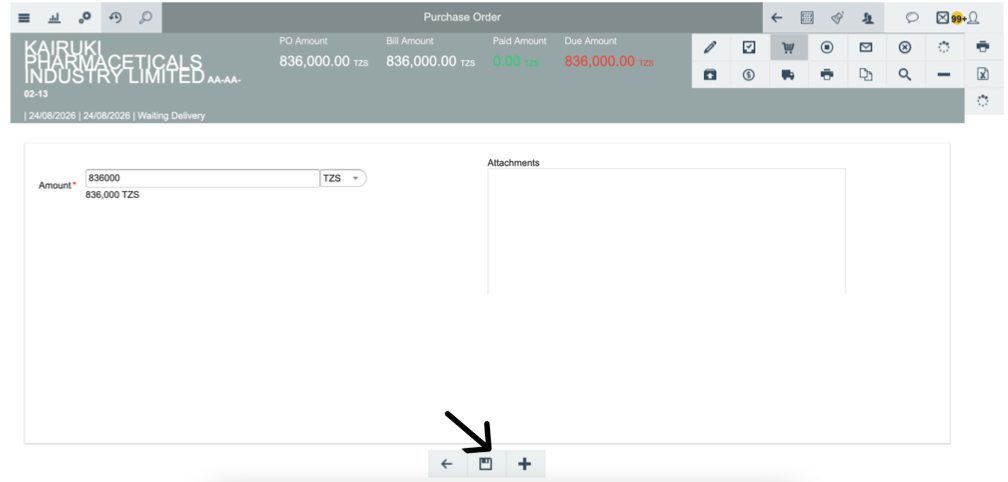
Step 6 — Payment Confirmation Screen
After clicking Save, the payment confirmation screen will appear.
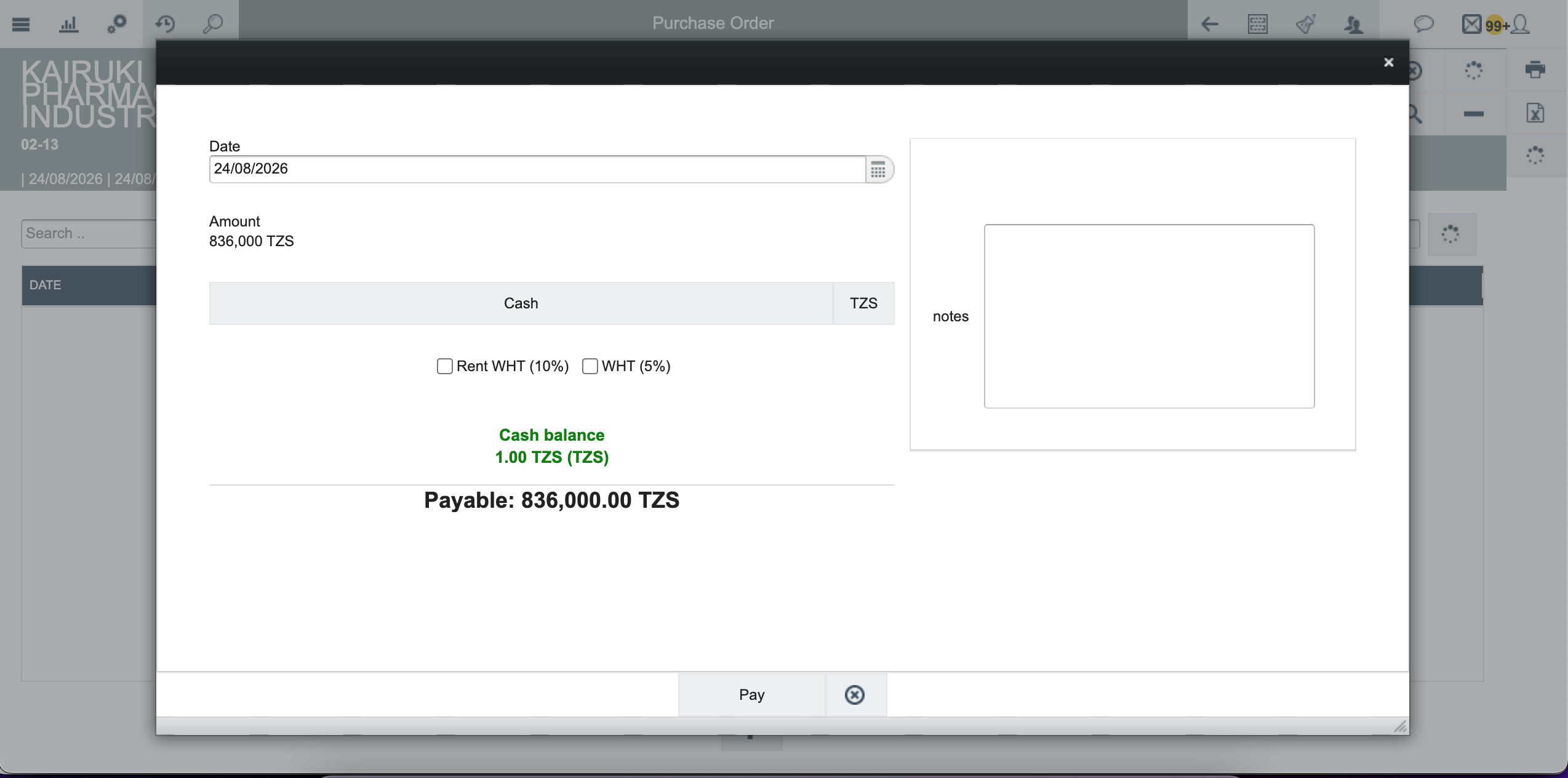
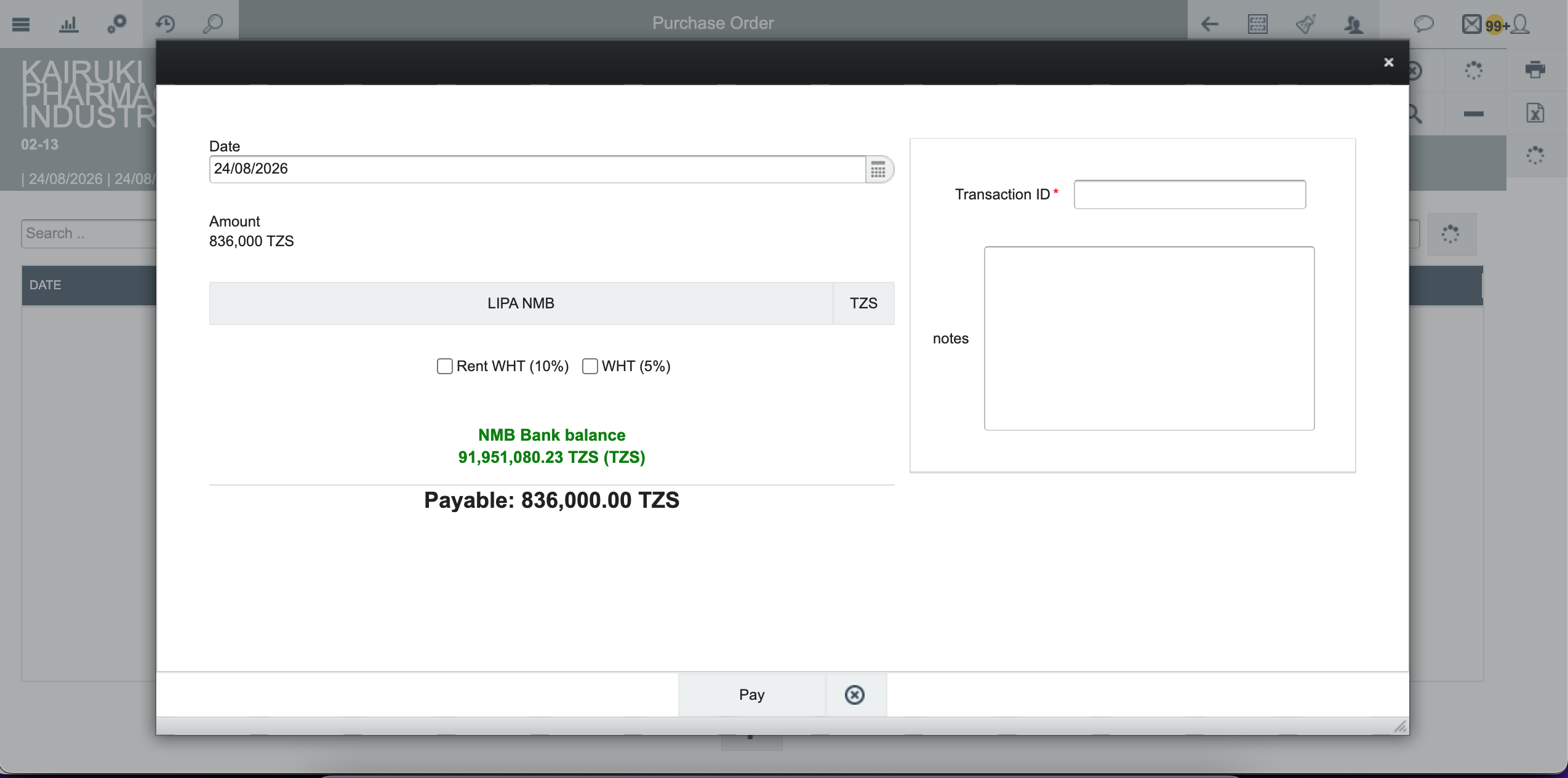
The payment screen displays:
Date: 24/08/2026
Amount: 836,000 TZS
Cash balance: 1.00 TZS (balance of selected payment method)
Payable: 836,000.00 TZS
If applicable, select withholding tax (WHT) options:
Rent WHT (10%): For rental payments
WHT (5%): For standard withholding tax
You can also add Notes to the payment for future reference.
Step 7A — Payment Fails: Insufficient Balance
If the selected payment method has insufficient balance and you click Pay:
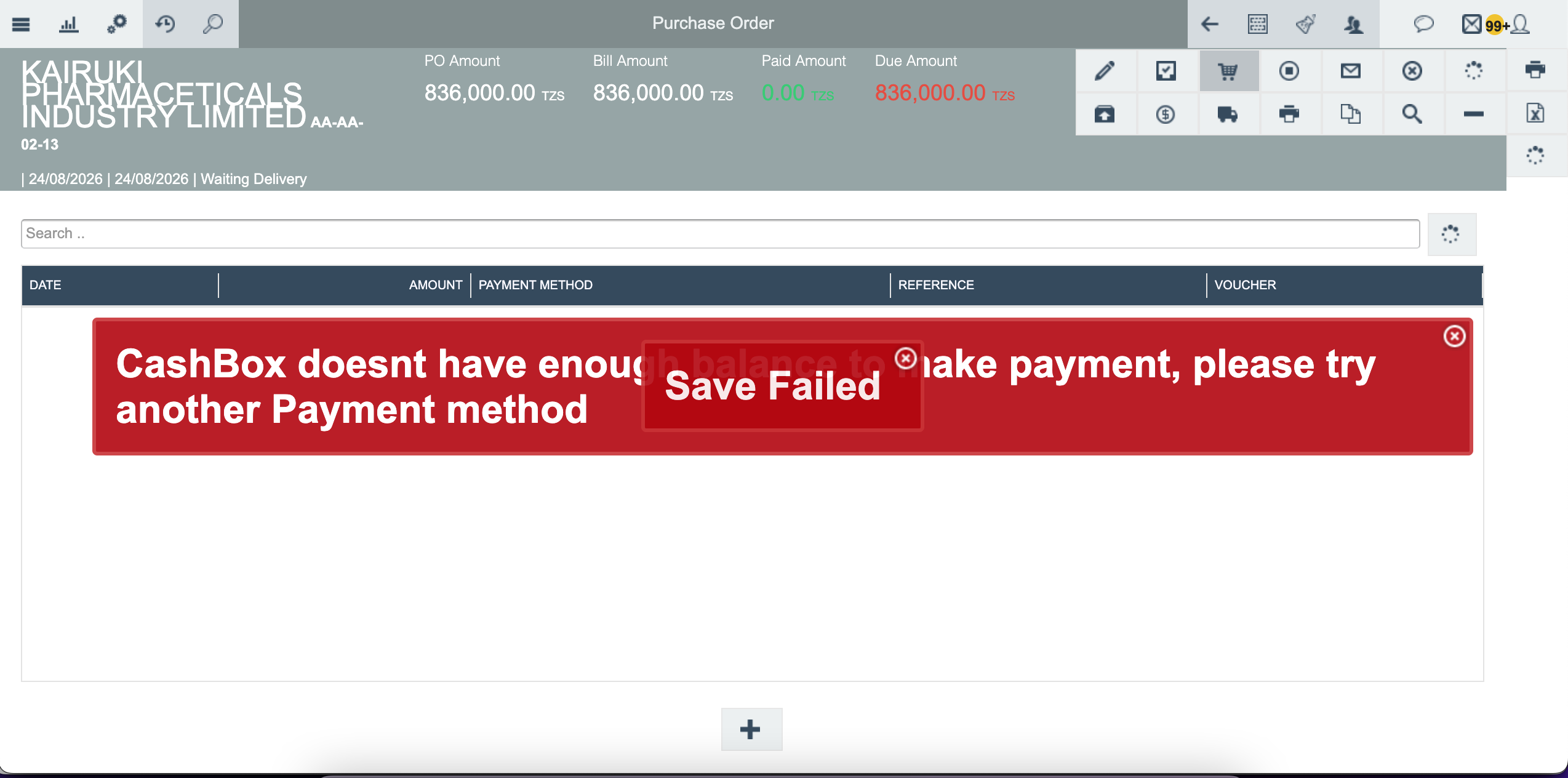
Solution: Close the error message and select a different payment method with sufficient balance.
Step 7B — Select Alternative Payment Method
Close the error and change the payment method to one with sufficient balance.
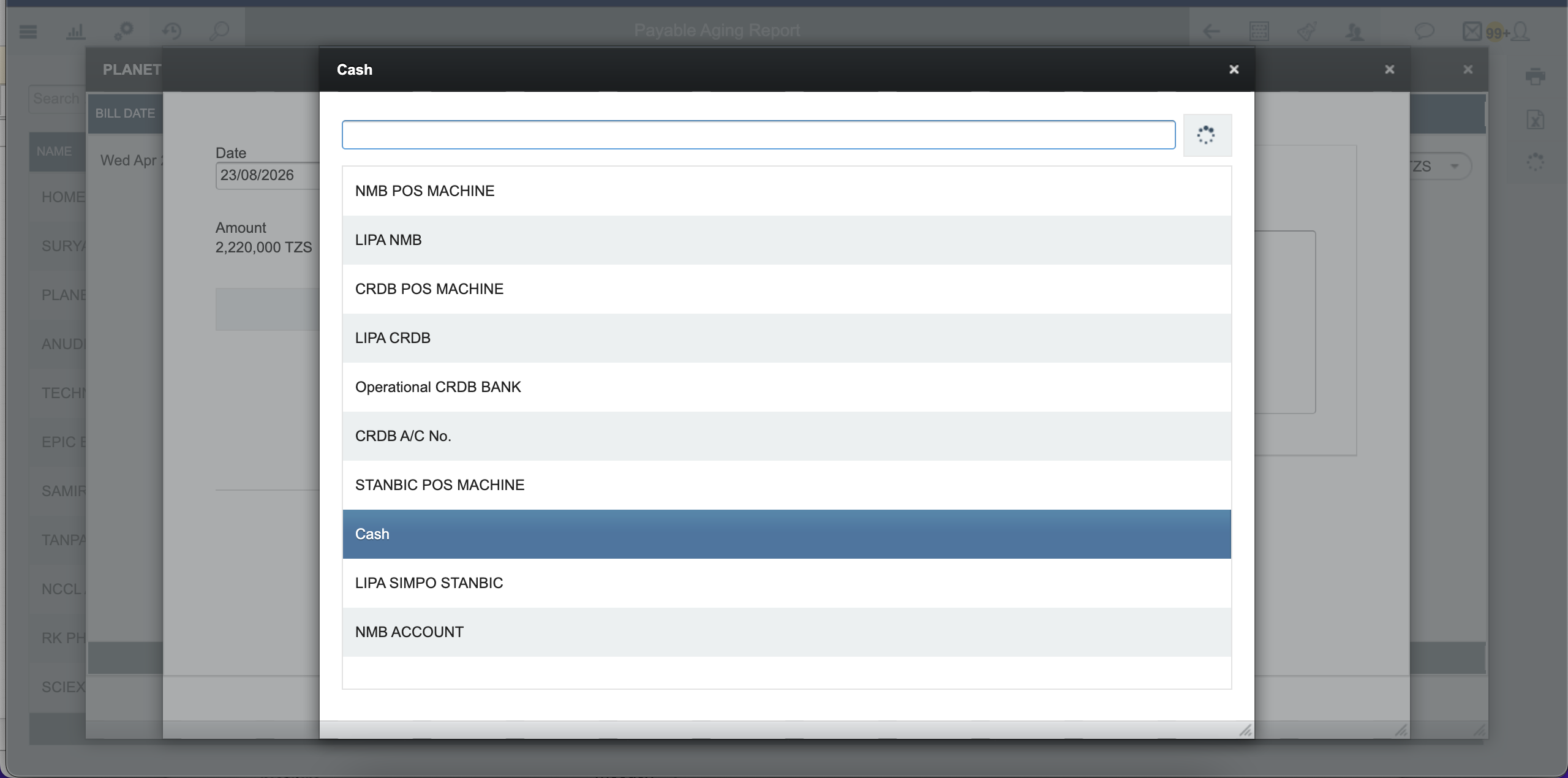
Example: Select LIPA NMB with balance 91,951,080.23 TZS which is sufficient for the 836,000.00 TZS payment.
Step 8 — Enter Transaction ID (For Non-Cash Payments)
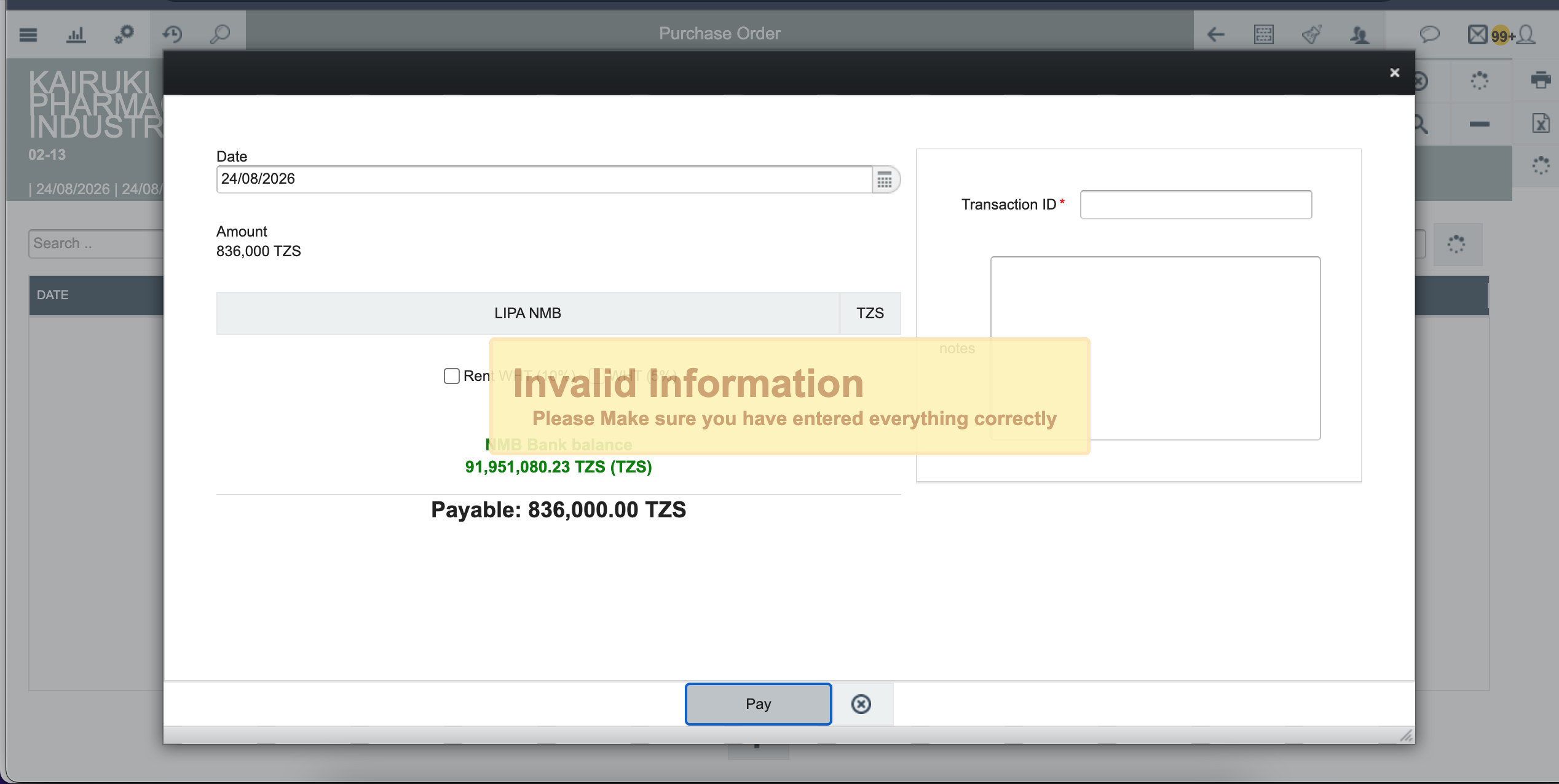
When using a non-cash payment method (Bank, Mobile Money, POS), you MUST enter a Transaction ID.
The Transaction ID is the reference number from your bank, mobile money, or POS transaction. This is essential for future reconciliation.
Example: Enter
bill123HTKas the Transaction ID.
Step 9 — Process Payment
After selecting the payment method and entering the Transaction ID, click the Pay button.
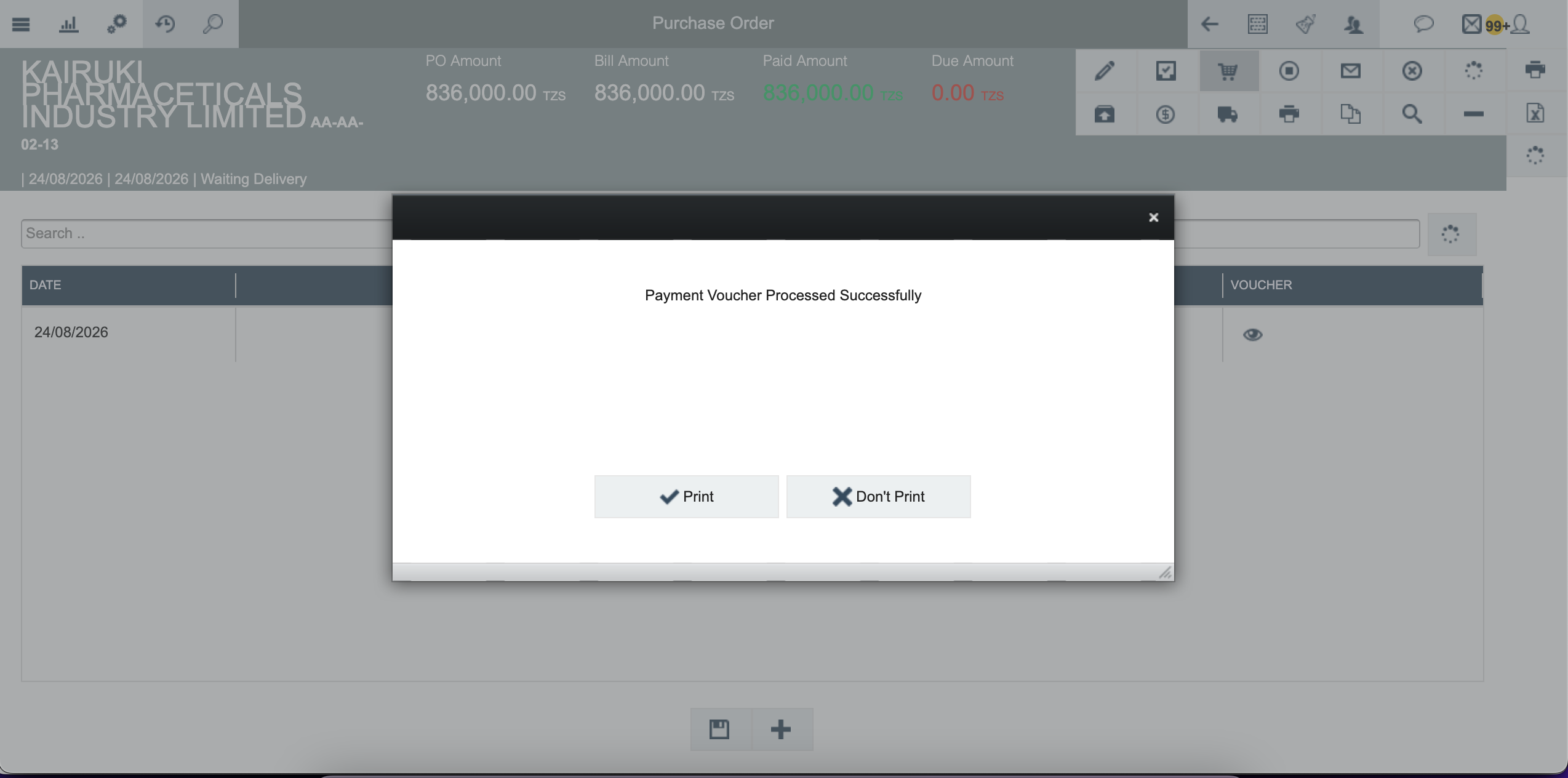
The system processes the payment and displays a confirmation message:
"Payment Voucher Processed Successfully"
Step 10 — View and Print Payment Voucher
After successful payment, you can choose to:
Print: Click Print to print the payment voucher
Don't Print: Click Don't Print to skip printing
The payment voucher appears in the payment history.
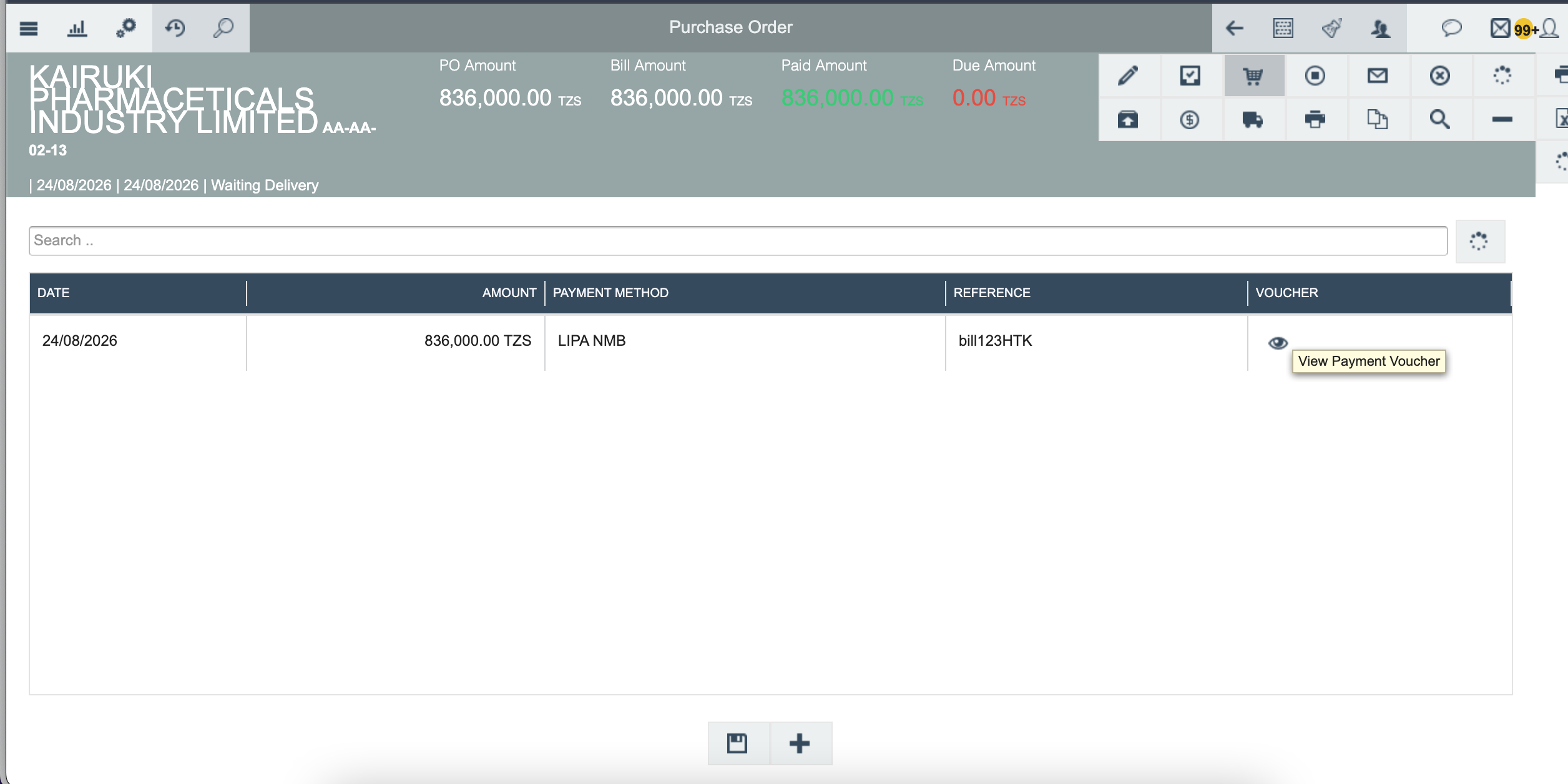
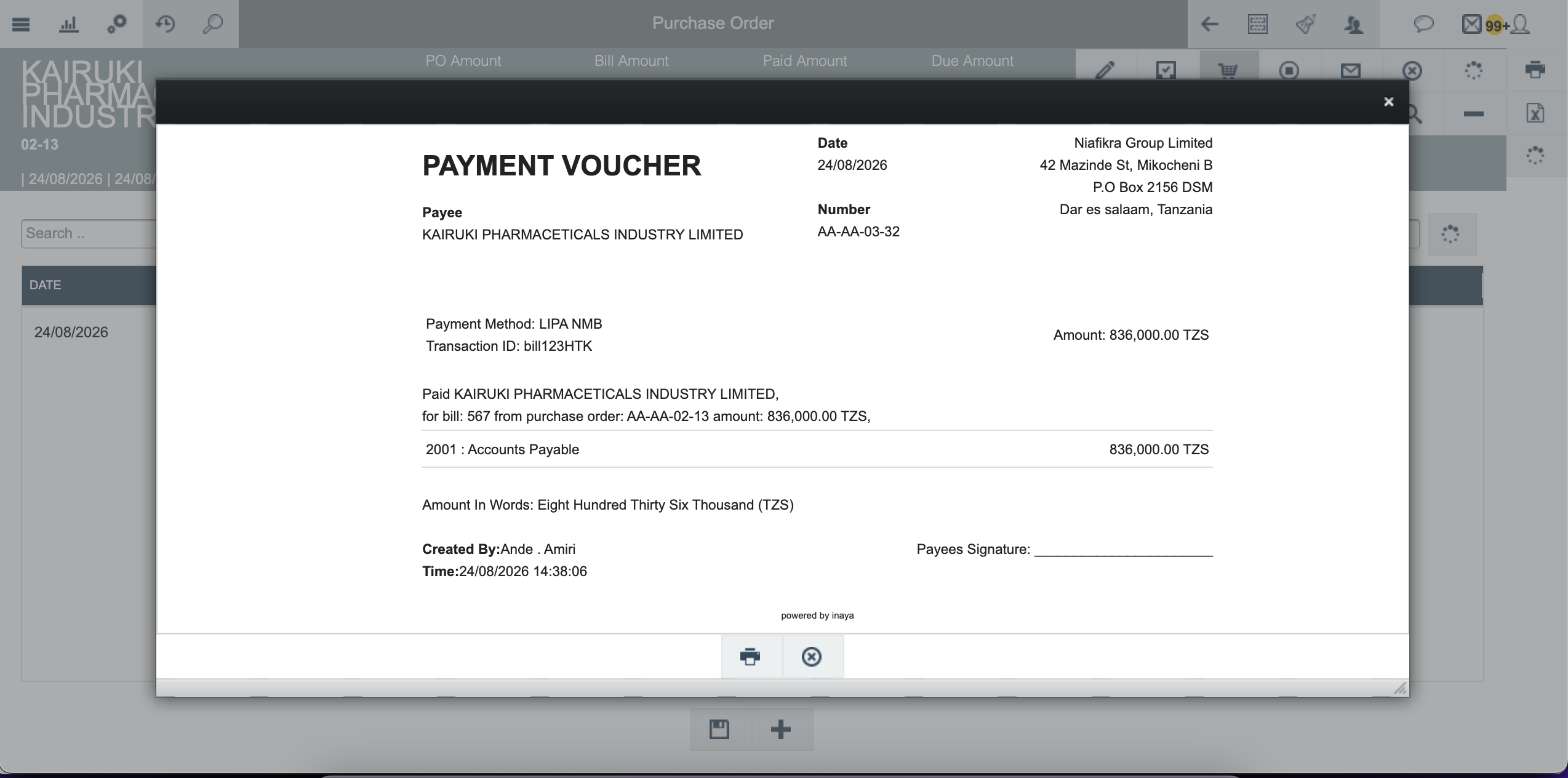
Click View Payment Voucher to see the complete voucher details.
Step 11 — Verify Payment Status Updated
Return to the Purchase Orders list to verify the payment status has been updated.

The Payment Status has changed from "Not Paid" to "Fully Paid".
6. What Happens After Saving?
SN | Action | Result | Impact |
|---|---|---|---|
1 | Payment Voucher Generated | A payment voucher is created with a unique number | Financial record established |
2 | PO Paid Amount Updated | Paid Amount changes from 0.00 to 836,000.00 TZS | Payment recorded against PO |
3 | Due Amount Updated | Due Amount changes from 836,000.00 to 0.00 TZS | No outstanding balance |
4 | Payment Status Updated | Payment Status changes from "Not Paid" to "Fully Paid" | PO payment complete |
5 | Payment Method Balance Reduced | The selected payment method balance decreases | Cash/Bank balance updated |
6 | Audit Trail Created | Complete record of the transaction is logged | Full audit trail established |
Complete Example — Processing Payment for KAIRUKI PHARMACEUTICALS INDUSTRY LIMITED
Scenario: KAIRUKI PHARMACEUTICALS INDUSTRY LIMITED has a PO (AA-AA-02-13) with a recorded bill of 836,000.00 TZS. The company needs to process payment using LIPA NMB bank transfer.
End-to-End Walkthrough
Navigate to Purchase → Purchase Order.
Search for PO AA-AA-02-13 with Payment Status = "Not Paid".
Click on the PO number to open details.
Click Process Payment.
Click the + (Plus) button to add payment.
Enter Amount: 836,000 TZS and select Payment Method.
Click Save.
Select Payment Method: LIPA NMB.
Enter Transaction ID: bill123HTK.
Click Pay.
System displays: "Payment Voucher Processed Successfully".
Choose Print or Don't Print.
View payment voucher in history.
Verify Payment Status changed to "Fully Paid".
Before Payment
PO Amount: 836,000.00 TZS
Bill Amount: 836,000.00 TZS
Paid Amount: 0.00 TZS
Due Amount: 836,000.00 TZS
Payment Status: Not Paid
After Payment
PO Amount: 836,000.00 TZS
Bill Amount: 836,000.00 TZS
Paid Amount: 836,000.00 TZS
Due Amount: 0.00 TZS
Payment Status: Fully Paid
Payment Voucher: AA-AA-03-32
7. Payment Voucher Details
Sample Payment Voucher
Field | Value |
|---|---|
PAYEE | KAIRUKI PHARMACETICALS INDUSTRY LIMITED |
Date | 24/08/2026 |
Number | AA-AA-03-32 |
Payment Method | LIPA NMB |
Transaction ID | bill123HTK |
Bill Details | Bill: 567 from PO: AA-AA-02-13, Amount: 836,000.00 TZS |
Account | 2001 : Accounts Payable |
Amount In Words | Eight Hundred Thirty Six Thousand (TZS) |
Created By | Andre . Amiri |
Time | 24/08/2026 14:38:06 |
Amount | 836,000.00 TZS |
8. Common Problems and Solutions
Troubleshooting
Cannot find PO — PO not showing in list. Cause: PO not created or user lacks permission. Solution: Check if PO exists. Contact system administrator for permissions.
Cannot process payment — Payment Status is not "Not Paid". Cause: The PO is already fully paid or no bill exists. Solution: Check the Payment Status. If "Fully Paid", no action needed. If "Not Billed", record a bill first.
Insufficient balance error — Error: "CashBox doesn't have enough cash to make payment". Cause: Selected payment method has insufficient funds. Solution: Select a different payment method with sufficient balance.
Invalid information error — Error: "Invalid Information. Please Make sure you have entered everything correctly." Cause: Transaction ID is missing for non-cash payment. Solution: Enter the Transaction ID in the field provided.
9. Quick Reference
9.1 Checklist Before Processing Payment
☐ | Check |
|---|---|
☐ | Purchase Order exists and is approved |
☐ | Bill has been recorded against the PO |
☐ | Bill has been approved |
☐ | Payment Status is "Not Paid" |
☐ | Selected payment method has sufficient balance |
☐ | Transaction ID is available (for non-cash payments) |
☐ | User has permission to process payments |
9.2 Quick Step Reference
Payment Processing at a Glance
Navigate to Purchase → Purchase Order.
Search for PO with Payment Status = "Not Paid".
Click on the PO number.
Click Process Payment.
Click the + (Plus) button.
Enter Amount and select Payment Method.
Click Save.
Select Payment Method.
Enter Transaction ID (if non-cash payment).
Click Pay.
Confirm success message.
Verify Payment Status changed to "Fully Paid".
9.3 Key Terms
SN | Term | Definition |
|---|---|---|
1 | Purchase Order (PO) | Document authorizing the purchase of goods or services from a vendor |
2 | Bill | Vendor invoice recorded against a PO, creating a financial obligation |
3 | Not Paid | PO status meaning a bill exists but payment has not been made |
4 | Fully Paid | PO status meaning the bill has been paid in full |
5 | Payment Method | The method used to pay (Cash, Bank Transfer, Mobile Money, POS) |
6 | Transaction ID | Reference number for non-cash payments |
7 | Withholding Tax (WHT) | Tax deducted at source from payments (5% or 10% for rent) |
8 | Payment Voucher | Official document recording a payment transaction |
9 | LIPA NMB | Payment method for direct bank transfer to NMB account |