How to configure unit relationship
1. Overview
Unit Relationship helps you define how one unit of an item relates to another unit.
2. Why is it important?
Unit Relationship helps with billing when selling items and stock management, especially during procurement, where an item can be received using either of its configured units.
3. Requirements to set
Make sure:
The item has already been registered.
The units you want to use are already configured.
You have permission to configure item details.
4. Scenarios and examples
Suppose you have an item called Paracetamol:
Unit Relationship 1 Box = 100 Pieces
This means 1 box contains 100 pieces. Once configured, the quantity can be converted between the two units when managing the item.
5. Step-by-step guide
Configure unit relationship
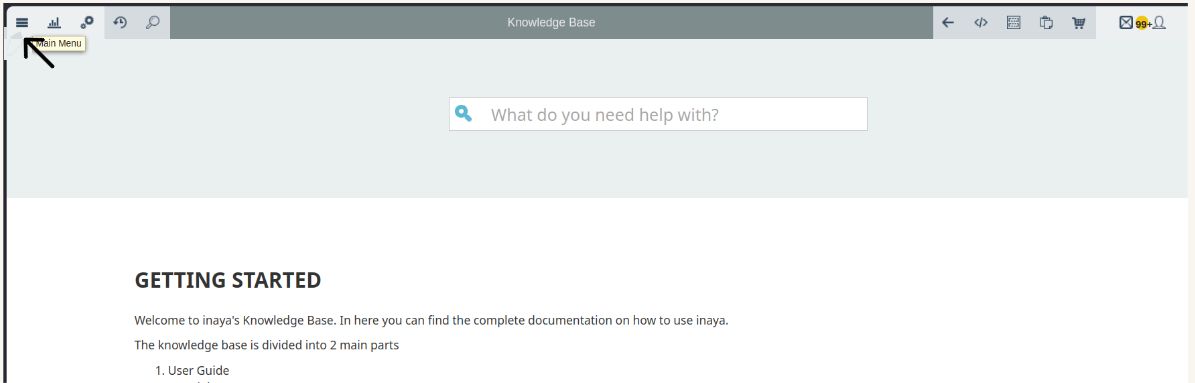
Log in to Inaya and open the Main Menu.
Go to Logistics, then select Items to open the Items page.
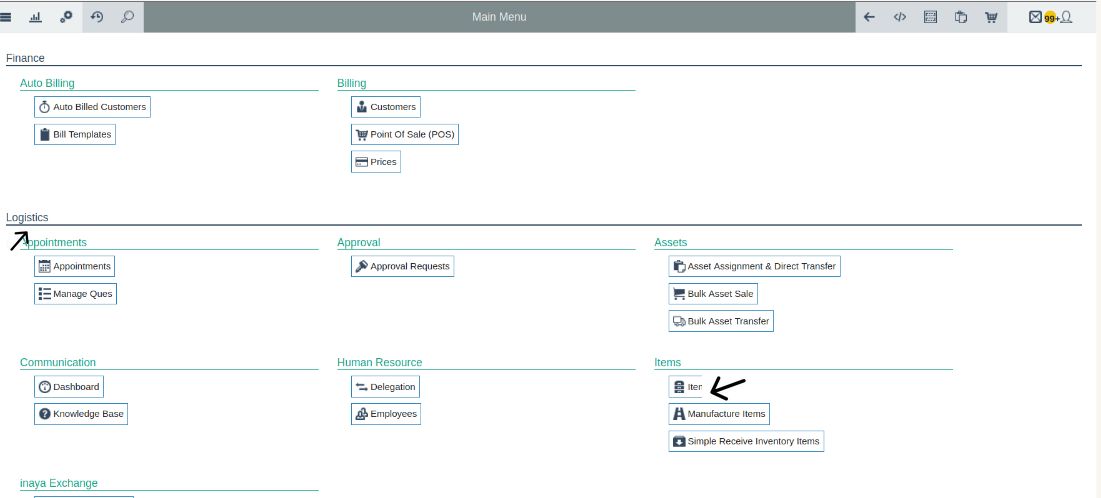
Find and open the item for which you want to configure the unit relationship.
Locate the Unit Item section and add the units you want to use for the item. For example, you can add Box and Tablet.
After adding the units, locate the Unit Relationship section.
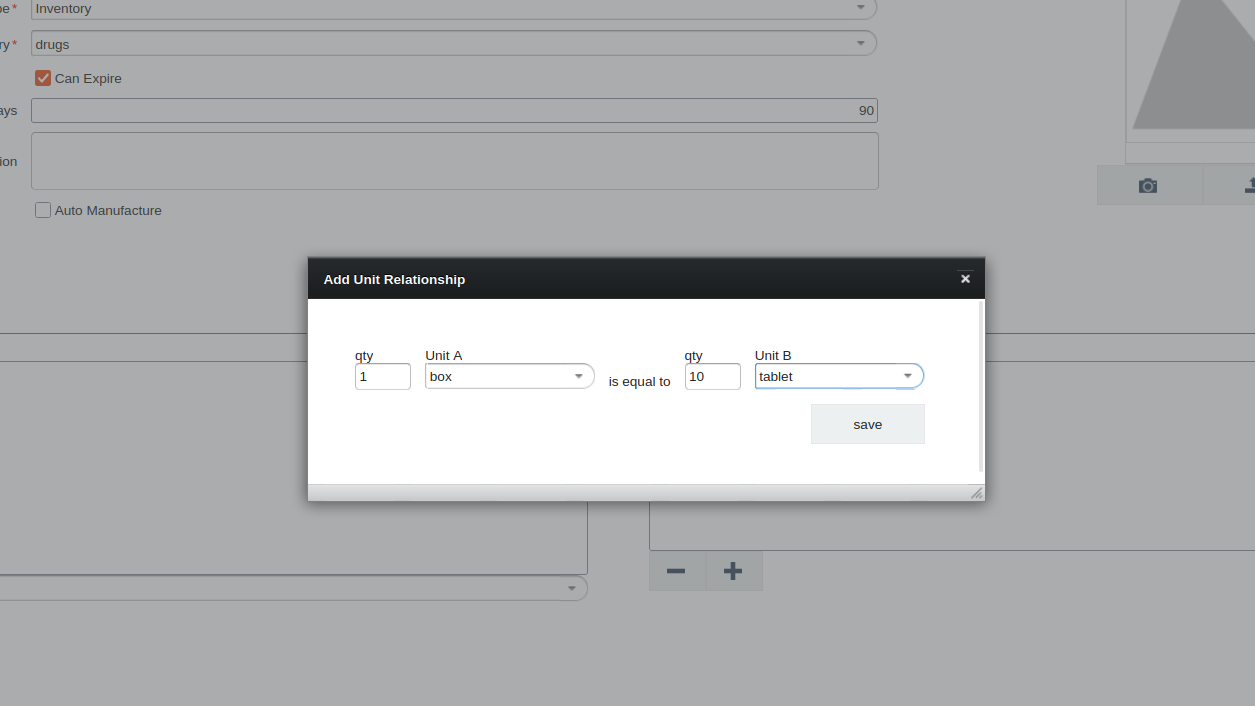
Click the + (Plus) button to add a new unit relationship.
Set the relationship between the units you added. For example, if 1 Box contains 100 Tablets, set the relationship as 1 Box = 100 Tablets.
Click Save to save the unit relationship.
After saving the unit relationship, locate the Display Unit section below the Unit Relationship section.
Click the Display Unit dropdown. The units you added under Unit Item will be available for selection.
Select the smallest unit as the Display Unit. For example, if the available units are Box and Tablet, select Tablet.
Click Save to complete the unit configuration.
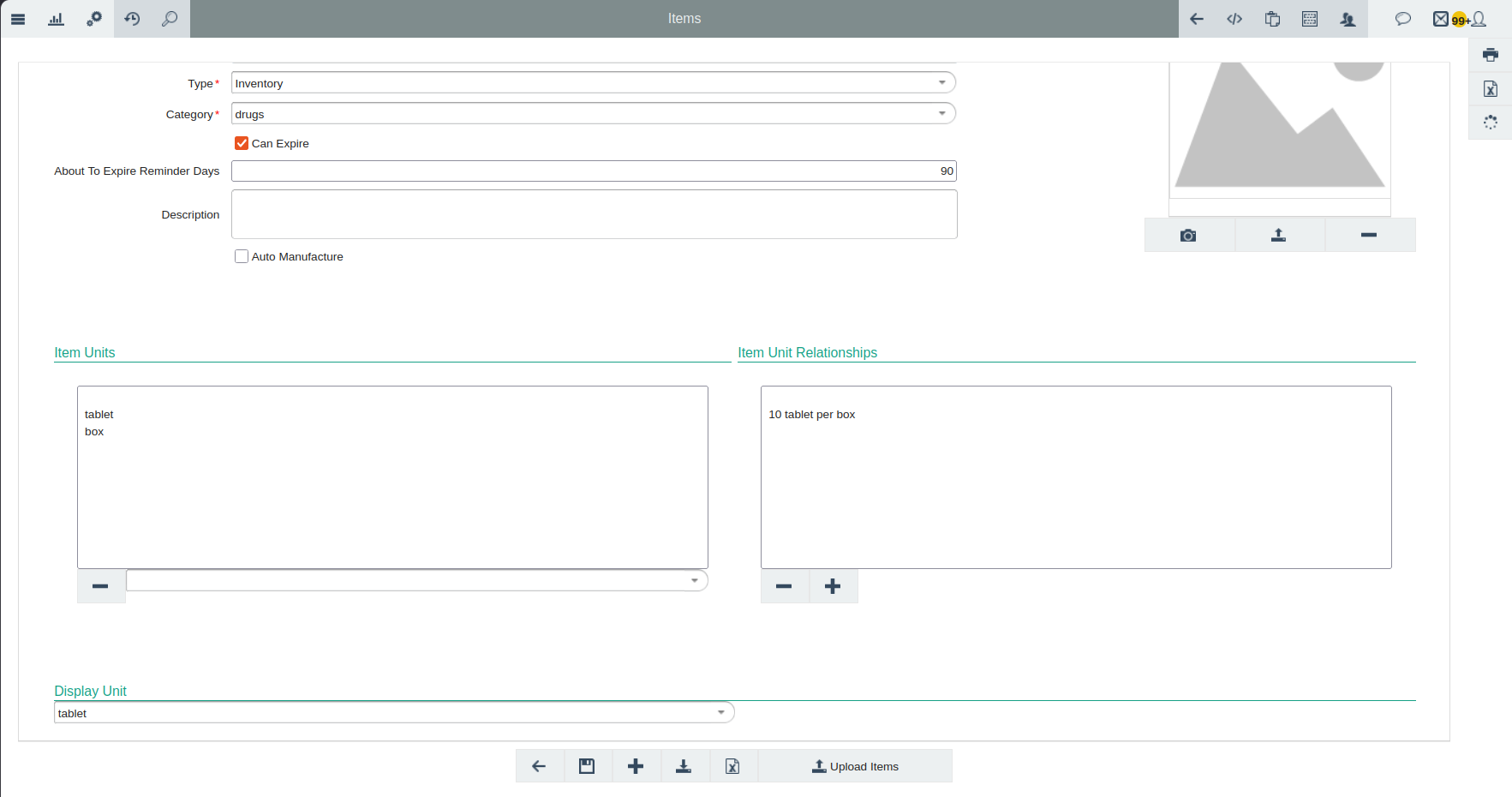
Verify the result: confirm that the unit relationship and Display Unit have been saved correctly for the item.
6. What happens after saving
no | Change | Impact |
|---|---|---|
1. | Unit relationship is saved | The configured relationship between the units is applied when managing billing and stock quantities. |
7. Configuration
Before registering an item, make sure the required Units are available. Follow the steps below to add them if they are not available.
Step 2: Add a New Unit
To add a new unit follow this link Items to follow the step-by-step guide.
8. Troubleshooting
no | Problem | Solution | Reaction |
|---|---|---|---|
1. | Incorrect unit relationship is configured, for example, setting 1 Tablet = 10 Boxes instead of 1 Box = 10 Tablets. | Check the actual quantity relationship between the units before saving. Make sure the larger unit is correctly related to the smaller unit, e.g., 1 Box = 10 Tablets. | 1 box = 10 tablets correct ,1 tablet = 10 boxes Wrong |