Stock Reports
is a report that shows the quantity and movement of items in stock.
1. The Held Dispensed Items Report
Shows all inventory items that have been dispensed but are currently on hold or reserved in a store. It allows users to track the quantity and value of these items, the store where they are held, the unit of measurement, the customer type, and the date of dispensing. The following are information that must be filled to view the held dispensed reports
Select Store
The store for which you want to view held dispensed items.
Item
The specific inventory item that has been dispensed but is being held.
Store
The store where the item is currently held.
Quantity
The total quantity of the item dispensed.
Held Quantity
The quantity of the item that is currently on hold or reserved.
Total
The total value or amount for the dispensed items.
Calendar
A tool to select the date or period for which you want to view the report.
Unit
The measurement unit of the item (e.g., pieces, kg, liters).
Customer Type
The type of customer for whom the item was dispensed (e.g., walk-in, department).
Held Value
The total value of the items that are currently on hold.
Hold Items
are inventory items that have been dispensed but are temporarily reserved or not yet fully released for use or sale. To do this action click on the giftbox icon the right side.

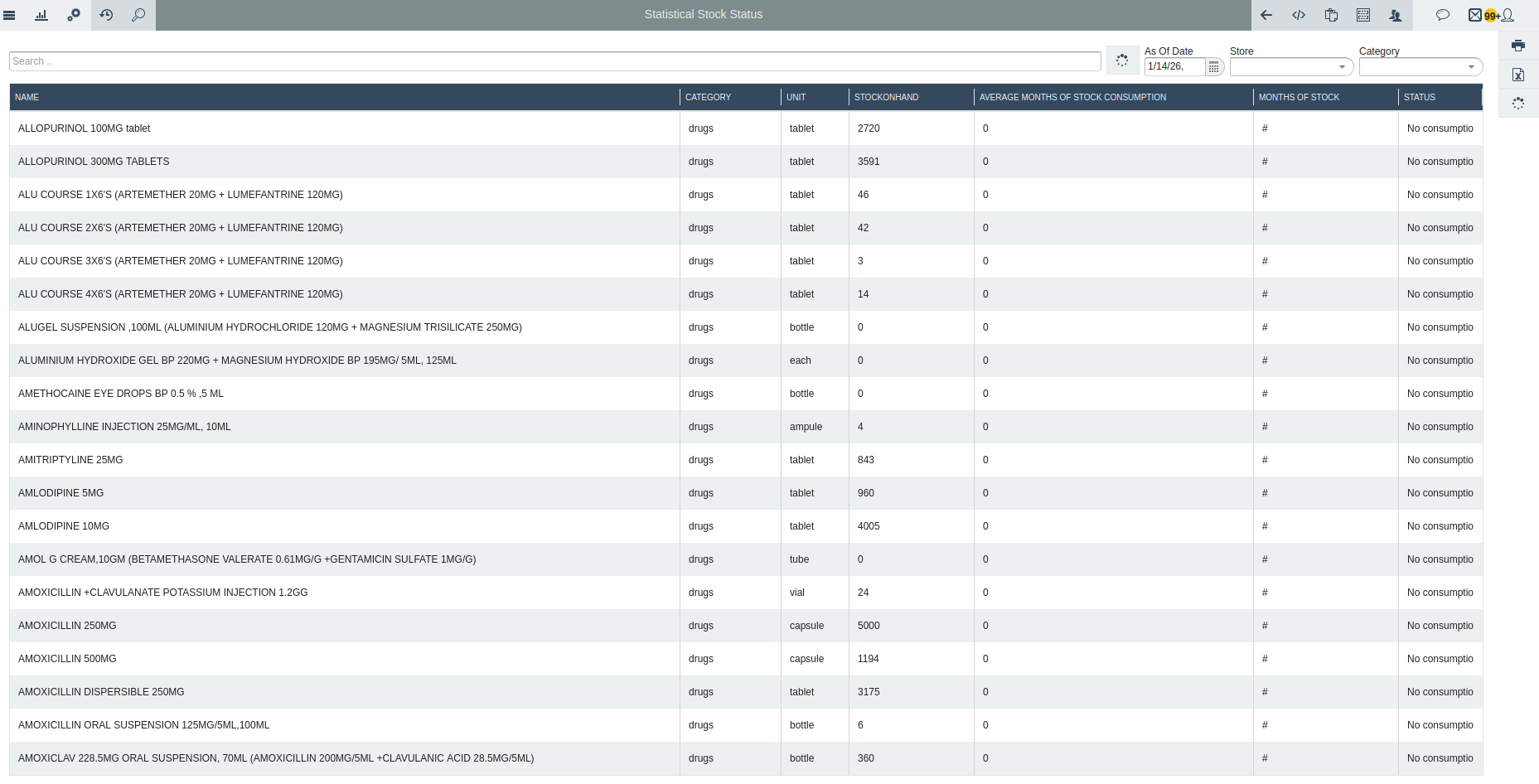
2. The Statistical Stock Status Report
Shows the inventory in a store on a specific date. It tells you how much stock is available, how fast it is used, and how long it will last. It includes the item name, category, unit, stock on hand, average usage per month, months of stock left, and the stock status. This report helps users plan for restocking and avoid running out of items.
As Of Date
The specific date for which the stock status is being viewed.
Store
The store or location for which the inventory report is generated.
Category
The category of items to filter the report.
Name
The name of the inventory item.
Category
The category to which the item belongs.
Unit
The unit of measurement for the item (e.g., pieces, kg, liters).
Stock On Hand
The current quantity of the item available in the store.
Average Months of Stock Consumption
The average number of months it takes to consume the current stock based on past usage.
Months of Stock
The estimated number of months the current stock will last.
Status
The current stock status, such as sufficient, low, or out of stock.
3. The Stock Adjustments Report
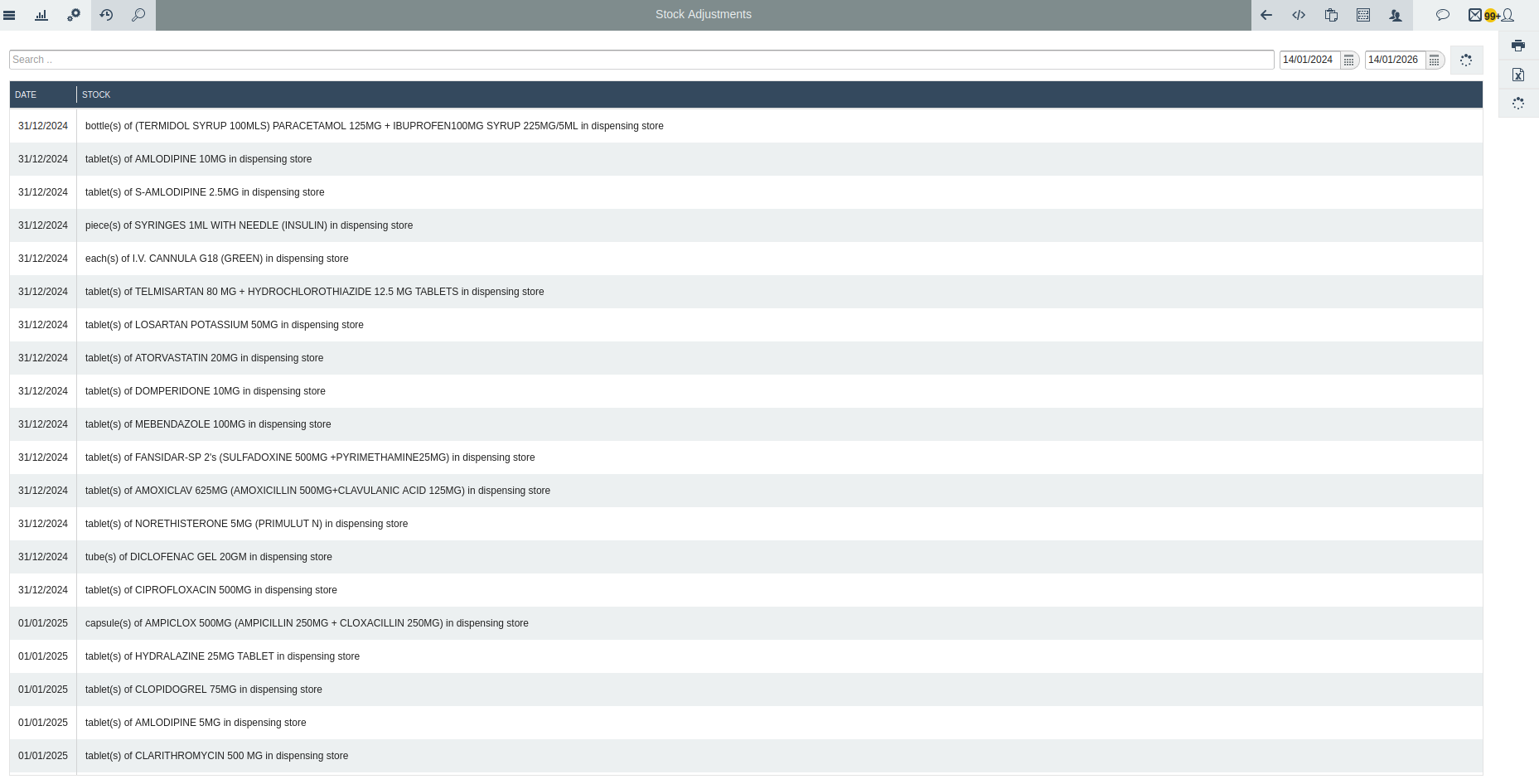
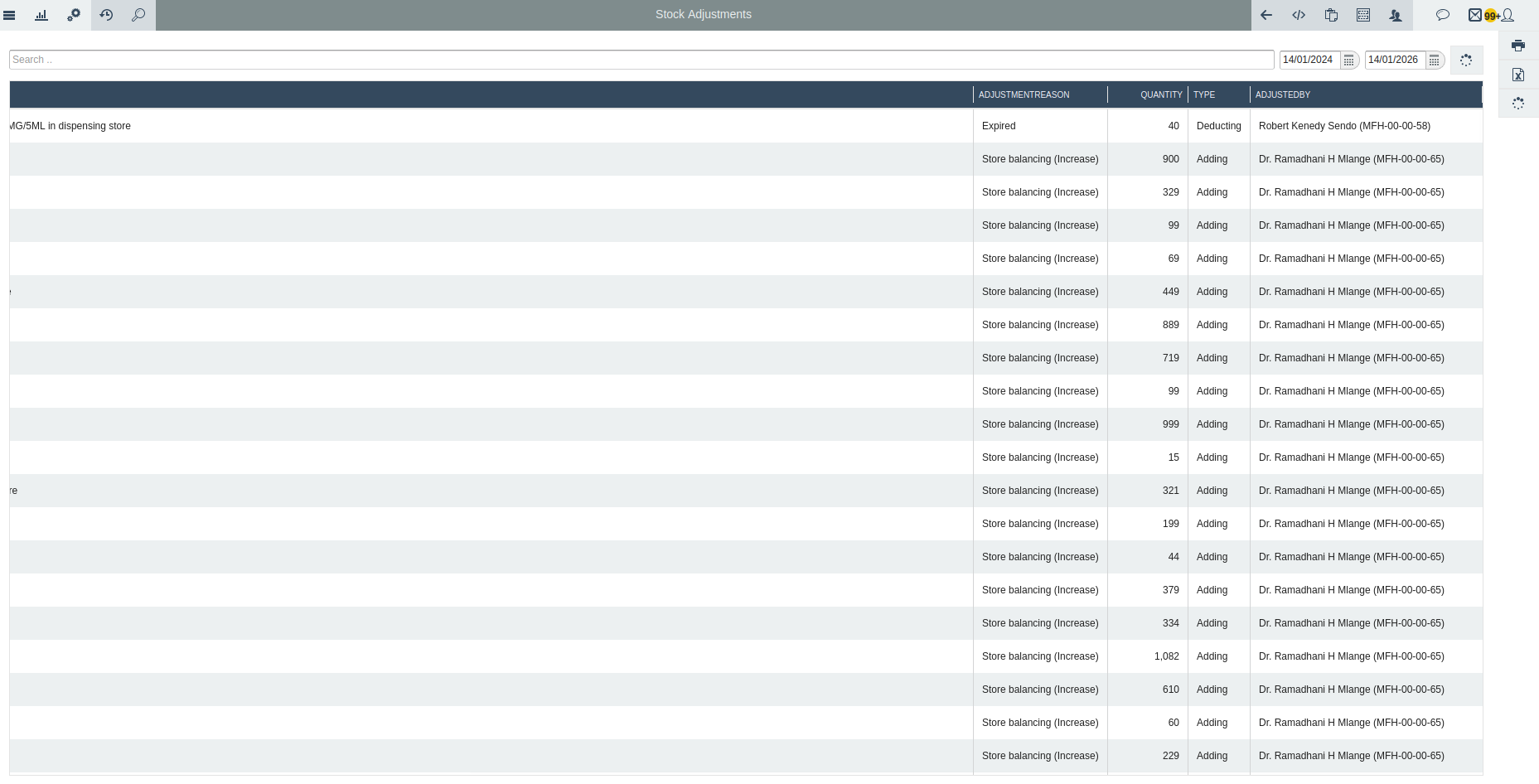
Shows all changes made to inventory items, including increases or decreases in stock. It records the date, the item adjusted, the reason for the adjustment, the quantity changed, the type of adjustment, and the user who made it.
Date
The date when the stock adjustment was made.
Stock
The specific inventory item being adjusted.
Calendar
Tool to select the date for which you want to view or record adjustments.
Adjustment Reason
The reason why the stock is being adjusted (e.g., damaged, expired, or lost).
Quantity
The number of items being added or removed from stock.
Type
Indicates whether the adjustment is an increase or decrease in stock.
Adjusted By
The user who made the adjustment.
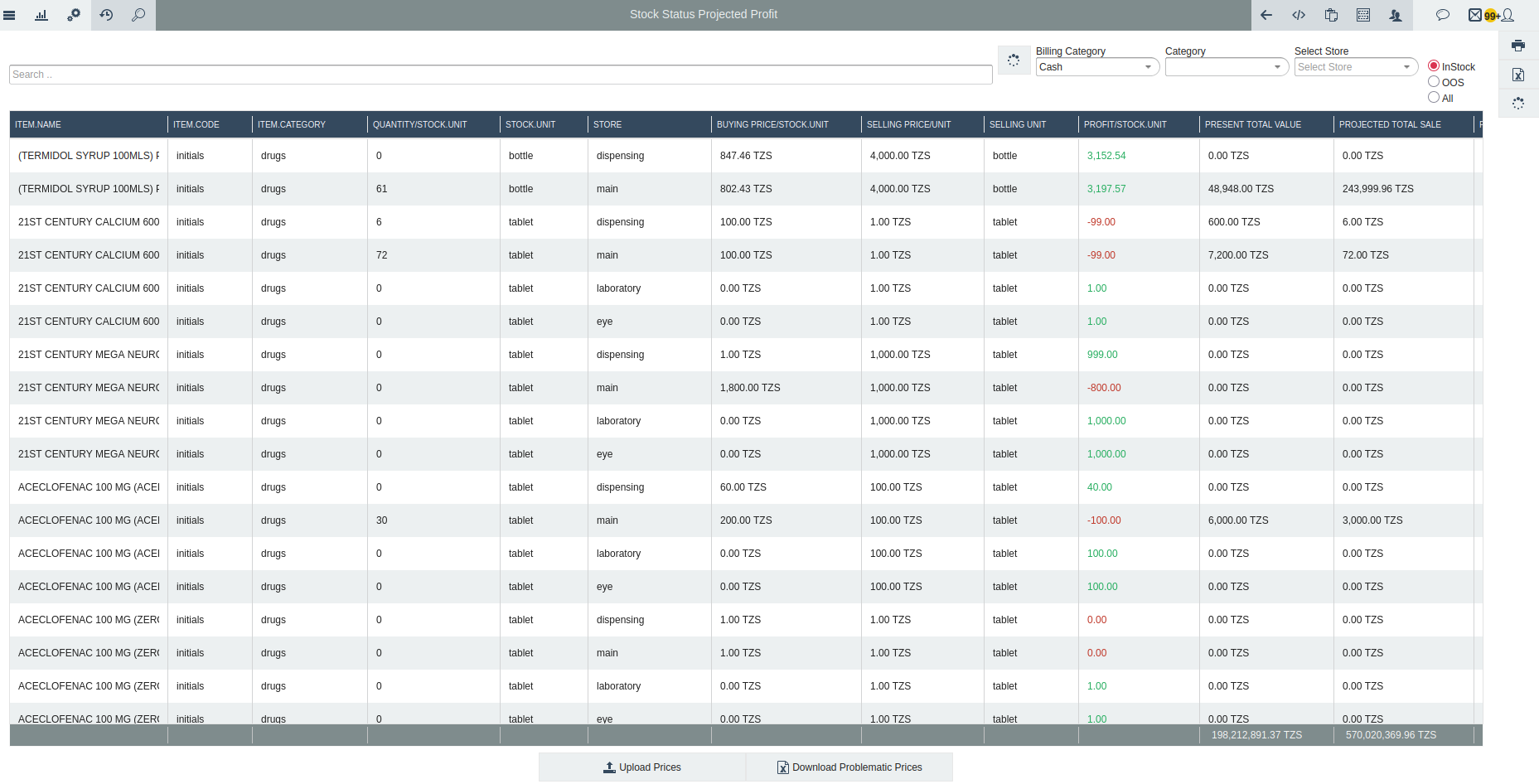
4. The Stock Status Projected Profit Report
Provides an overview of inventory items in a store, showing their current stock levels, purchase and selling prices, and potential profit. It allows users to filter by store, billing category, or item category, and view items that are in stock, out of stock, or all items. The report calculates the present total value of stock, projected total sales, and projected total profit for each item.
Billing Category
The category used for billing or pricing purposes.
Category
The inventory category of the item.
Select Store
The store for which you want to view stock status.
InStock, OOS (out of stock), All
Filter to view items that are in stock, out of stock (OOS), or all items.
Item Name
The name of the inventory item.
Item Code
The unique code assigned to the item.
Item Category
The category to which the item belongs.
Quantity / Stock Unit
The number of units available in stock.
Stock Unit
The unit of measurement for the stock (e.g., pieces, kg, liters).
Store
The store where the item is currently stocked.
Buying Price / Stock Unit
The purchase price per unit of the item.
Selling Price / Unit
The price at which the item is sold per unit.
Selling Unit
The unit in which the item is sold.
Profit / Stock Unit
The profit expected per unit (Selling Price – Buying Price).
Present Total Value
The total value of the item currently in stock (Quantity × Buying Price).
Projected Total Sale
The total revenue expected if all stock is sold at the selling price.
Projected Total Profit
The total expected profit if all stock is sold (Projected Total Sale – Present Total Value).
5. Stock Status Report
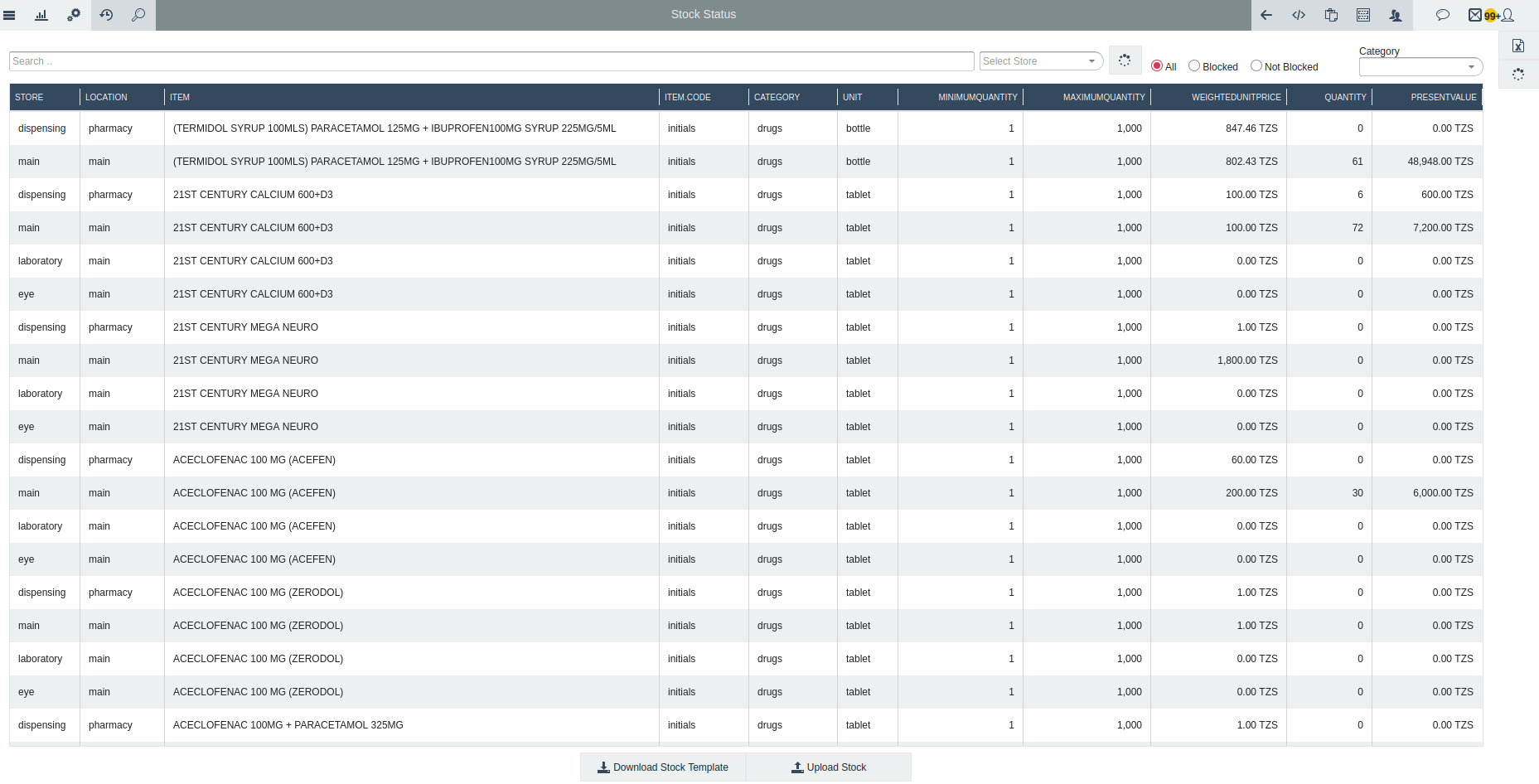
The Stock Status Report shows the current inventory levels in a store. It includes details such as item name, code, category, unit, quantity, minimum and maximum stock levels, weighted unit price, and total value. Users can filter by store, category, location, or whether items are blocked. This report helps monitor stock levels, manage inventory efficiently, and ensure items are available when needed.
All / Blocked / Not Blocked
Filter to view all items, only blocked items, or only items that are not blocked.
Category
The category of items to filter the report.
Store
The store where the stock is located.
Location
The specific location within the store.
Item
The name of the inventory item.
Item Code
The unique code assigned to the item.
Category
The category to which the item belongs.
Unit
The unit of measurement for the item (e.g., pieces, kg, liters).
Minimum Quantity
The minimum quantity that should be maintained in stock.
Maximum Quantity
The maximum quantity allowed in stock.
Weighted Unit Price
The average cost per unit based on stock received at different prices.
Quantity
The current quantity of the item in stock.
Present Value
The total value of the current stock (Quantity × Weighted Unit Price).
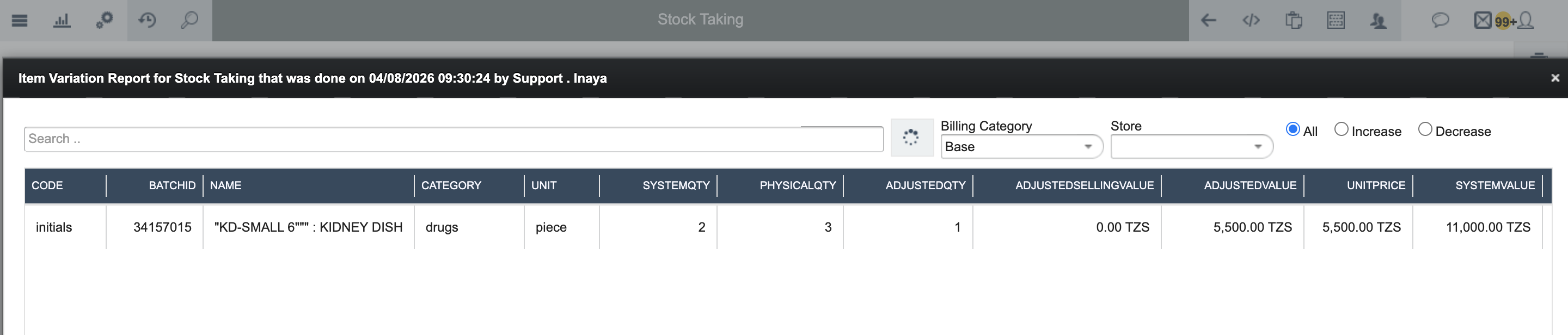
6. Stock Taking Report
The report Shows the results of a physical count of inventory in a store. It includes details such as the store, item category, date of the stock take, and the user who performed it. This report helps compare actual stock with system records, identify discrepancies, and maintain accurate inventory management.
Store
The store where the stock counting is being conducted.
Category
The category of items to include in the stock take.
Date
The date when the stock taking is performed.
Created By
The user who created or initiated the stock taking record.
Stores
A list of stores involved in the stock taking process.