Movements Reports
Movement Reports in the Inaya track how items or assets move within the organization. They show details of items being transferred, issued, or received between stores, departments, or locations.
1. Consumed Items Report
This report shows items that have been used. It helps track how much stock has been consumed. There is also a calendar at the top where you can select the date for which you want to view the report. You can also select the store whose report you want to see. The following are information found on this report panel and its brief description.
Store
The location or store where the items were consumed.
Time
The date and time when the items were used or dispensed.
Item
The name of the item that was consumed.
Batch
The specific batch number of the item, useful for tracking expiry or production details.
Quantity
How many units of the item were used.
Unit
The measurement unit of the item (e.g., pieces, kg, liters). `
Dispensed By
The person who issued or provided the item. `
Dispensed To
The person, department, or unit that received or used the item.
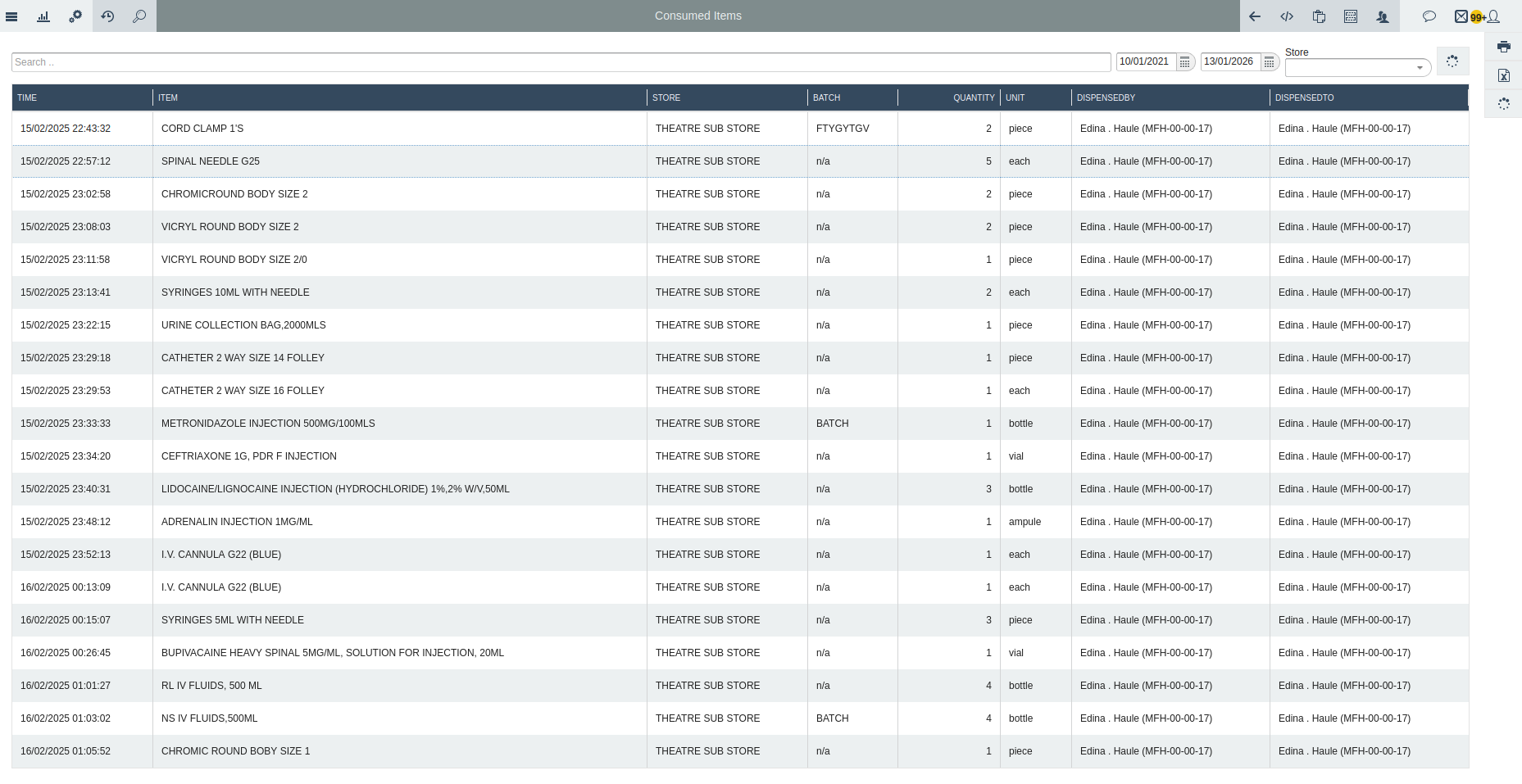
this image shows consumed items report panel
2. Delivery Notes Report
This report shows items received from suppliers. It confirms what was delivered and when. To view the Delivery Notes report, the user first selects the Calendar (date range), Customer Type, and Customer. The system will then display all delivery notes for the selected period, Below are the brief description on each column field on this report:
Time Created
The date and time the delivery note was generated.
Number
The unique reference number of the delivery note.
Name
The name or title of the delivery note.
Created By
The user who created the delivery note.

this images shows the delivery note report
3. Dispensed Items Report
The Dispensed Items Report shows all items given or dispensed from a store over a selected period. Below are briefly description on each field found on this report:
Time
The date and time the item was dispensed.
Item
The name of the inventory item dispensed.
Store
The store from which the item was dispensed.
Batch
The batch number of the item.
Quantity / Unit
The amount of the item dispensed and its measurement unit.
New Quantity / New Quantity Unit
The updated stock quantity and unit after dispensing.
Paid Amount
The payment received for the dispensed item.
Dispensed By / Dispensed To
The staff who dispensed the item and the recipient (patient or department).
Billing Document
The invoice or billing reference linked to the dispensing.
Billing Category
The category used for billing purposes.

the image below shows dispensed items report
4. External Suppliers Transactions Report
The External Suppliers Transactions Report shows all items received from external suppliers. When the user opens this panel, they need to select the Receiving Store, Item Category, and Calendar (date range) to view the report for that period. Below, the report displays columns showing details of the received items, including item name, quantity, unit, unit price, total price, receiving store, and the staff who received the items together with its short description as follows:
Date
The date the items were received from the supplier.
Item
The name of the inventory item received.
Quantity / Unit
The number of units received and their measurement unit.
Unit Price / Total Price
The cost per unit and total value of the items.
Receiving Store
The store where the items were delivered.
Receiving Person
The staff member who received the items.

5. Internal Store Transactions Report
The Internal Store Transactions Report shows all movements of items between stores within the organization. It tracks which items were sent, received, and by whom.Below describes each column field that's shown on the report:
Date
The date the transaction occurred.
Item
The name of the inventory item transferred.
Requisition Number
The reference number of the request for transfer.
Quantity / Unit
The amount of the item moved and its measurement unit.
Unit Price / Total Price
The cost per unit and total value of the items transferred.
Issuing Store / Receiving Store
The stores sending and receiving the items.
Item Category
The category to which the item belongs.
Issuing Person / Receiving Person
The staff members responsible for issuing and receiving the items.
Calendar
The date range for generating the report.

the image below shows the internal store transactions report
6. Inventory Requisitions Report
The Inventory Requisitions Report shows all requests made to transfer items from one store to another. Inorder to view this report the user first must fill all the details below:
Time Created
The date and time the requisition was created.
Due Date
The date by which the requested items should be delivered.
Number
The unique reference number of the requisition.
Origin
The store sending the items.
Destination
The store receiving the items.
Created By
The user who created the requisition.
Status
The current status of the requisition (e.g., pending, approved, completed).
Confirmed Value
The total value of items confirmed in the requisition.
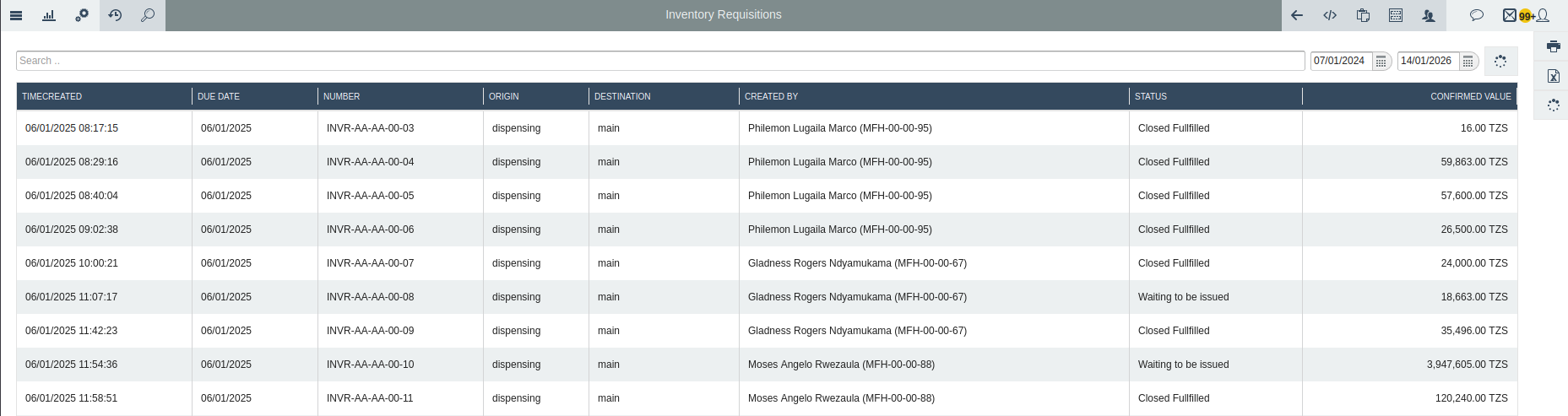
the image below shows the inventory requisition report
7. Patient Dispensed Items Report
Shows all items given or dispensed to patients within a selected period. The following are brief explanation on the required details to be field to view the patient dispensed item report:
Time
When the item was dispensed.
Item
Name of the inventory item dispensed.
Store
The store from which the item was dispensed.
Batch
The batch number of the item.
Quantity / Unit
How many units of the item were dispensed.
New Quantity / New Quantity Unit
The updated stock quantity and unit after dispensing.
Paid Amount
The amount paid by the patient for the item.
Dispensed By / Dispensed To
The staff who dispensed and the patient who received the item.
Calendar
The date range for the report.
Billing Document
The invoice or document linked to the dispensing.
Customer / Customer Type /
User is required to choose the customer type e.g. patient, billing categories, generic etc. and the customer name to use.
Phone / Email
Contact details of the patient.
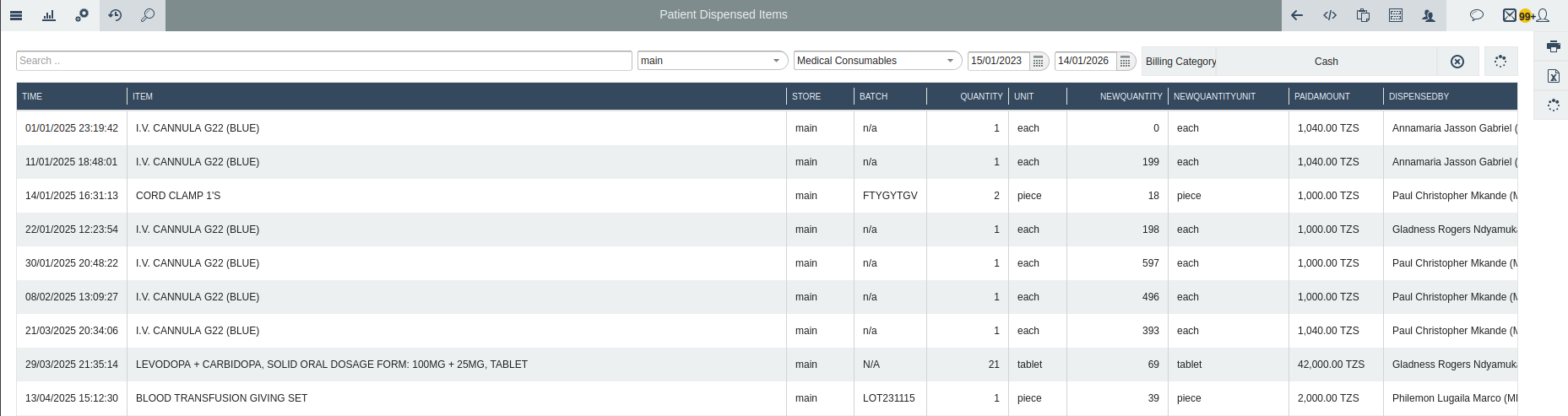
the image shows the patient dispensed item reports
8. Summarized Dispensed Items Report
The Report provides an overview of all items that have been dispensed from a store over a selected period. It shows the total quantity of each item issued and the remaining balance. Below explain all the fields columns found on this report:
Start / End
The date range for the report.
Store
The store from which the items were dispensed.
Item
The name of the inventory item.
Quantity
The total number of units dispensed during the period.
Closing Balance
The remaining quantity of the item in stock after dispensing.
Unit
The measurement unit of the item (e.g., pieces, boxes, liters).

the image shows the summarized dispensed items