How to void payment for a purchase order
Overview
Once a payment has been processed against a purchase order, there may be situations where that payment needs to be reversed. This is done by voiding the payment voucher not by editing the purchase order or the bill directly. Voiding a payment cancels the transaction record while keeping a clear audit trail (marked with a Void tag), and automatically restores the purchase order's payment status to reflect that the payment is Not Paid
Why Is It Important
Accuracy of financial records: An incorrect or mistaken payment left unresolved can distort what has actually been paid to a vendor, leading to confusion during reconciliation or audits.
Correct purchase order status: Payment status directly affects whether a purchase order shows as Paid, Partially Paid, or Not Paid. Voiding ensures the PO reflects the true, current state.
Audit trail and accountability: Rather than deleting a payment, voiding keeps a visible record (tagged as "Void") of what happened and when, which is important for internal controls and audits.
Prevents double payment or vendor disputes: If a wrong payment isn't voided, it can lead to underpayment, overpayment, or disputes with the vendor over what's actually owed.
Scenarios
Void a payment in situations such as:
Wrong amount entered — the amount paid was recorded incorrectly (too much or too little).
Wrong purchase order or vendor — the payment was mistakenly applied to the wrong PO or paid to the wrong vendor.
Duplicate payment — the same bill was accidentally paid twice.
Payment method error — the payment was recorded under the wrong payment method and needs to be redone correctly.
Cancelled or returned order — goods/services were returned or the order was cancelled after payment was already made.
Requirements
Before voiding a payment, confirm the following:
You have access rights to Payment Vouchers in the system.
You have permission to void/cancel a payment (this is often restricted to finance/accounts staff or approvers, depending on your organization's setup).
The payment voucher you intend to void is not already voided.
Step-by-Step Guide
Go to the search panel Use the top search bar and search for Payment Vouchers.
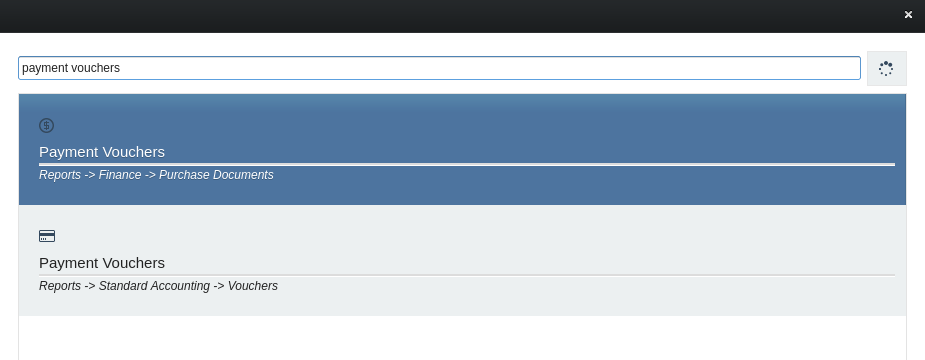
Filter to find your voucher In the Payment Vouchers list, filter by the date the payment was made. This narrows down the list so you can quickly find the exact transaction.

Select the specific payment voucher From the filtered results, click on the payment voucher that matches the payment you want to reverse. Double-check the amount, date, and vendor before proceeding, to make sure it's the correct one.
Open the voucher The payment voucher will open, displaying full details: payment amount, date, payment method, and the related purchase order.
Click Void Payment At the bottom of the voucher screen, click the Void Payment icon/button.
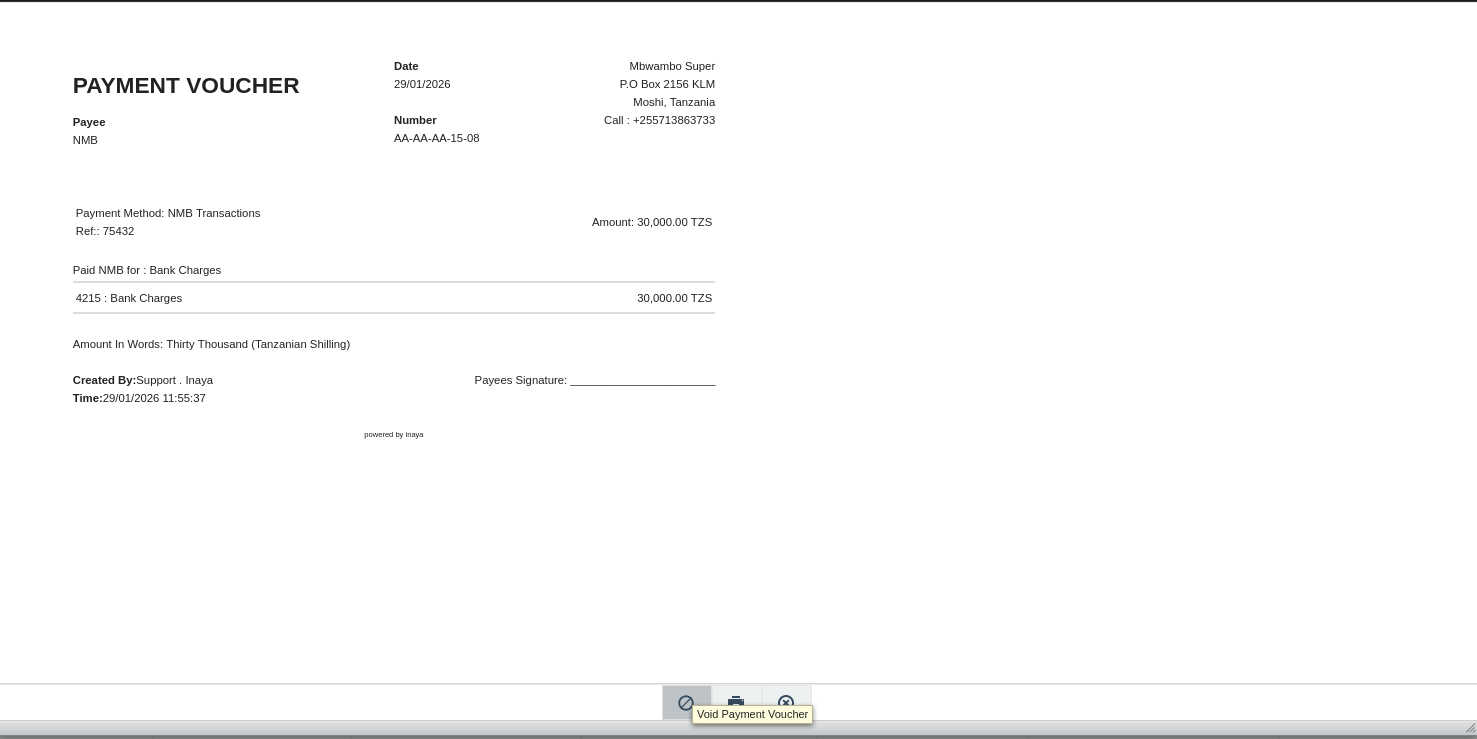
Confirm the action Review the confirmation prompt carefully, then confirm. The system will notify you that the payment voucher has been voided successfully.
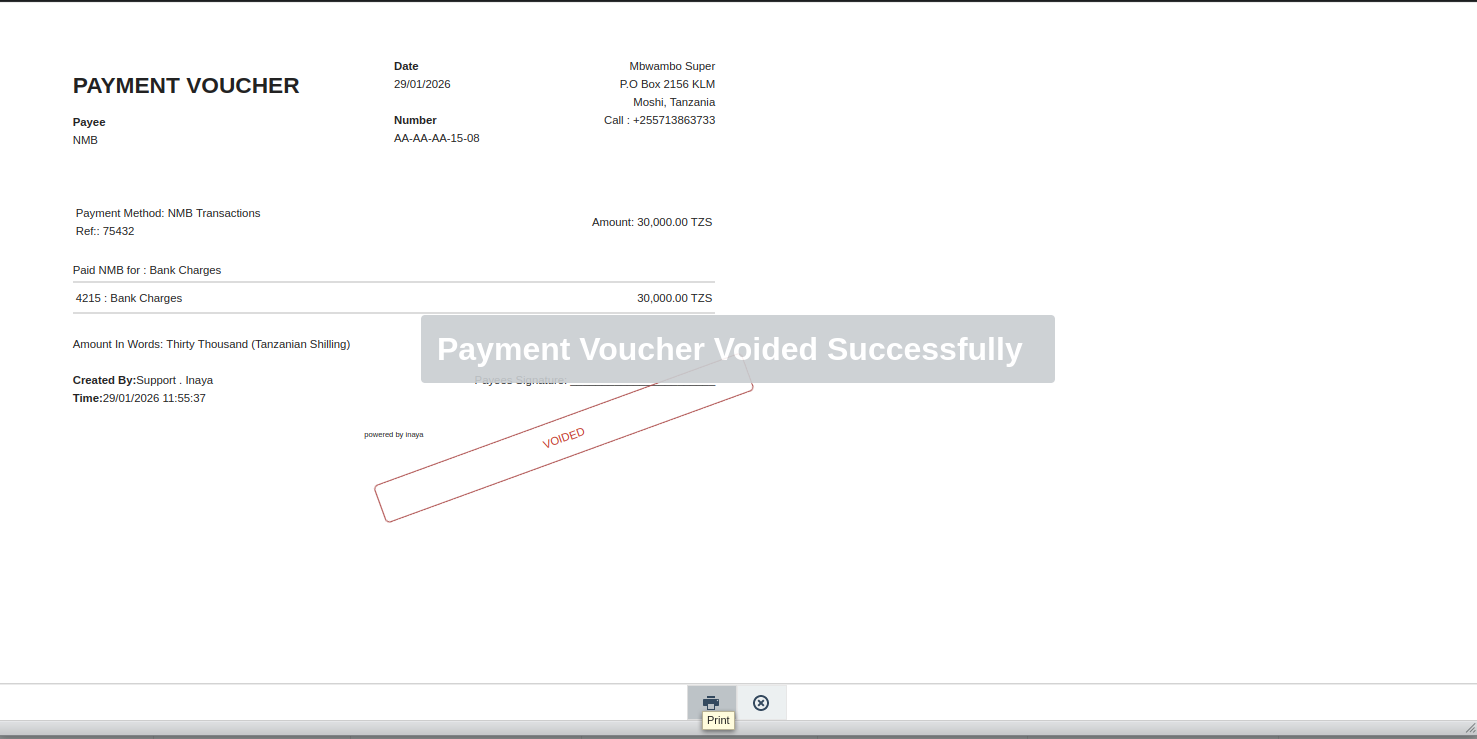
What Happens After Voiding
The payment voucher is marked with a Void tag, keeping it visible in the records (not deleted) for audit purposes.
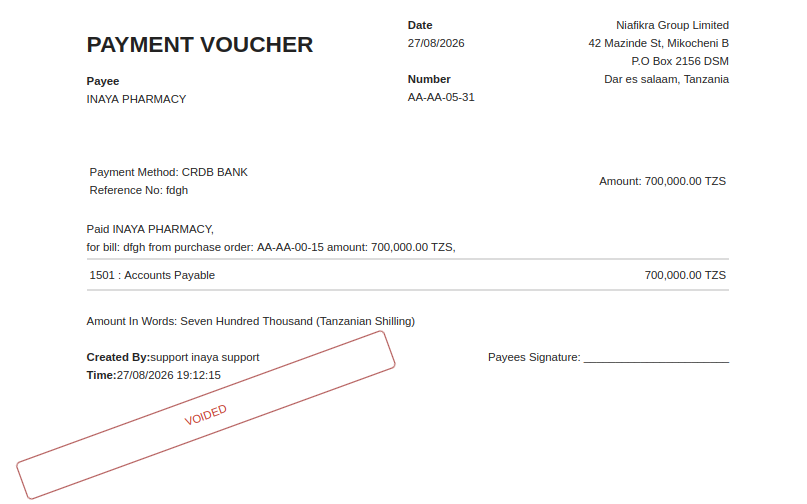
The related purchase order's payment status automatically updates — for example, reverting from Paid back to Not Paid, or from Fully Paid to Partially Paid, depending on what other payments (if any) remain valid.

The purchase order becomes eligible for payment again, as if the voided payment had not been made.

The original bill remains unchanged — voiding a payment does not affect or delete the bill itself.
Troubleshooting Tips
Issue | Likely Cause | What to Do |
|---|---|---|
Can't find the payment voucher | Wrong date filter used | Double-check the actual payment date, or search without a filter and scan the list |
"Void Payment" option is missing | Voucher already voided, or you lack permission | Check if it's already voided; if not, contact your approver/admin for access |
PO status didn't update after voiding | System delay or partial payment still exists on the PO | Refresh the purchase order page; check if other valid payments remain on the PO |
Voided the wrong payment by mistake | Selected incorrect voucher | Contact your finance administrator immediately, voiding cannot be undone from the voucher itself, payment may need to be processed again. |
Need to change amount instead of voiding | Bill/payment details are incorrect but payment should still stand | Void the incorrect payment, then process a new payment with the correct amount |