How to Close a Purchase Order
Overview
Sometimes a purchase order goes through the full process created, approved, and a bill recorded against it but the items are never delivered, or the vendor is no longer able to deliver them. In such cases, leaving the purchase order open indefinitely is not the right approach. An open PO is treated as an outstanding commitment/debt in the records, even if no goods or services will ever arrive.
Why Is It Important
Avoids false outstanding debt: An open purchase order that will never be fulfilled is still counted as a pending obligation. Closing it removes this false liability from the books.
Keeps records accurate: Financial and procurement records should reflect reality. If a vendor won't deliver, the PO must be closed to show it's no longer active.
Prevents confusion during audits/reporting: Old, undelivered POs sitting open can create confusion when reviewing outstanding commitments or vendor performance.
Frees up budget Depending on your organization's setup, an open PO may hold budget or commitment amounts in reserve. Closing it releases that hold.
Scenarios
Close a purchase order in situations such as:
The vendor has confirmed they will not deliver the remaining items.
The order was partially delivered, and the remaining balance will never be fulfilled.
The need for the items no longer exists (e.g., project cancelled, requirement changed).
The PO was created in error or duplicated, and needs to be shut down after approval/billing already occurred.
A long-outstanding PO with no delivery activity needs to be cleaned up from active records.
Requirements / Permissions
Before closing a purchase order, confirm the following:
You have access rights to view and manage Purchase Orders.
You have permission to close a purchase order (this action may be restricted to procurement staff, finance staff, or approvers, depending on your organization's setup).
You have verified with the vendor or requester that delivery will not happen, so the PO isn't closed prematurely.
If you're unsure whether you have the right permissions, or unsure whether the PO should really be closed, check with your procurement or finance lead before proceeding.
Step-by-Step Guide
Go to Purchase Orders Navigate to the Purchase Orders section from the main menu.
Select the purchase order Find and select the specific purchase order you want to close. Double-check the PO number, vendor, and amount to make sure it's the correct one.

Click the Close icon In the upper-right corner of the purchase order, click the X icon labeled "Close."

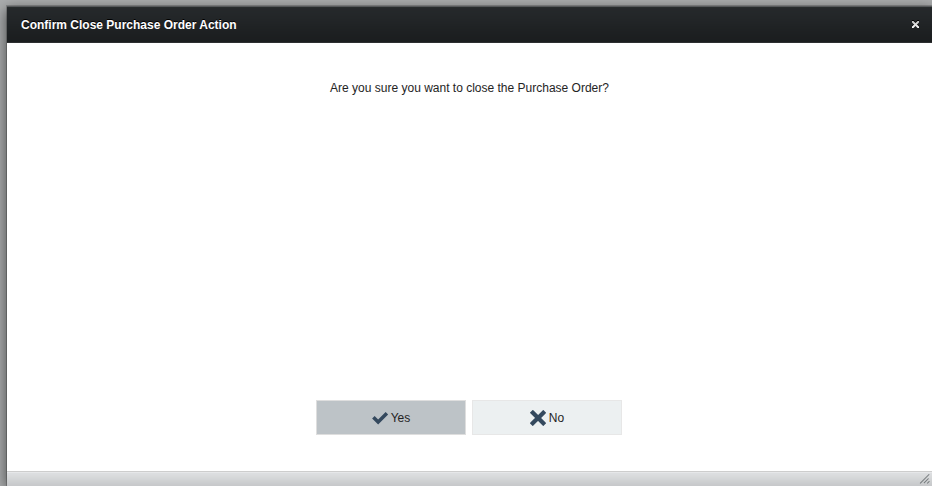
Confirm the action A confirmation prompt will appear. Review the details and confirm that you want to close this purchase order.
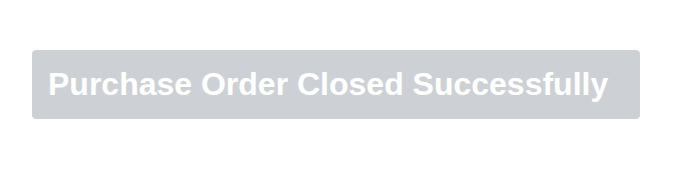
Closure completed The system will notify you that the purchase order has been closed successfully.
6 Closed PO Status The system will change the status to closed.

Closing PO Scenarios and Their Effects
Closing a purchase order affects the amounts, payables, and delivered quantities differently depending on how much has already been received and how much has already been paid at the time of closure. Below are the common scenarios:
1. Partially received, not yet fully paid
If some items have already been received, but the full purchase amount has not yet been paid, and the PO is closed:
The PO status changes to Closed.

The due amount is recalculated it no longer reflects the cost of the entire original purchase, but only the cost of the items that were actually received.

This adjusted due amount still reflects in payables, since it represents a genuine, valid amount owed for goods actually received.

Essentially, closing "writes off" the undelivered portion, while keeping the payable obligation for what was actually delivered.
2. Fully paid, but items not received (or only partially received)
If the full payment has already been made, but delivery is incomplete (nothing received, or only partially received), and the PO needs to be closed:

The PO status changes to Closed.

The received/delivered quantity does not increase — closing the PO does not mark any remaining undelivered items as received. It simply stops the PO from remaining open and pending further delivery.
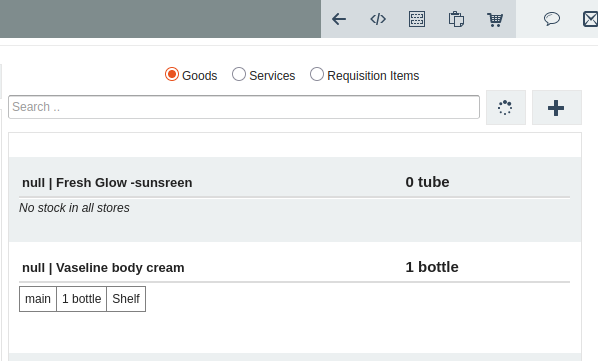
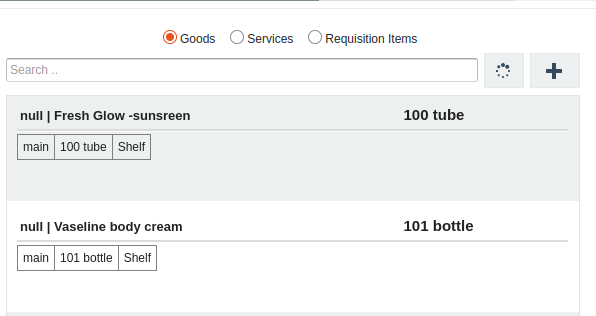
However, if some items were already partially received before closing, those already received items do increase in inventory/store, since they were genuinely delivered and recorded before the PO was closed. Closing the PO does not reverse or remove stock that was already received it only stops further expected delivery on the remaining, undelivered portion.
Since payment was already made in full,the vendor was already paid, regardless of what was or wasn't delivered.
Any discrepancy between what was paid and what was actually received would need to be handled separately (e.g., through a vendor credit note, refund, or internal adjustment), as closing the PO alone does not resolve that mismatch.
3. Billed but not paid, then closed
If a bill has been created against the PO, but no payment has been made yet, and the PO is closed:
The PO status changes to Closed.
This closure happens with no financial effect since nothing was paid and nothing further needs to be reversed or adjusted, the PO simply closes as-is, but its records will remain.
Note: depending on your organization's policy, you may want to review whether the associated bill should also be addressed (e.g., cancelled or clarified) if it will never be paid, even though closing the PO itself has no direct effect.
What Happens After Saving
The purchase order's status changes to Closed.
The PO is not deleted from the system it remains visible in your records for historical and audit purposes, but it is no longer treated as an active or pending order.
Any remaining undelivered quantity/amount on the PO is no longer counted as an outstanding commitment or debt.
The PO can no longer be edited, delivered against, or have new bills/payments added to it.
Payment status and delivery status on the closed PO remain as they were at the time of closing (e.g., a partially paid or fully paid, PO will still show that history).
Troubleshooting Tips
Issue | Likely Cause | What to Do |
|---|---|---|
Can't find the "Close" icon | Wrong PO status (e.g., already closed or lack of permission | Check the current PO status; if it's already closed, no action is needed; otherwise contact your admin for access |
Confirmation prompt doesn't appear | system loading issue | Refresh the page and try again |
Closed the wrong purchase order by mistake | Selected incorrect PO before confirming | Contact your supervisor or administrator immediately |
PO still shows as open elsewhere in reports | cache delay | Refresh the report or wait a few minutes for the system to sync; if it persists, contact support |
Need to close a PO that still has pending payments | Bill or payment not finalized | Resolve or void the pending payment first, then proceed to close the PO |