Removing expired items from stock
1. Overview
This guide explains how to identify and remove expired stock items from Inaya. It covers searching for expired items, verifying the physical stock, and using the Remove Batch action to remove a confirmed expired batch from the active stock record.
2.Why It Matters
Prevents expired items from remaining as usable inventory.
Maintains accurate stock records.
Reduces the risk of expired stock being issued or used.
Keeps inventory reports accurate.
Supports stock control, traceability, and audit requirements.
Ensures the store's active inventory reflects genuinely usable stock.
3.Prerequisites
Before removing an expired item, confirm the following:
You have authorized access to inventory and batch-removal functions.
The item exists in Inaya's stock records.
The item is identified as expired.
The physical item and its expiry date have been verified.
The correct batch information is available, where applicable.
Your organization's approved procedure for handling expired stock is being followed.
4.Example Scenarios
A store user searches for Expired and finds items listed as expired. The user checks the physical stock and confirms the expiry date before selecting Remove Batch.
Several expired batches may appear at once. Each batch should be checked individually so that only genuinely expired stock is removed.
If Inaya shows an item as expired but the physical expiry information doesn't match, do not remove it immediately. Verify and resolve the discrepancy according to your stock-control procedure first.
5.Removing an expired item
Navigation:
Remove an expired batch
Type
Expiredin the search panel.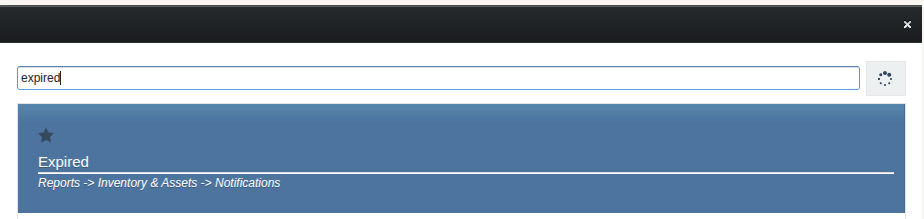
Review the expired stock. The system displays the items currently identified as expired.
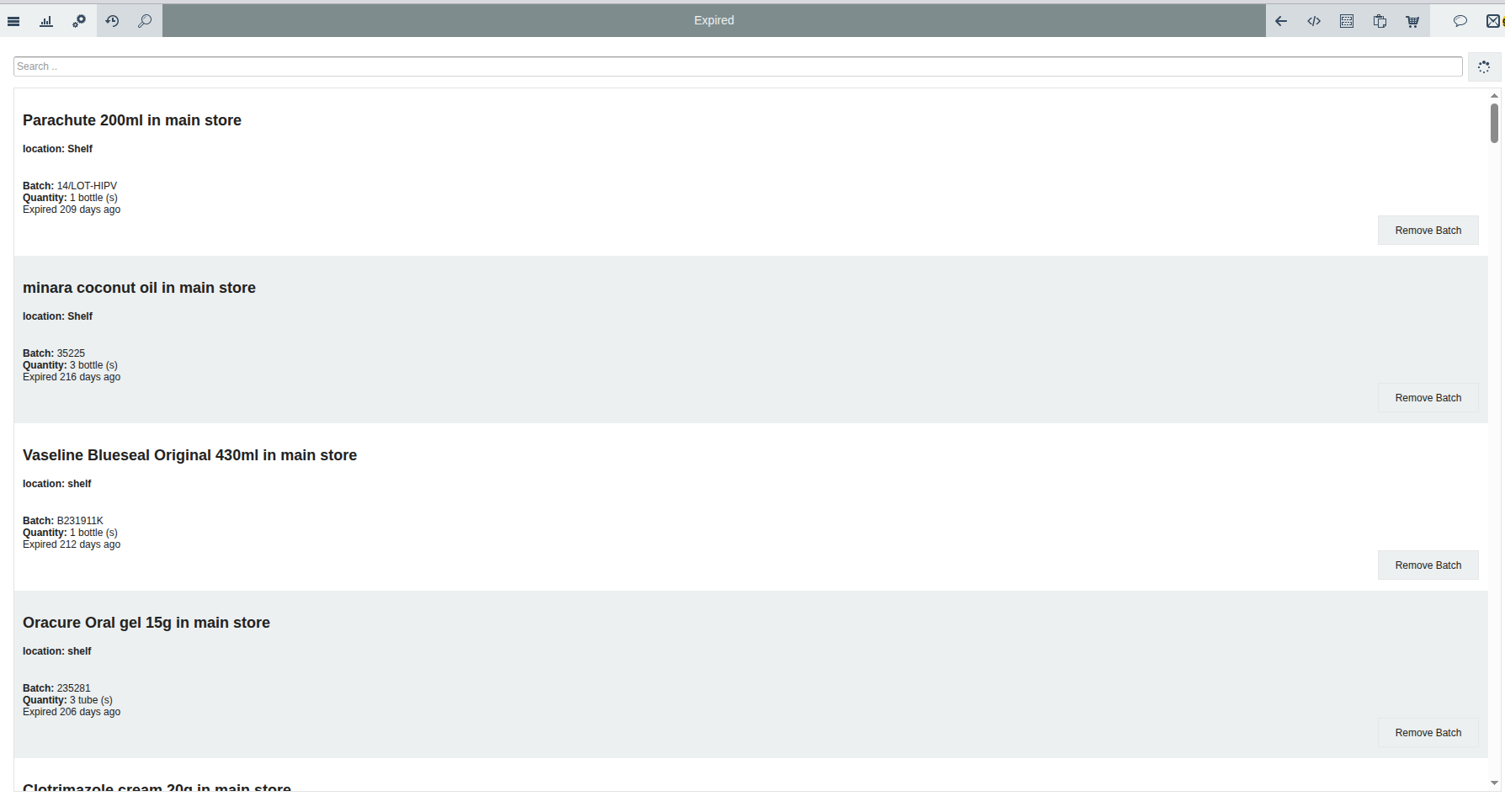
Confirm the items are truly expired — check the physical stock, expiry date, and batch information before taking any action.
In the lower-right area of the specific expired item, select the Remove Batch icon.
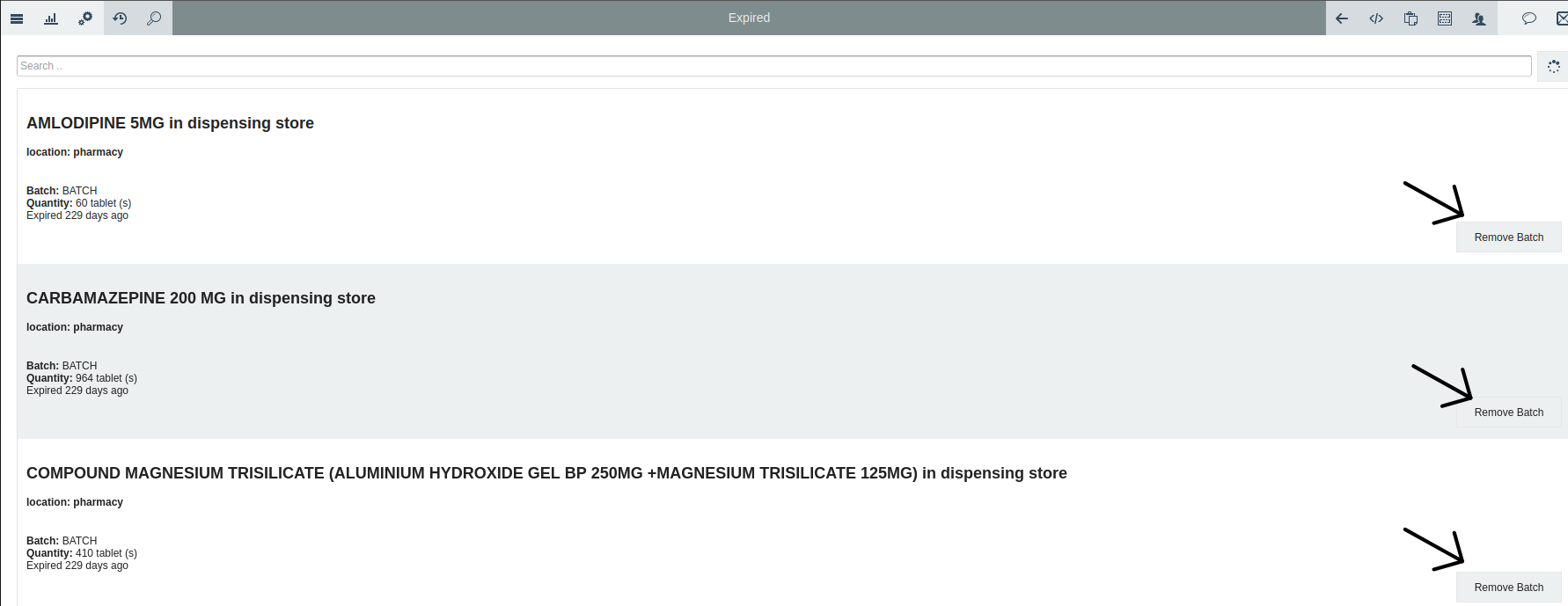
Verify the result: confirm the removed batch no longer appears as an active expired stock item.
6.What Happens After Removing?
Removing an expired batch changes the stock record for that batch. The exact accounting/history treatment depends on your configured Inaya workflow.
No | Area | Expected Change |
|---|---|---|
1 | Expired batch | Removed from the active stock record |
2 | Stock quantity | Decreases for the removed batch |
3 | Expired-items view | The removed batch disappears from the active expired stock list |
4 | Inventory history | The relevant transaction/history may be updated |
5 | Stock reports | Active/usable stock may decrease |
7.Configurations to Set
User permissions — Control who can view expired stock and remove batches.
Expiry and batch tracking — Enable for all applicable items.
Item master data — Ensure item and expiry information is correct.
Store/inventory configuration — Confirm stores are set up correctly.
Removal/adjustment workflow — Use your organization's approved workflow.
Audit/history controls — Enable where available.
8.Troubleshooting
No | Common Problem | Solution |
|---|---|---|
1 | Expired items are not appearing | Confirm the search term, item status, stock availability, and expiry data |
2 | Item appears expired but is not physically expired | Verify the batch and expiry date. Do not remove until the discrepancy is resolved |
3 | Remove Batch is unavailable | Check user permissions and whether the selected batch supports removal |
4 | Wrong batch selected | Stop and verify the batch number before removing it |
5 | Unable to remove the batch | Check permissions, required fields, item status, and the configured workflow |
6 | Stock quantity does not change as expected | Refresh the stock view and verify the transaction/history; escalate if the discrepancy remains |
7 | Item still appears after removal | Refresh and verify the correct batch was removed; check transaction history if necessary |