Inventory Requisitions
1. Overview
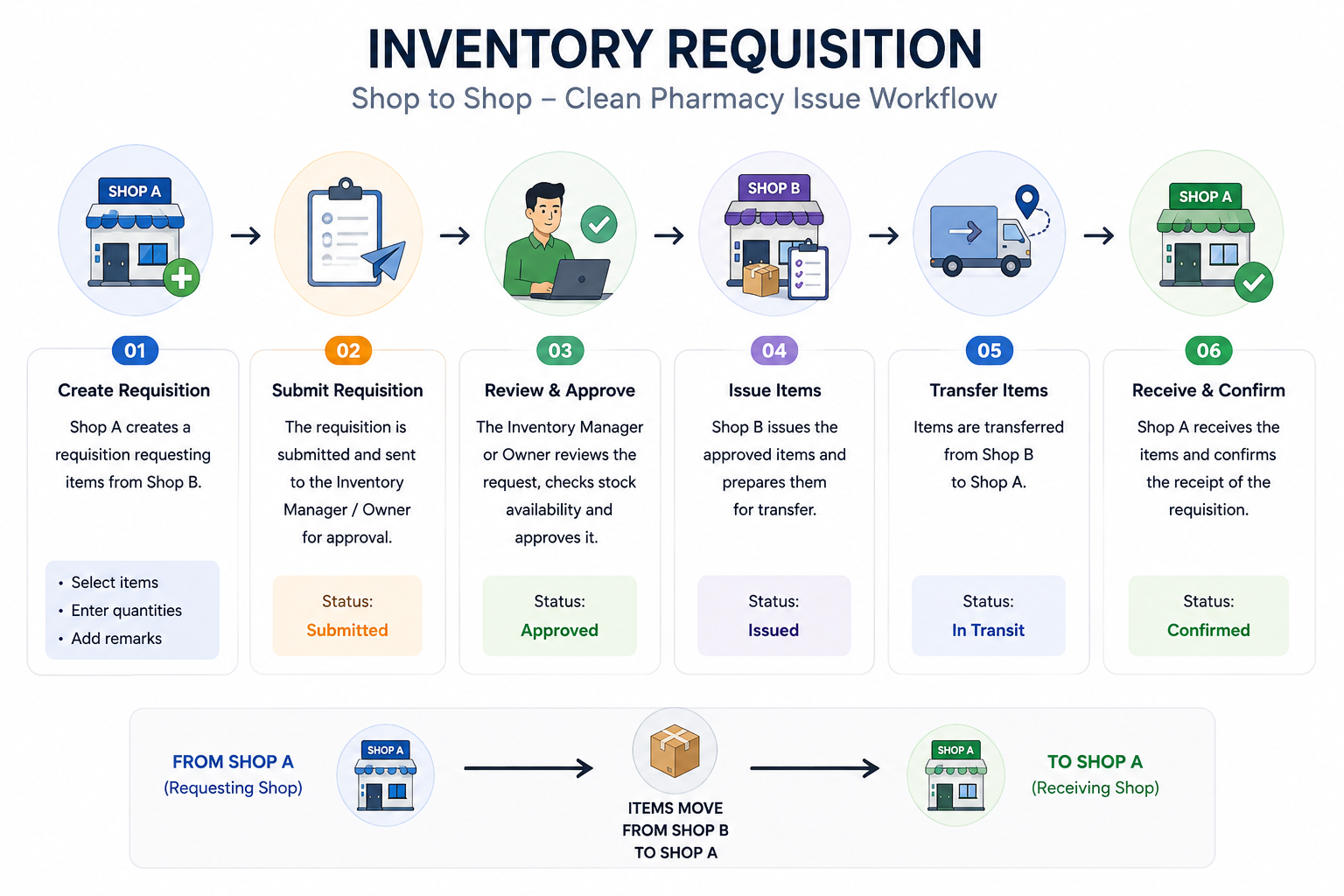
An Inventory Requisition is an internal request used to move stock items between different stores, warehouses, or departments within your facility.
Inaya uses Inventory Requisitions to manage the complete lifecycle of an internal stock request, from creation and approval through issuing, delivery, confirmation, and final fulfilment or denial.
The workflow provides visibility between the Origin Store, which requests the stock, and the Destination Store, which supplies the stock.
2. Why Is Inventory Requisition Important?
Inventory Requisitions provide a controlled process for requesting and transferring stock between internal locations.
Benefit | Description |
|---|---|
Stock Availability | Allows stores with shortages to request stock from another location. |
Approval Control | Ensures requests are reviewed before stock is issued. |
Transfer Tracking | Tracks stock from the requesting store to the supplying store. |
Accountability | Records who created, approved, issued, and confirmed the requisition. |
Inventory Accuracy | Prevents stock from being permanently transferred before receipt is confirmed. |
Traceability | Maintains a complete history of the requisition lifecycle. |
3. Requirements to Create an Inventory Requisition
Before creating a requisition, ensure the following requirements are available.
Requirement | Description |
|---|---|
Origin Store | The store or department requesting the stock. |
Destination Store | The store or warehouse supplying the stock. |
Item | The inventory item being requested. |
Quantity | The quantity required from the destination store. |
Due Date | The expected date by which the stock should be delivered. |
Approval | Appropriate approval configuration for the Origin and Destination. |
Issue | The process used to dispatch the requested stock. |
Confirm | The receiving action used to confirm the delivered stock. |
User Permission | The user must have permission to create or process requisitions. |
4. Scenarios and Examples
Example: Pharmacy Store Requests Stock
The Pharmacy Store is running low on syringes and requires additional stock from the Main Warehouse.
Term | Description | Store |
|---|---|---|
Origin | Applicant / Requesting Store | Pharmacy Store |
Destination | Provider / Dispenser Store | Main Warehouse |
Initial Inventory
Store | Role | Current Quantity |
|---|---|---|
Main Warehouse | Destination / Provider | 500 boxes |
Pharmacy Store | Origin / Applicant | 10 boxes |
The Pharmacy Store creates a requisition for:
50 boxes of syringes
Requisition Lifecycle
Create Requisition The Pharmacy Store creates a request for 50 boxes.
Origin Approval The request is reviewed and approved by the responsible authority at the Pharmacy Store.
Destination Approval The Main Warehouse reviews and accepts the request.
Issue The Main Warehouse picks and dispatches 50 boxes for delivery.
Delivery The stock is transported to the Pharmacy Store.
Confirm Pharmacy Store staff receive the delivery, count the boxes, verify the quantity, and confirm the requisition.
Stock Update After confirmation, Inaya updates the inventory balances.
Final Inventory
Store | Initial Stock | Final Stock |
|---|---|---|
Main Warehouse | 500 boxes | 450 boxes |
Pharmacy Store | 10 boxes | 60 boxes |
5. Step-by-Step Guide
Step 1: Open Inventory Requisitions
Navigate to the Inventory Requisitions section in Inaya.
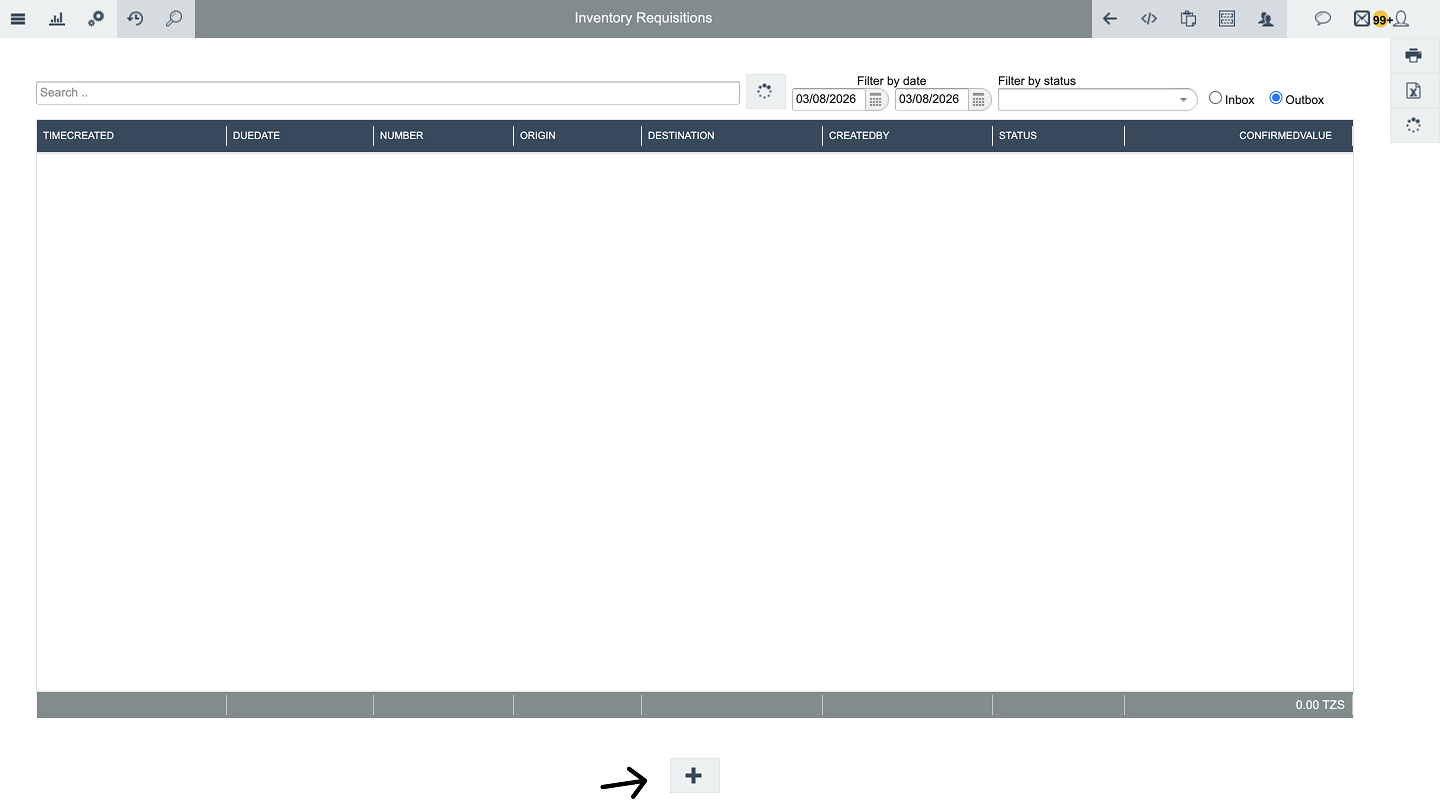
Step 2: Create a Requisition
Click Create or the appropriate action for creating a new requisition.
Enter the required information, including:
Origin Store
Destination Store
Item
Quantity
Due Date
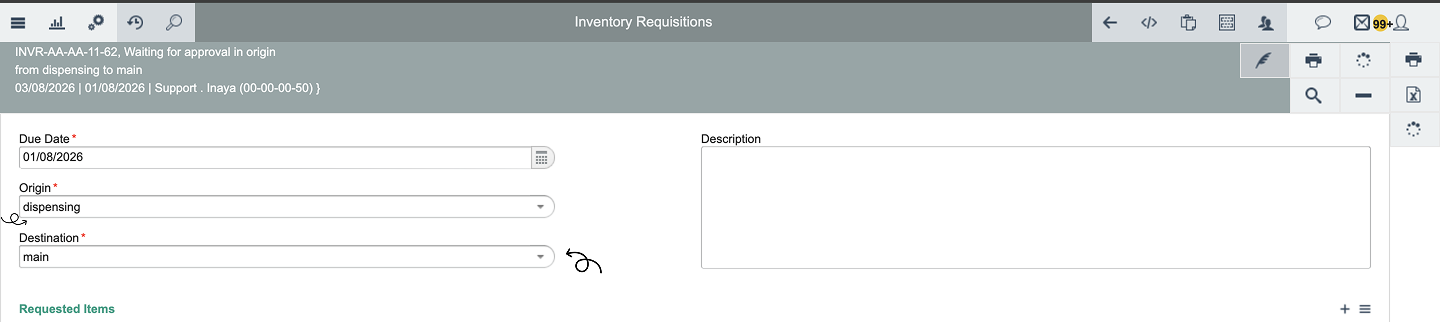
Step 3: Select the Origin Store
Select the store that requires the stock.
For example:
Origin Store: Pharmacy Store
The Origin Store is the requesting location.
Step 4: Select the Destination Store
Select the store that will provide the requested stock.
For example:
Destination Store: Main Warehouse
The Destination Store is responsible for supplying the requested inventory.
Step 5: Add the Requested Items
Select the inventory item and enter the required quantity.
Example:
Item | Quantity |
|---|---|
Syringes | 50 boxes |
Ensure that the requested quantity reflects the actual requirement.
Step 6: Set the Due Date
Specify the date by which the stock is expected to be delivered.
The due date allows users to identify requests that require attention and track fulfilment requirements.
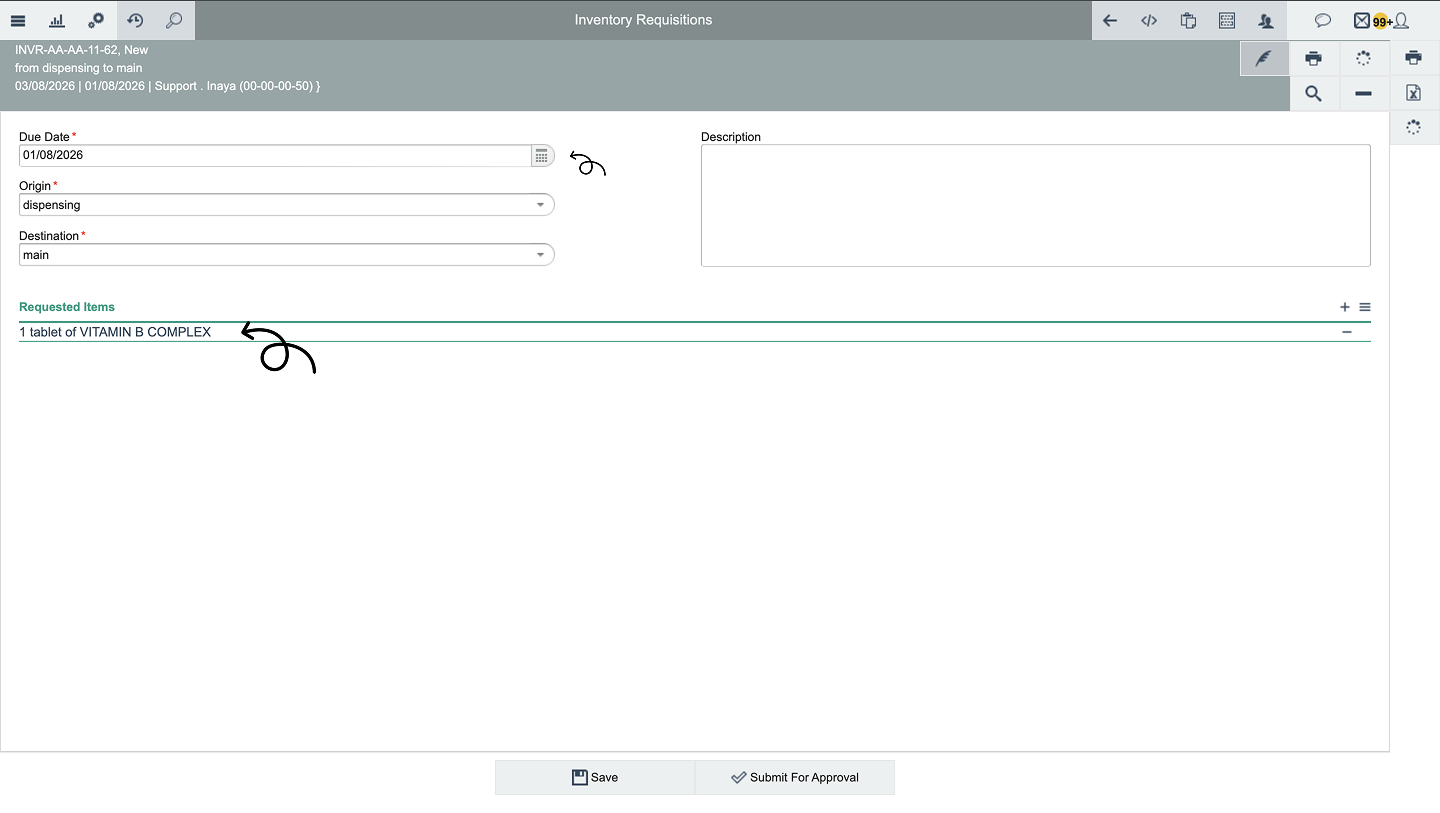
Step 7: Save the Requisition
Review the information and click Save.
The requisition is created with the appropriate initial status.
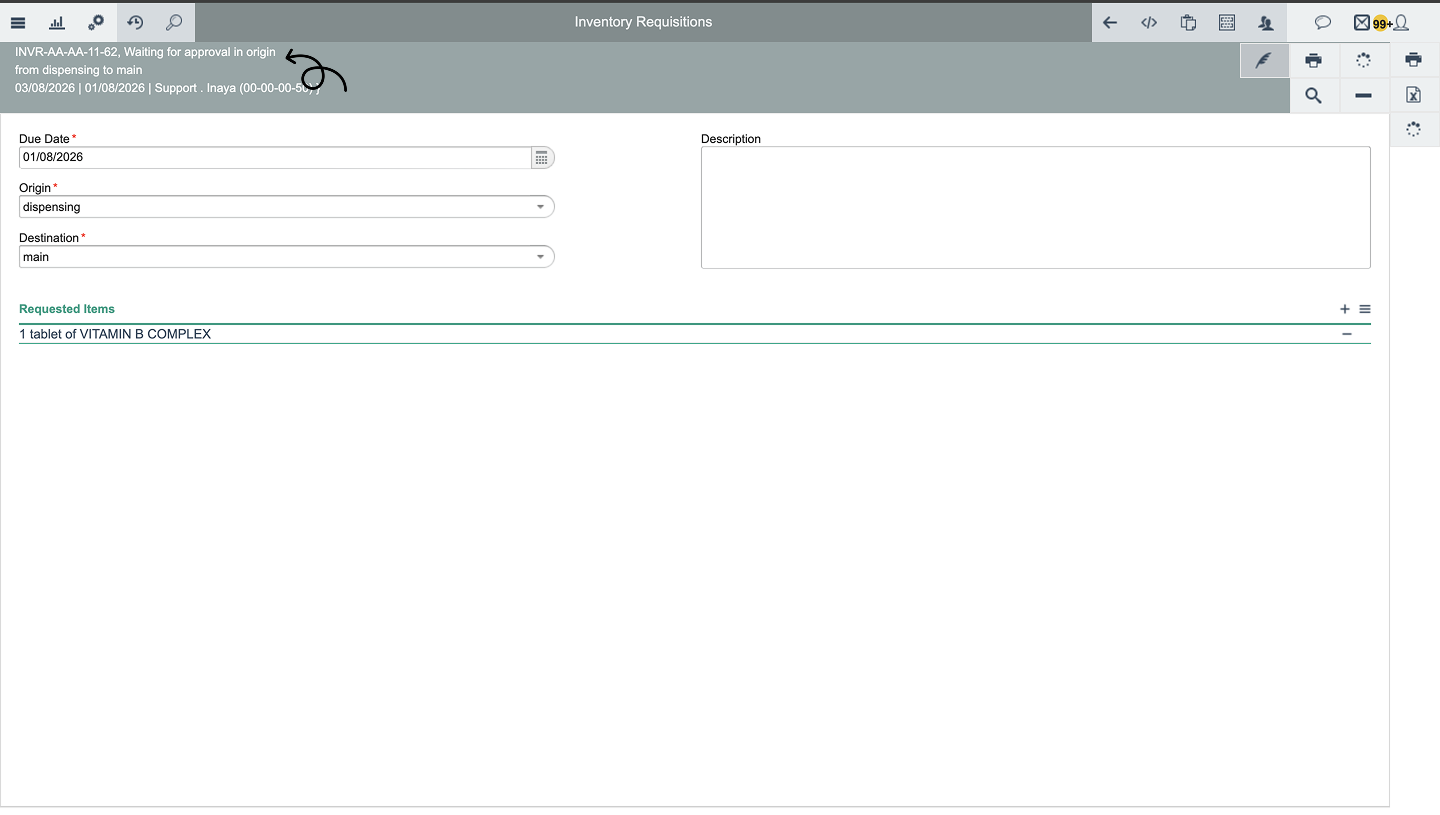
Step 8: Approve the Requisition
Depending on the configured workflow, the requisition may require approval from:
Origin Store management
Destination Store management
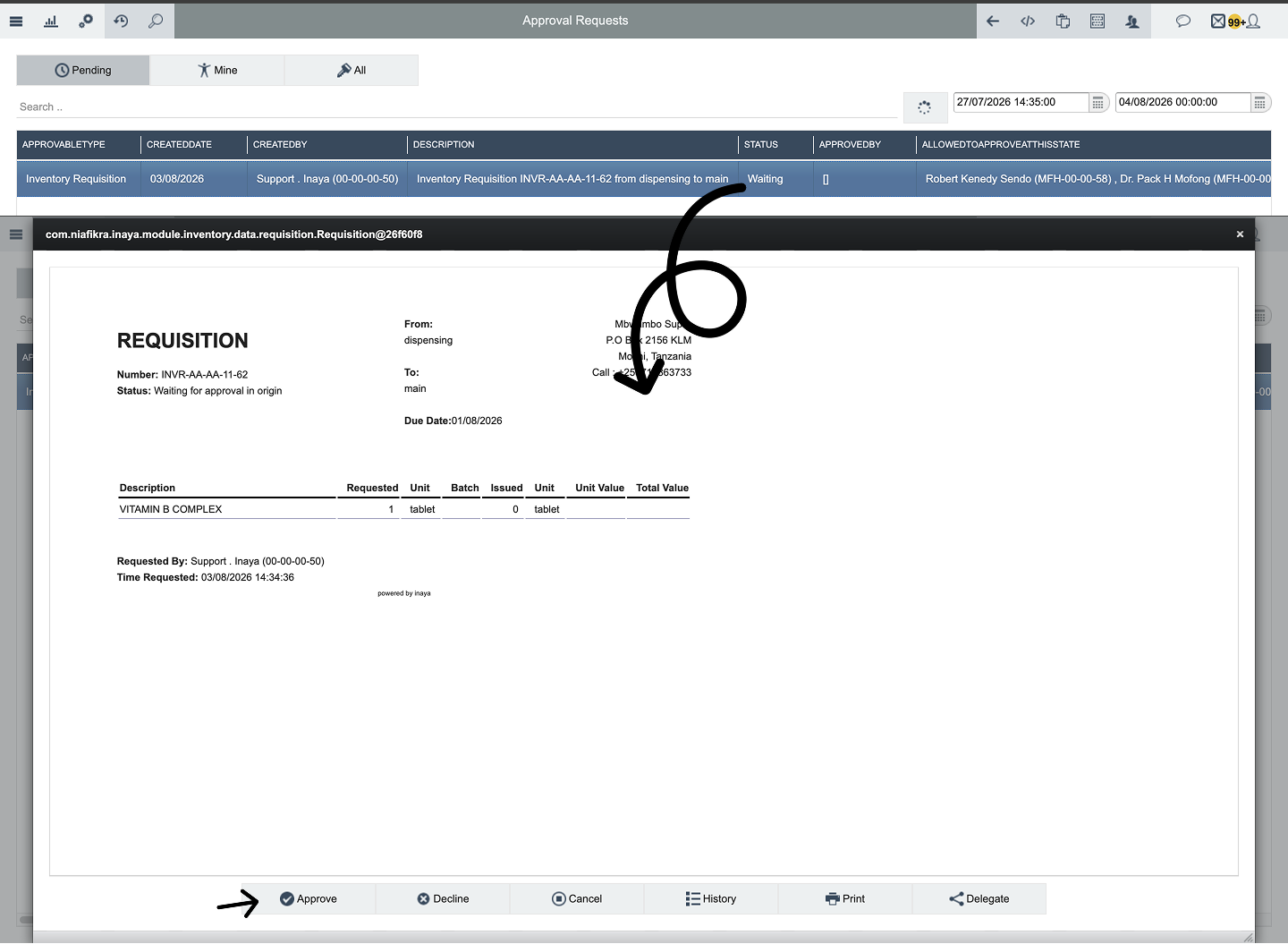
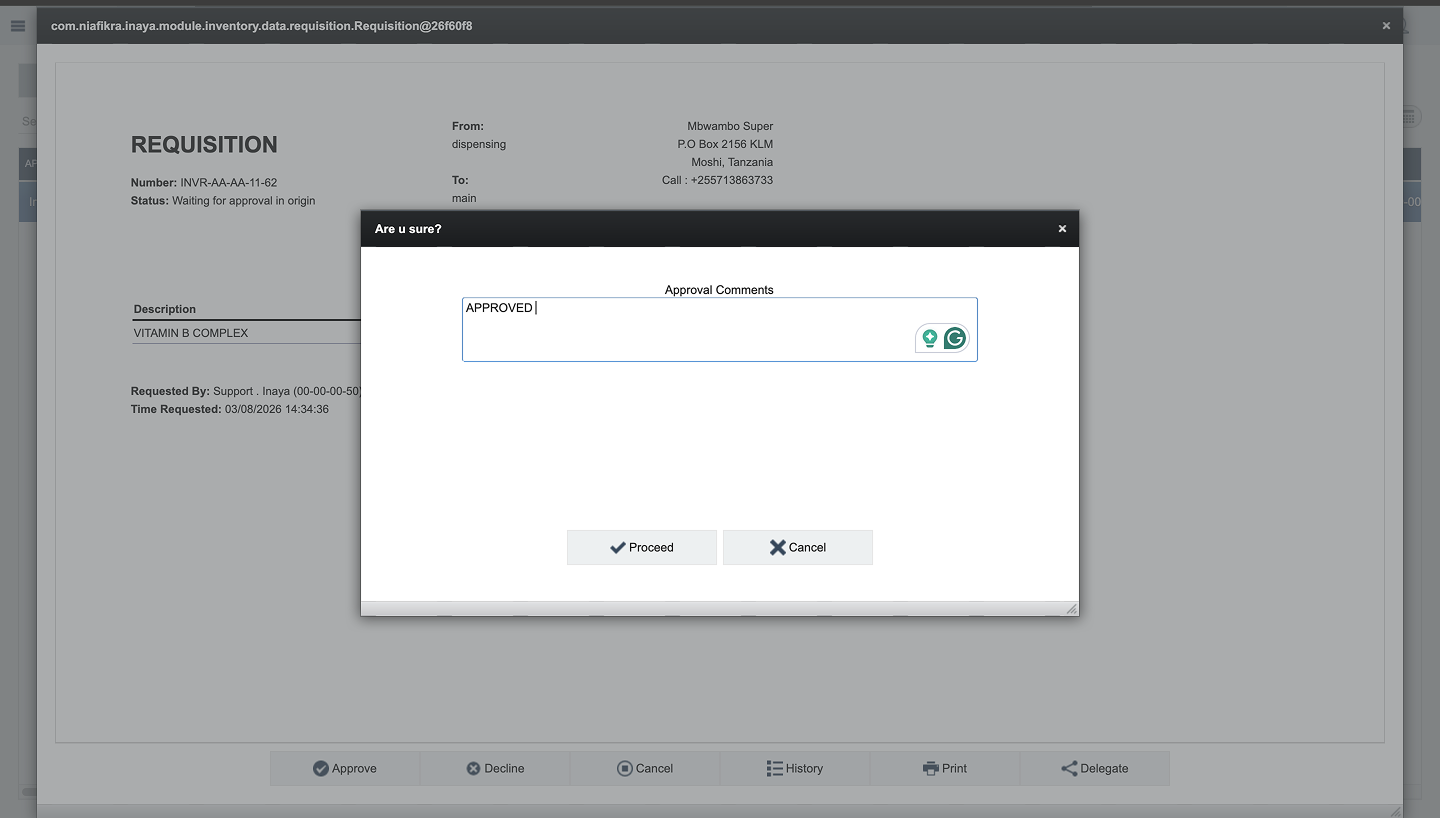
The requisition moves through the configured approval stages before stock can be issued.

Step 9: Issue the Stock

After approval, the Destination Store performs the Issue action.

The Issue process represents the physical preparation and dispatch of the requested stock.
This may include:
Picking the items.
Verifying quantities.
Packing the items.
Dispatching the stock.
Step 10: Confirm the Delivery
When the stock arrives at the Origin Store, receiving staff verify the delivery.
They should:
Count the delivered items.
Verify the item.
Verify the quantity.
Check the physical condition.
Click Confirm.
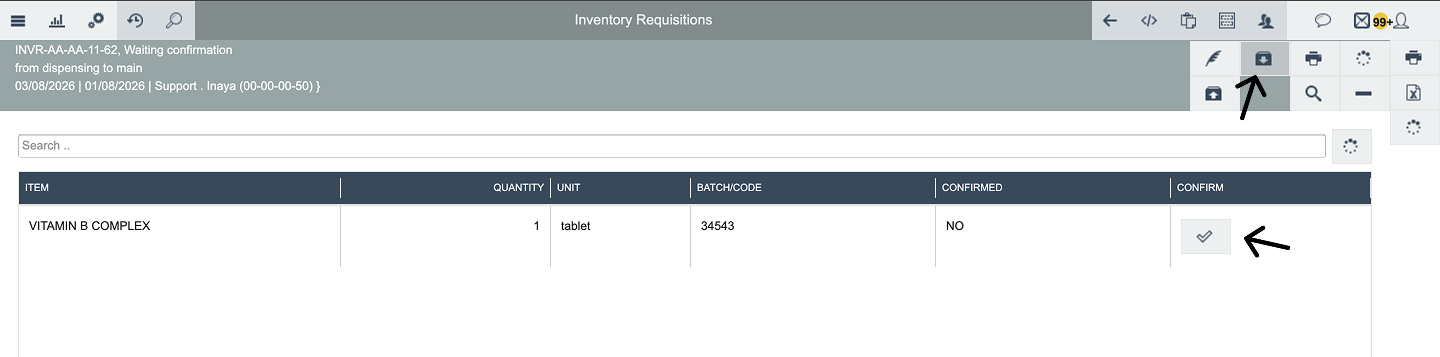
Step 11: Complete the Requisition
After confirmation, Inaya completes the stock transfer and the requisition moves to:
Closed Fulfilled
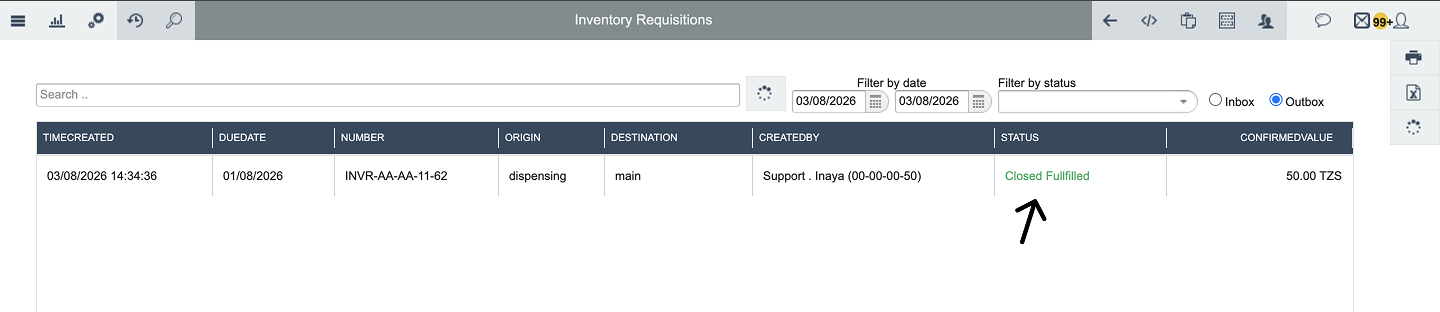
The inventory balances are then updated accordingly.
6. What Happens After Saving?
After a requisition is saved, Inaya tracks it through its configured workflow.
Stage | What Happens |
|---|---|
Creation | The requisition is recorded in Inaya. |
Origin Approval | The originating store reviews and approves the request. |
Destination Approval | The supplying store reviews and approves the request. |
Issue | The destination store prepares and dispatches the stock. |
Delivery | The requested stock is transported to the Origin Store. |
Confirmation | The Origin Store verifies and confirms receipt. |
Stock Update | The inventory balances are updated after confirmation. |
Completion | The requisition moves to Closed Fulfilled. |
Audit History | The requisition retains its workflow and transaction history. |
Effect on Stock
Before confirmation, the permanent inventory transfer has not been completed.
For the example above:
After the Pharmacy Store confirms receipt:
7. Configurations
Inventory Requisitions can be configured to control how requests move through the organisation.
Workflow Configuration
Configuration | Description |
|---|---|
Origin Store | The store or department requesting stock. |
Destination Store | The store or warehouse supplying stock. |
Approval | Requires authorised users to approve the requisition. |
Issue | Allows the supplying store to dispatch requested stock. |
Confirm | Allows the receiving store to confirm physical receipt. |
Auto Issue | Automatically issues the stock after the required approval stage. |
Origin Store
The Origin Store is the requesting location that requires additional stock.
Example:
Pharmacy Store
Destination Store
The Destination Store is the supplying location responsible for fulfilling the request.
Example:
Main Warehouse
Issue
Issue represents the physical or digital dispatch of stock from the Destination Store.
It indicates that the requested items have been picked, prepared, and dispatched.
Confirm
Confirm is the receiving action performed by the Origin Store after the stock arrives.
The receiving user verifies that the delivered stock matches the requisition before confirming the transfer.
Approval
Approval is the administrative control that allows authorized users to review and approve the requisition before it progresses.
Auto Issue
Auto Issue allows the system to automatically issue stock after the configured approval requirements have been satisfied.
8. Common Problems and Solutions
No. | Problem | Possible Cause | Solution |
|---|---|---|---|
1 | Requisition cannot be created | Required information is missing | Complete the required fields before saving. |
2 | Wrong Origin Store selected | Incorrect store was chosen | Review the Origin Store before submitting the requisition. |
3 | Wrong Destination Store selected | Incorrect provider store was selected | Verify the Destination Store before saving. |
4 | Requisition is waiting for approval | Required approval has not been completed | Contact the responsible approver. |
5 | Requisition was denied by Origin | Origin approval was rejected | Review the denial reason and create a new request if necessary. |
6 | Requisition was denied by Destination | Destination store rejected the request | Review the rejection reason and stock availability. |
7 | Stock cannot be issued | Destination approval or other workflow requirement is incomplete | Complete the required approval steps. |
8 | Received quantity does not match | Delivered stock differs from the requested quantity | Physically verify the delivery before confirming. |
9 | Stock has not moved between stores | Receiving confirmation has not been completed | Verify the delivery and complete the Confirm action. |
10 | Requisition remains open | A workflow action is incomplete | Check the current status and complete the required action. |
11 | Auto Issue is not working | Auto Issue is disabled or incorrectly configured | Review the workflow configuration and approval requirements. |
Quick Reference
Step | Action |
|---|---|
1 | Open Inventory Requisitions |
2 | Create a new requisition |
3 | Select the Origin Store |
4 | Select the Destination Store |
5 | Add the requested items |
6 | Enter the required quantities |
7 | Set the due date |
8 | Save the requisition |
9 | Complete the required approvals |
10 | Destination Store performs Issue |
11 | Origin Store receives and verifies the stock |
12 | Origin Store performs Confirm |
13 | Inaya updates the inventory balances |
14 | Requisition becomes Closed Fulfilled |
Status Quick Reference
Status | Meaning |
|---|---|
New | The requisition has been created and saved but has not yet been processed or reviewed. |
Waiting for Approval in Origin | The requisition is waiting for approval from the Origin Store's responsible authority. |
Waiting for Approval in Destination | The requisition has passed Origin approval and is waiting for approval from the Destination Store. |
Closed Fulfilled | The requisition has been approved, issued, received, and confirmed successfully. |
Denied by Origin | The requisition was rejected by the Origin Store's responsible authority. |
Denied by Destination | The Destination Store rejected the request. |