How to Create stock taking
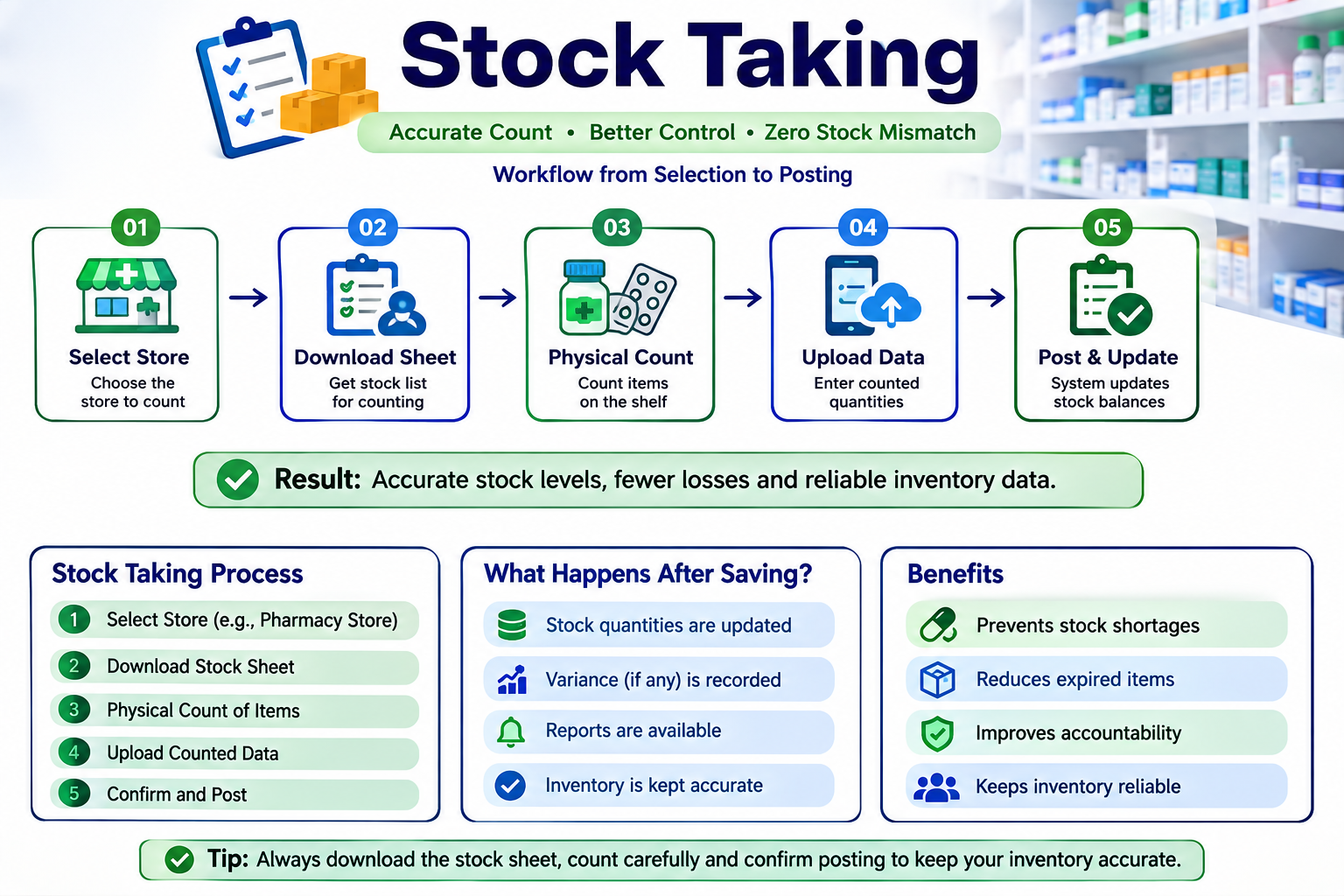
Stock Taking, also known as Physical Inventory Counting, is the structured operational process of physically counting, inspecting, and verifying the exact quantities of all inventory items stored in your facility.
This process follows a streamlined 4-step lifecycle:
These steps ensure your digital inventory accurately reflects the stock physically available on your shelves.
2. Why Stocktaking Is Important
Conducting periodic stocktaking is essential for maintaining inventory accuracy and organizational accountability. It helps identify:
Inventory shortages
Overstock situations
Theft or shrinkage
Misplaced inventory
Data entry mistakes
Unrecorded stock movements
Proper stocktaking also protects organizational assets by ensuring the balance sheet reflects the true value of inventory.
3. Scenarios for Stocktaking
Monthly Pharmacy Count
The Pharmacy Manager suspects a discrepancy involving high-value medication.
They navigate to the Stock Taking screen, select Pharmacy Store, and download the counting template. The sheet is printed and used during a complete physical count of all shelves and cabinets.
During counting:
System Quantity = 100 Tablets
Physical Count = 98 Tablets
The user enters 98 into the COUNTED QUANTITY column and uploads the completed spreadsheet.
The system automatically creates a Stock Adjustment for the shortage (-2) and requires the user to provide a reason such as:
Counting Error
Damaged Items
Theft
Expired Stock
4. Requirements for Downloading Stocktaking Template
Before starting a stocktaking session, ensure the following requirements are met:
Requirement | Description | Status |
|---|---|---|
Active Stores | Physical stores or warehouses must already exist in the system. | ✔ Required |
Item Registration | All inventory items must be registered with current stock balances. | ✔ Required |
Counting Personnel | Authorised personnel should be assigned to perform the physical count. | ✔ Required |
Excel/Spreadsheet Software | A compatible spreadsheet application (Excel, Google Sheets, LibreOffice, etc.) is required to edit the downloaded template. | ✔ Required |
5. Step-by-Step Guide
Navigation
Main Menu → Report Inventory and Assets → Stock Taking
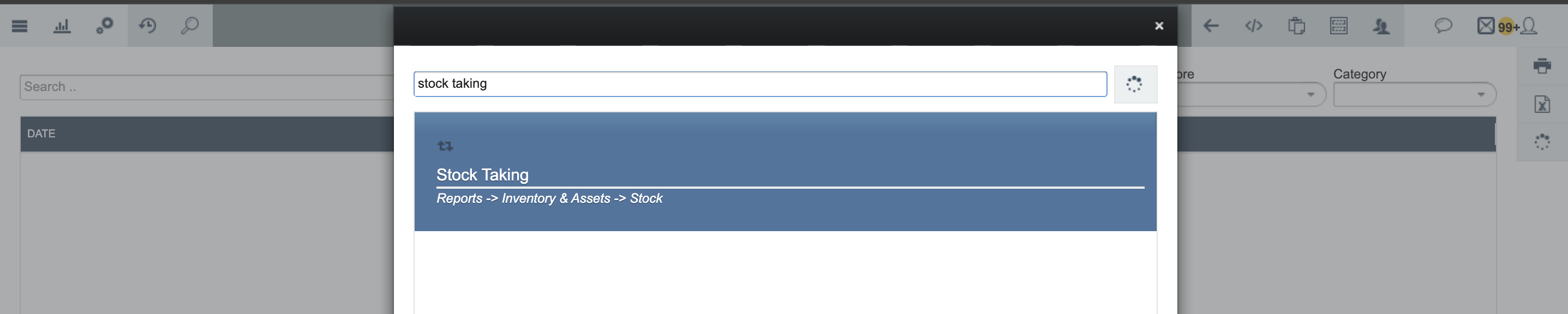
Step 1: Filter and Select Store Parameters
Open the Stock Taking page.
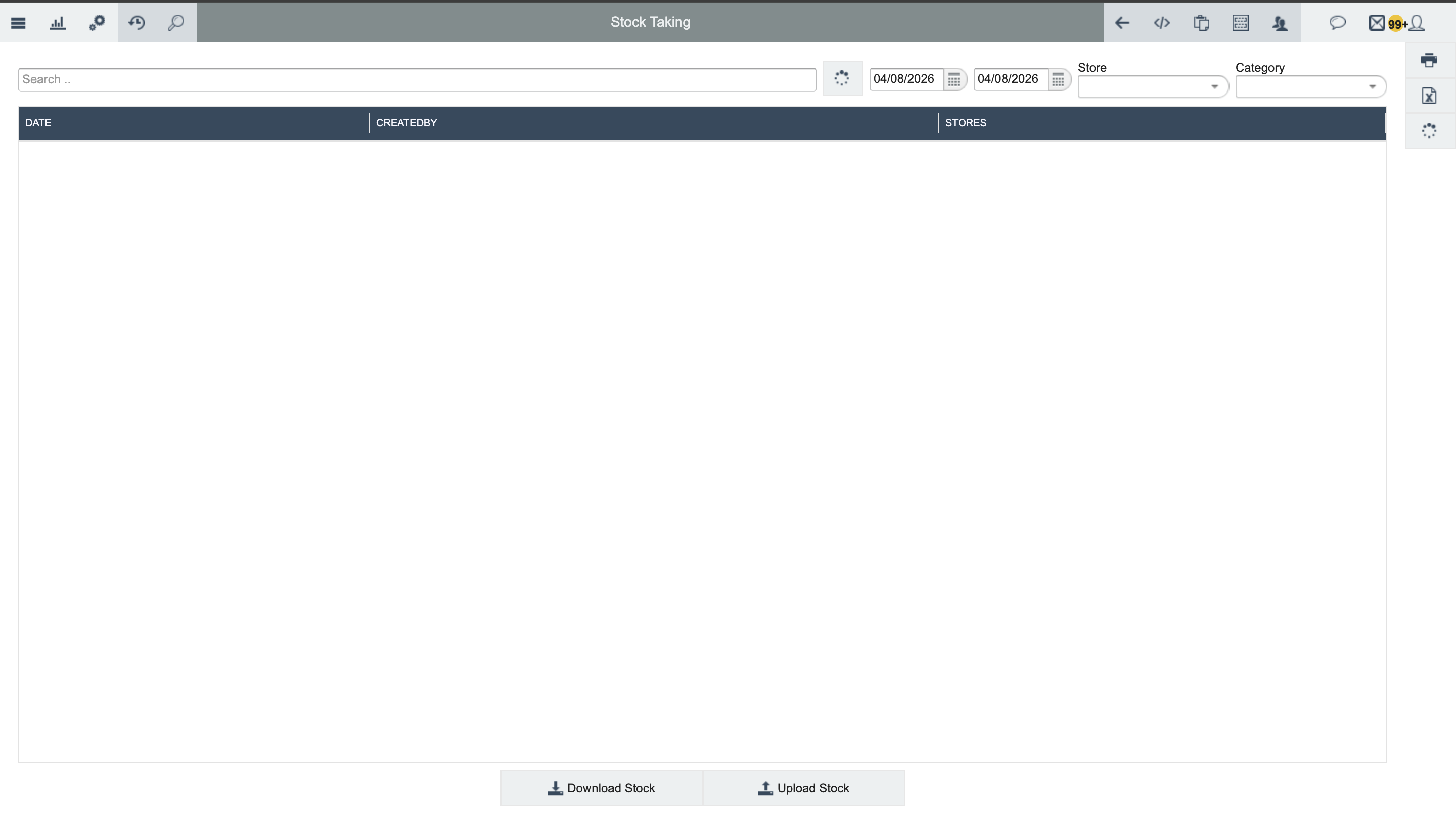
Select the Store to be counted.
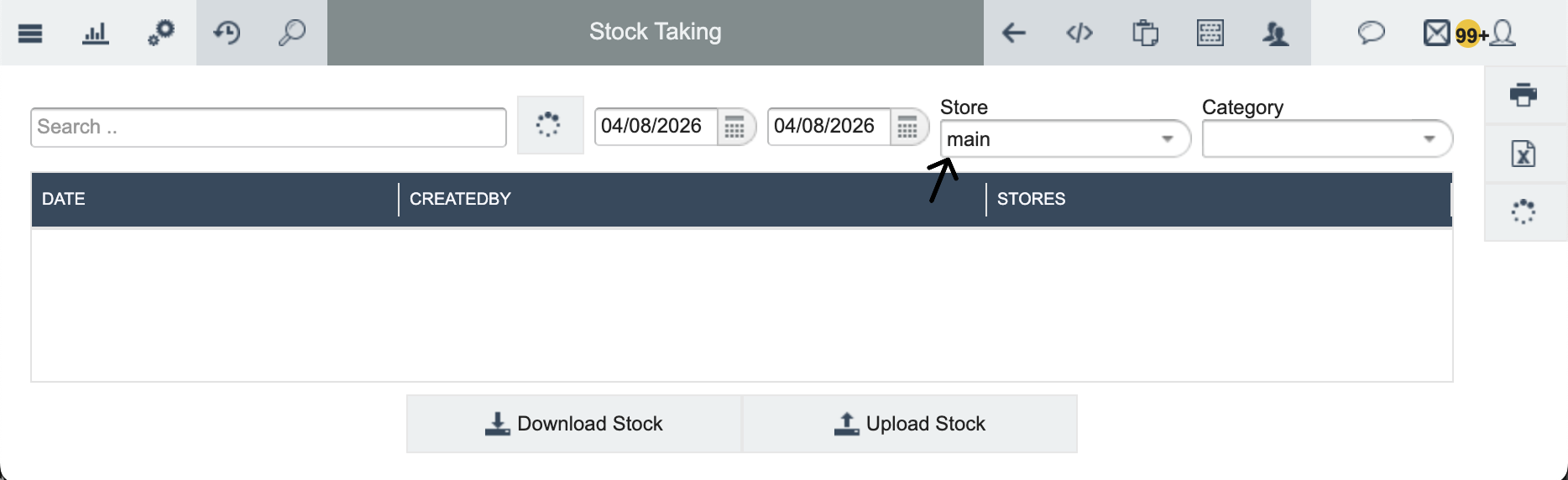
Optionally select an Inventory Category to divide counting responsibilities between teams.
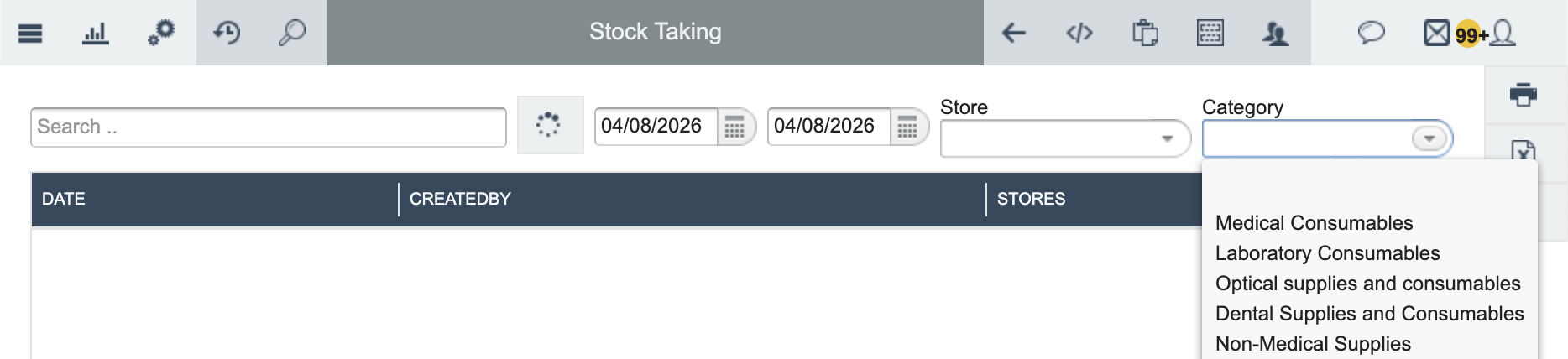
Examples:
Main Warehouse
Pharmacy Store
6. Step 2: Download Stock Sheet Template
Click Download Stock from the action toolbar.

The generated Excel template contains:
Item Name
Item Code
Store Location
Category
Batch Number
Batch ID
Expiry Date
Unit
Current System Quantity
COUNTED QUANTITY (Blank)

Step 3: Conduct Physical Inventory Count
Distribute the downloaded spreadsheet to counting personnel.
Inspect every storage location including:
Shelves
Cabinets
Bins
Storage Rooms
Warehouse Racks
Record the exact quantity physically observed inside the COUNTED QUANTITY column.
If necessary, make notes regarding:
Expired items
Damaged products
Missing stock
Unlabelled inventory
Incorrect storage locations

Step 4: Upload Data & Generate Variance Report
After completing the physical count:
Return to the Stock Taking page.
Click Upload Stock.
Select the completed spreadsheet.
Confirm the upload.

The system automatically compares:
Current System Quantity
Counted Quantity
A detailed Variance Report is then generated.
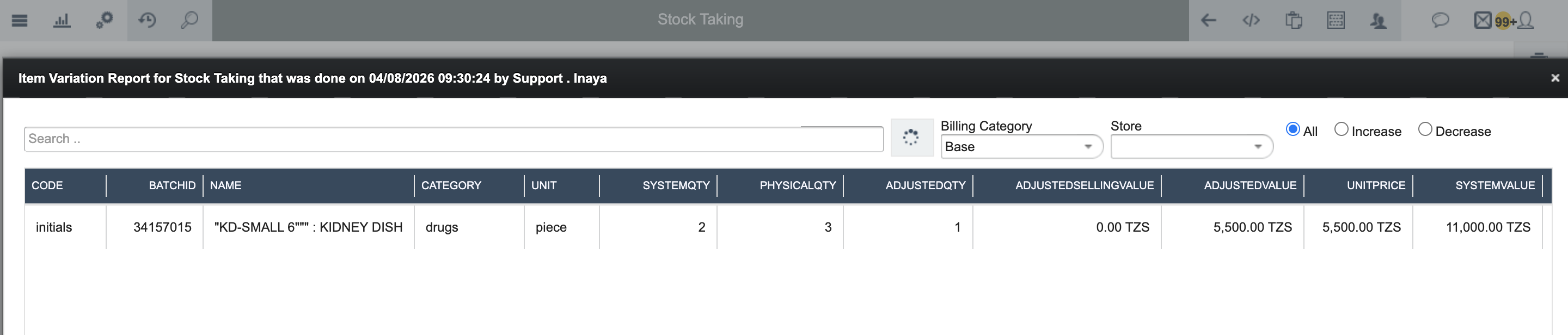
7. Stock Taking Reconciliation
After successful upload, inventory discrepancies are never deleted.
Instead, the system creates a Stock Adjustment transaction using approved Reason codes, ensuring complete audit history.
Common Adjustment Reason | Recorded Information |
|---|---|
Stock Balancing | User, Date & Time, Previous Quantity, New Quantity, Adjustment Reason, Audit Notes |
Counting Error | User, Date & Time, Previous Quantity, New Quantity, Adjustment Reason, Audit Notes |
Damaged Item | User, Date & Time, Previous Quantity, New Quantity, Adjustment Reason, Audit Notes |
Expired Product | User, Date & Time, Previous Quantity, New Quantity, Adjustment Reason, Audit Notes |
Theft | User, Date & Time, Previous Quantity, New Quantity, Adjustment Reason, Audit Notes |
Stock Write-off | User, Date & Time, Previous Quantity, New Quantity, Adjustment Reason, Audit Notes |
8. What Happens After Saving Stock Taking?
After the uploaded file passes validation:
Live inventory quantities are updated.
Stock balances become immediately available throughout the system.
Sales, dispensing, requisitions, and transfers use the newly reconciled stock levels.
Variance history is permanently stored for future auditing.
Stock Adjustment transactions are automatically created where required.