How to receive Items from another store
1.Overview
This guide explains how to receive inventory items that have been transferred from another store into the receiving store in Inaya. It covers locating the item, opening the Receive function, entering the receiving details, recording the received batch and quantity, and saving the transaction.
Use this process whenever stock physically arrives at a store and the destination store needs to confirm the receipt in Inaya. Completing it ensures the received quantity is recorded against the correct store and item.
2.Why It Matters
Accurately records stock received from another store.
Updates the destination store's inventory balance.
Ensures the received quantity and batch are correctly captured.
Maintains traceability of stock movements between stores.
Reduces differences between physical stock and stock recorded in Inaya.
Provides a reliable inventory transaction history for monitoring and auditing.
3. Prerequisites
Before receiving items from another store, confirm the following:
The receiving user has permission to access the relevant store functions.
The item being received exists in Inaya and can be found through the item search panel.
The correct receiving store is available and already configured.
The transfer or stock movement has been initiated by the sending store.
The physical items have arrived at the receiving store.
The received quantity can be verified physically.
The correct batch information is available, when batch tracking is used.
The appropriate receiving unit and unit price are known.
4.Example Scenarios
Store A transfers 50 units of an item to Store B. Once the items physically arrive, the authorized user searches for the item in Inaya, opens Receive, selects Store B as the receiving store, enters the receiving date, unit, unit price, batch, and quantity, then saves the transaction.
An item arrives with a specific batch number. The receiving user verifies the batch on the physical stock and records the same batch in the Received Batch field before entering the quantity.
If the transfer indicates a quantity that differs from what physically arrived, the user should verify the discrepancy before saving the receipt. The quantity entered in Inaya must reflect the quantity actually received, per your organization's receiving procedure.
5. Receiving an Item
Navigation:
Receive an item from another store
Use the search panel to locate the item that has been transferred to your store.
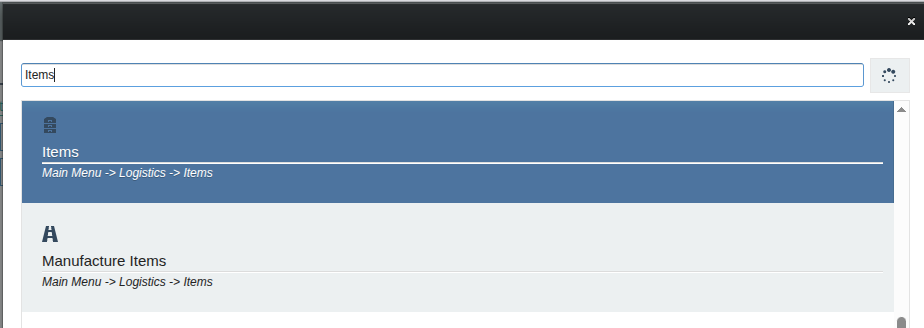
Select the item you want to receive, and confirm it's the correct item.
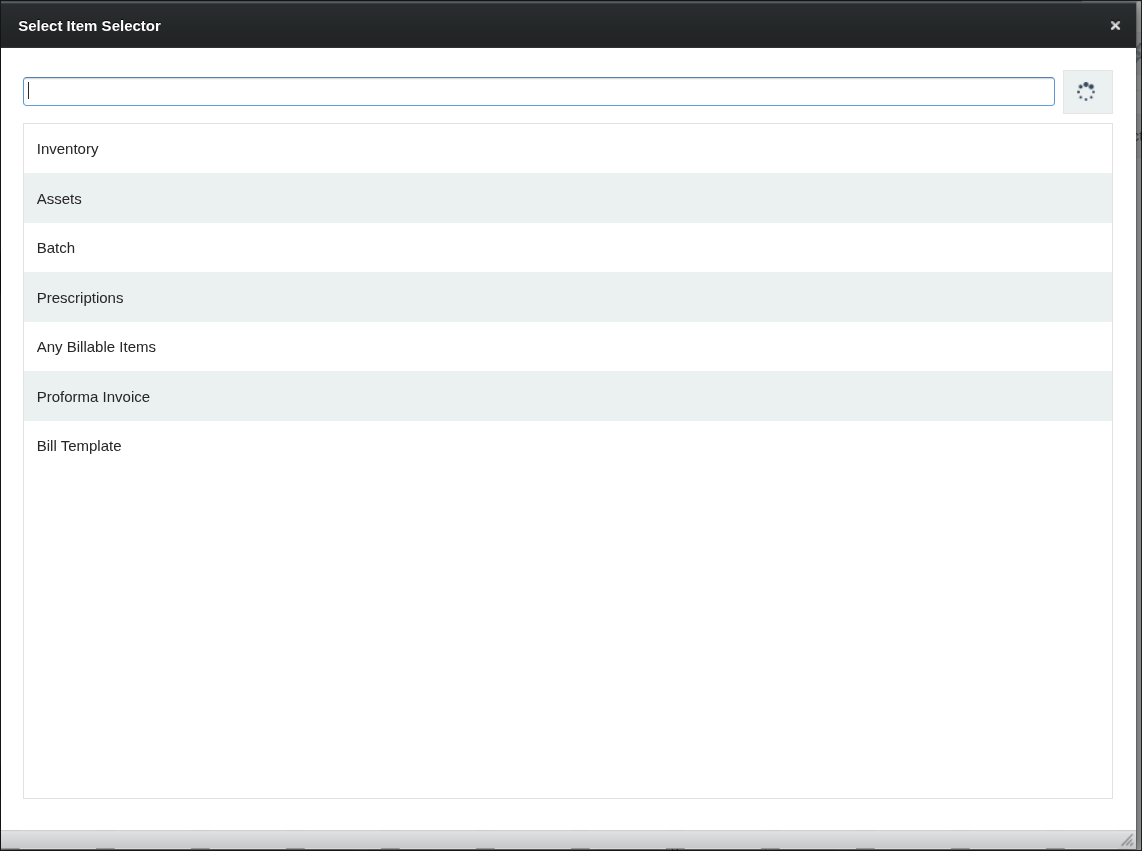
Open the Receive option, located on the upper pane.
Enter the receiving details:
Receiving store
Receiving date
Receiving unit
Unit price
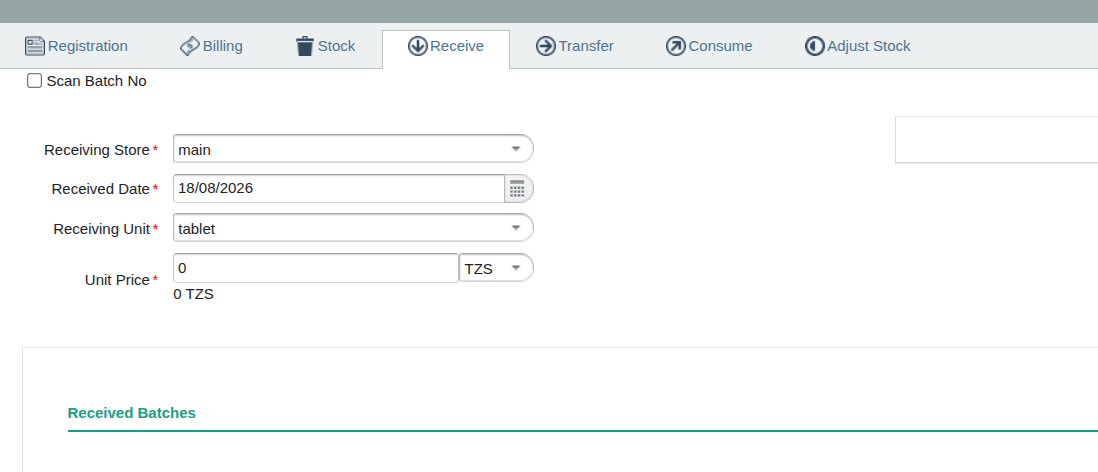
Enter the Received Batch, where applicable, and the quantity physically received.

Click the Save icon below the form.
The item is recorded as received to the selected store successfully.
6.What Happens After Saving?
No | Action / Area | Expected Result |
|---|---|---|
1 | Receiving transaction | The receipt is recorded successfully in Inaya |
2 | Destination store | The quantity in the store increases |
3 | Item stock | The store's inventory balance is updated according to the saved transaction |
4 | Batch | The received batch is recorded, when batch tracking is applicable |
5 | Inventory history | The stock movement history is recorded to reports |
7.Configurations to Set
Stores — Configure the stores that can send and receive inventory.
User permissions — Grant authorized users access to stores.
Items — Ensure transferable items are correctly created and active.
Units of measure — Configure the receiving units used for each item.
Batch management — Configure batch numbers to track expiring items.
Approval workflows — Configure any approvals required before a receipt is finalized.
8.Troubleshooting
No | Common Problem | Solution |
|---|---|---|
1 | Item cannot be found in the search panel | Confirm the item exists, is active, and is available to the relevant store |
2 | Receive option is not available | Check the user's permissions and confirm they have access to receiving |
3 | Incorrect receiving store selected | Review the Receiving Store field before saving and select the correct destination store |
4 | Unable to save the transaction | Check all mandatory fields, including date, unit, price, batch (where required), and quantity |
5 | Batch information is incorrect | Verify the batch number against the physical item and correct it before saving, where permitted |
6 | Received quantity does not match physical quantity | Verify the physical items and resolve the discrepancy before saving |
7 | Transaction was saved with incorrect information | Follow the adjustment process to edit the transaction with correct information |