How to Consume Inventory Item Stock in Inaya
1. Overview
The Consumption module in Inaya is designed to track and manage items that are used internally within your facility. Consumption represents the internal usage of stocked items when employees use them for daily operations, patient care, or facility maintenance. This feature ensures accurate inventory records by deducting consumed quantities from store stock and creating a clear audit trail of who used what, when, and from which batch.
2. Why Is It Important to Track Consumption?
Aspect | Importance |
|---|---|
Inventory Accuracy | Keeps stock levels precise by deducting used items from available quantities |
Cost Control | Helps track the value of items consumed across departments |
Accountability | Records which employee consumed which items and when |
Audit Trail | Creates a complete record for compliance and financial auditing |
Waste Prevention | Identifies usage patterns to reduce unnecessary consumption |
Batch Tracking | Ensures traceability by recording batch numbers for consumed items |
3. Requirements Before You Start
Prerequisites Checklist
Items Catalog: The item must already exist in the system. Configure in Items module → Add Items.
Stores: The item must be available in a store. Configure in Stores module → Add Store.
Stock Receipt: The item must be received into the store before it can be consumed. Configure via Receive items into the store.
Consumer Registration: Only registered employees can consume items. Configure in the Employee registration module.
User Permissions: The user performing the transaction must have permission to consume items. Configure via System Administrator.
4. Scenarios and Examples
Scenario 1 — Consuming Gloves for Laboratory Cleaning
Field | Value |
|---|---|
Item | Surgical Gloves |
Store | Main Store |
Consumer | Lab Technician Sarah Wilson |
Batch Number | GLOVE-2026-001 |
Quantity | 25 pairs |
Unit | Pairs |
Context: A laboratory technician is using gloves for routine cleaning and sterilization of laboratory equipment. The gloves are consumed internally for facility maintenance purposes.
Scenario 2 — Consuming Spirit for Laboratory Disinfection
Field | Value |
|---|---|
Item | Surgical Spirit 500ml |
Store | Main Store |
Consumer | Lab Technician John Mbeki |
Batch Number | SPR-2026-045 |
Quantity | 5 bottles |
Unit | Bottles |
Context: Laboratory staff are using surgical spirit for surface disinfection and cleaning of laboratory workstations. This is internal consumption for maintaining a sterile laboratory environment.
Scenario 3 — Consuming Reagents for Machine Testing
Field | Value |
|---|---|
Item | Hematology Reagent Kit |
Store | Laboratory Store |
Consumer | Lab Technician Mary Peter |
Batch Number | REAG-2026-012 |
Quantity | 3 kits |
Unit | Kits |
Context: A laboratory technician is using reagent kits to run quality control tests on the hematology analyzer machine. The reagents are consumed during routine machine testing and calibration procedures.
5. Step-by-Step Guide: Consuming an Item
Step 1 — Navigate to Items
Open the Main Menu from the sidebar.
Scroll down to Logistics, then select Items to open the Items page.
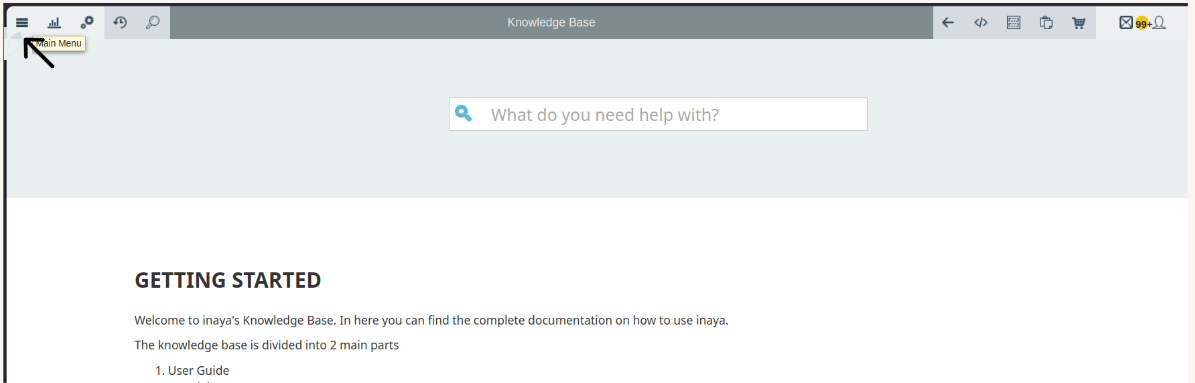
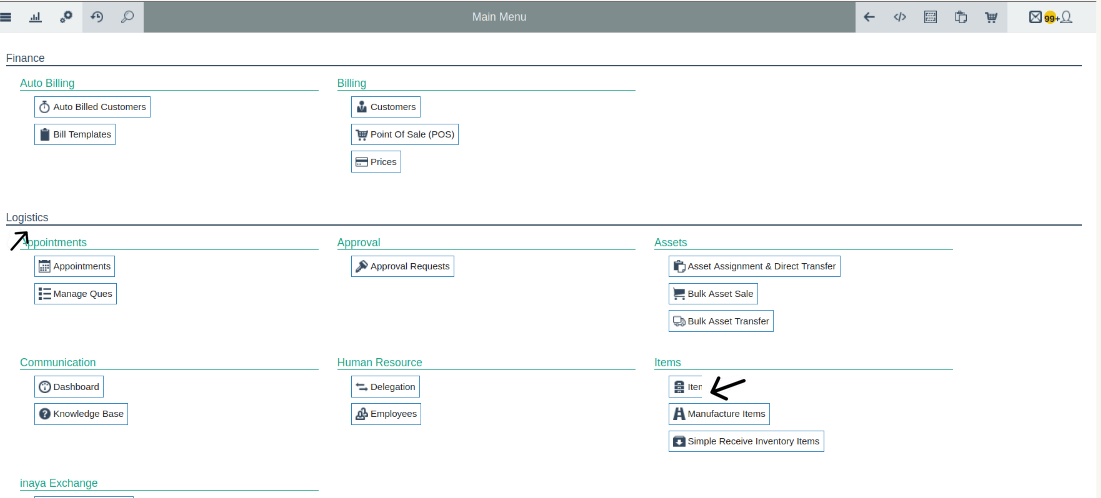
Alternatively, click the Search icon in the top-left corner, type
Itemsinto the search box, and select Items from the results.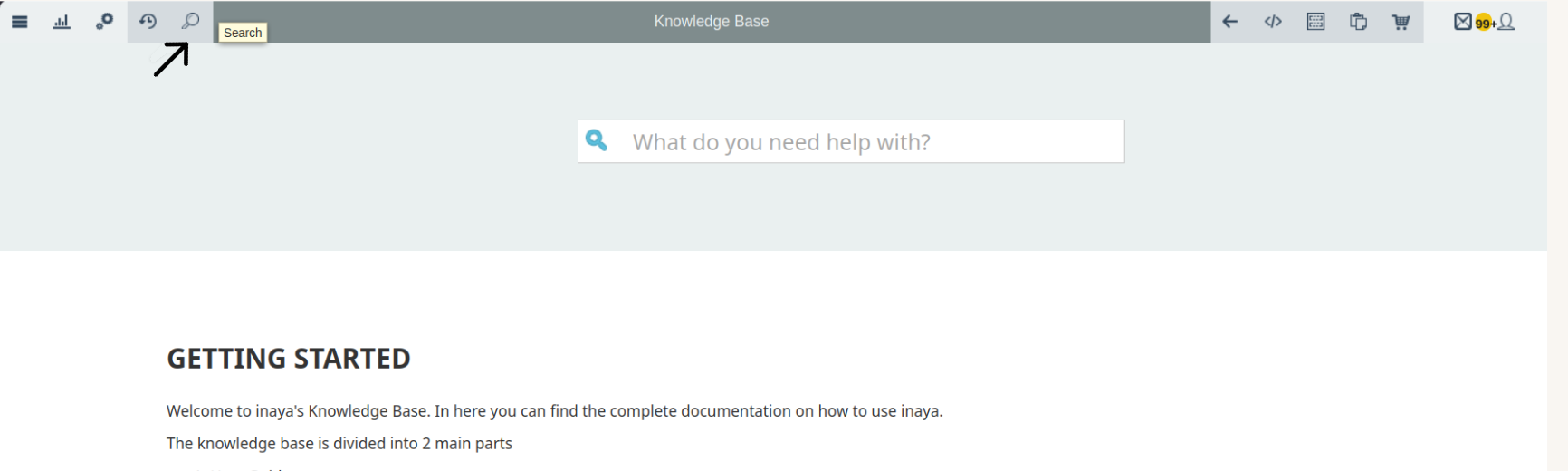
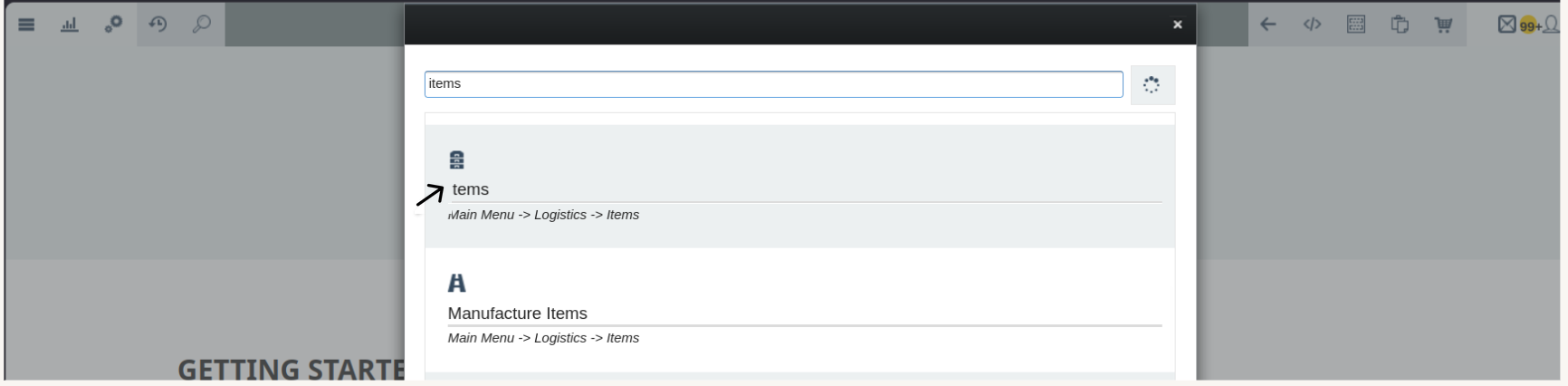
Click Items. A complete list of all items in the system will display.
Step 2 — Search for the Item
In the items list, locate the search bar.
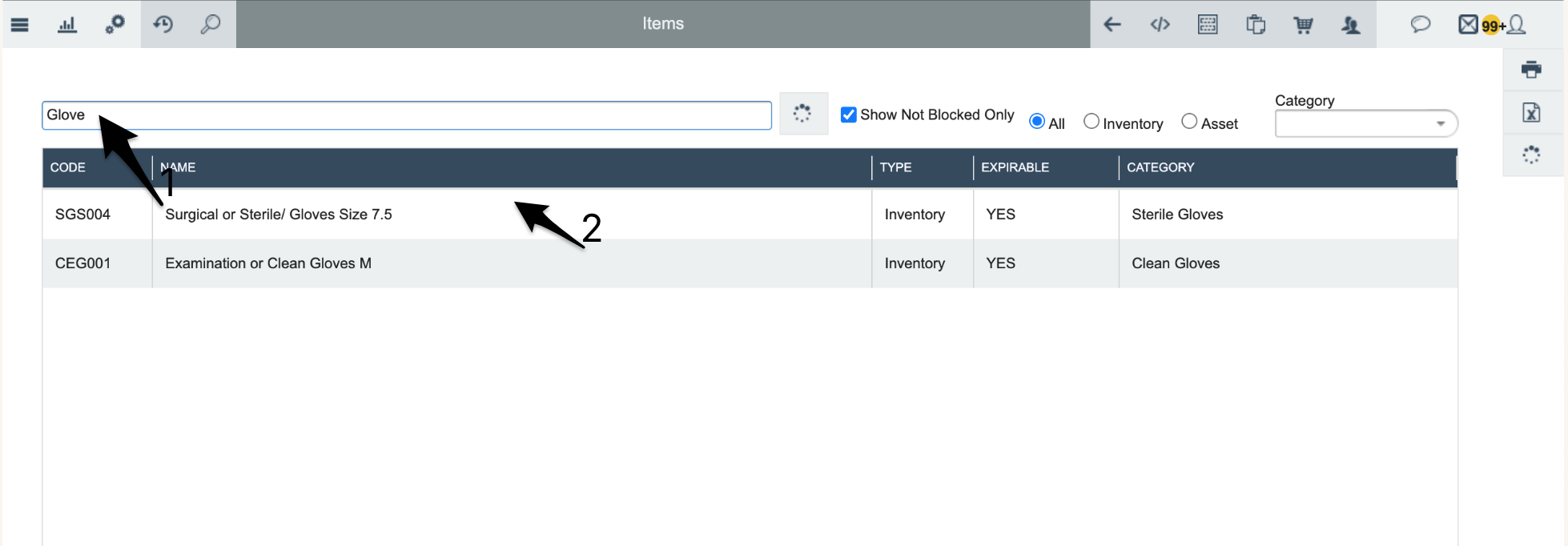
Type the name or code of the item you want to consume. The system filters and displays matching items.
Search Method | Example | Result |
|---|---|---|
Item Name | "Gloves" | Shows all glove items |
Item Code | "GLV-001" | Shows the specific glove item |
Partial Name | "Acr" | Shows items starting with "Acr" |
Step 3 — Select the Item
Click on the item you want to consume from the filtered list.
The item details panel opens, displaying complete information about the selected item.
Example: Click on "Acrason Cream 10g" → item details open.
Step 4 — Navigate to the Consume Tab
In the item details panel, locate the navigation tabs.
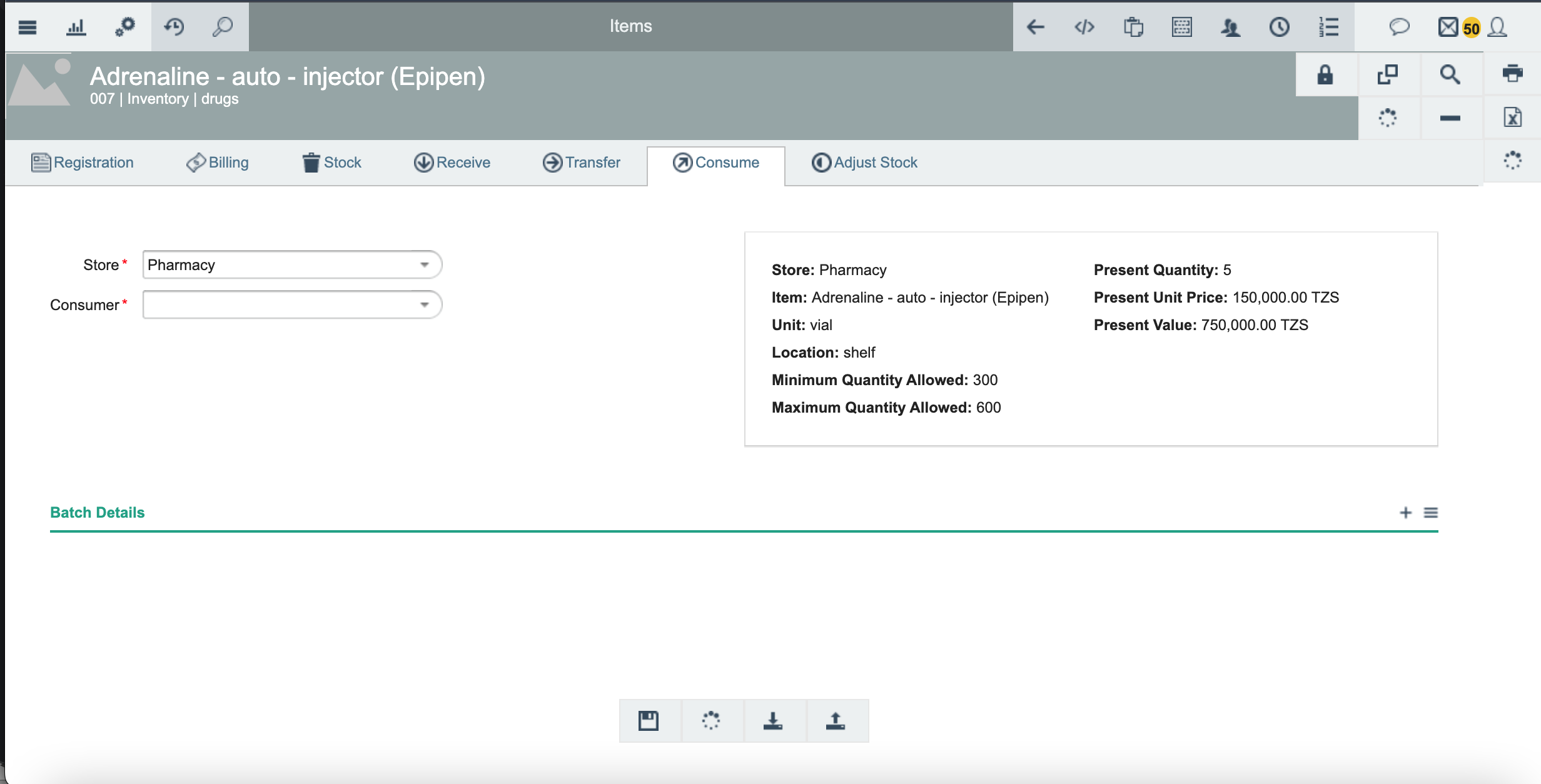
Click on the Consume tab.
Available Tabs | ||||||
|---|---|---|---|---|---|---|
Registration | Billing | Stock | Receive | Transfer | Consume 👈 | Adjust Stock |
Step 5 — Select the Store
Click on the Store dropdown field.
Select the store where the items are located.
Store Option | Description |
|---|---|
Main Store | Central inventory storage |
Pharmacy Store | Medication and pharmaceutical supplies |
Warehouse A | Bulk storage facility |
Ward A | Department-specific storage |
Laboratory | Lab supplies and equipment |
Step 6 — Select the Consumer
Click on the Consumer dropdown field.
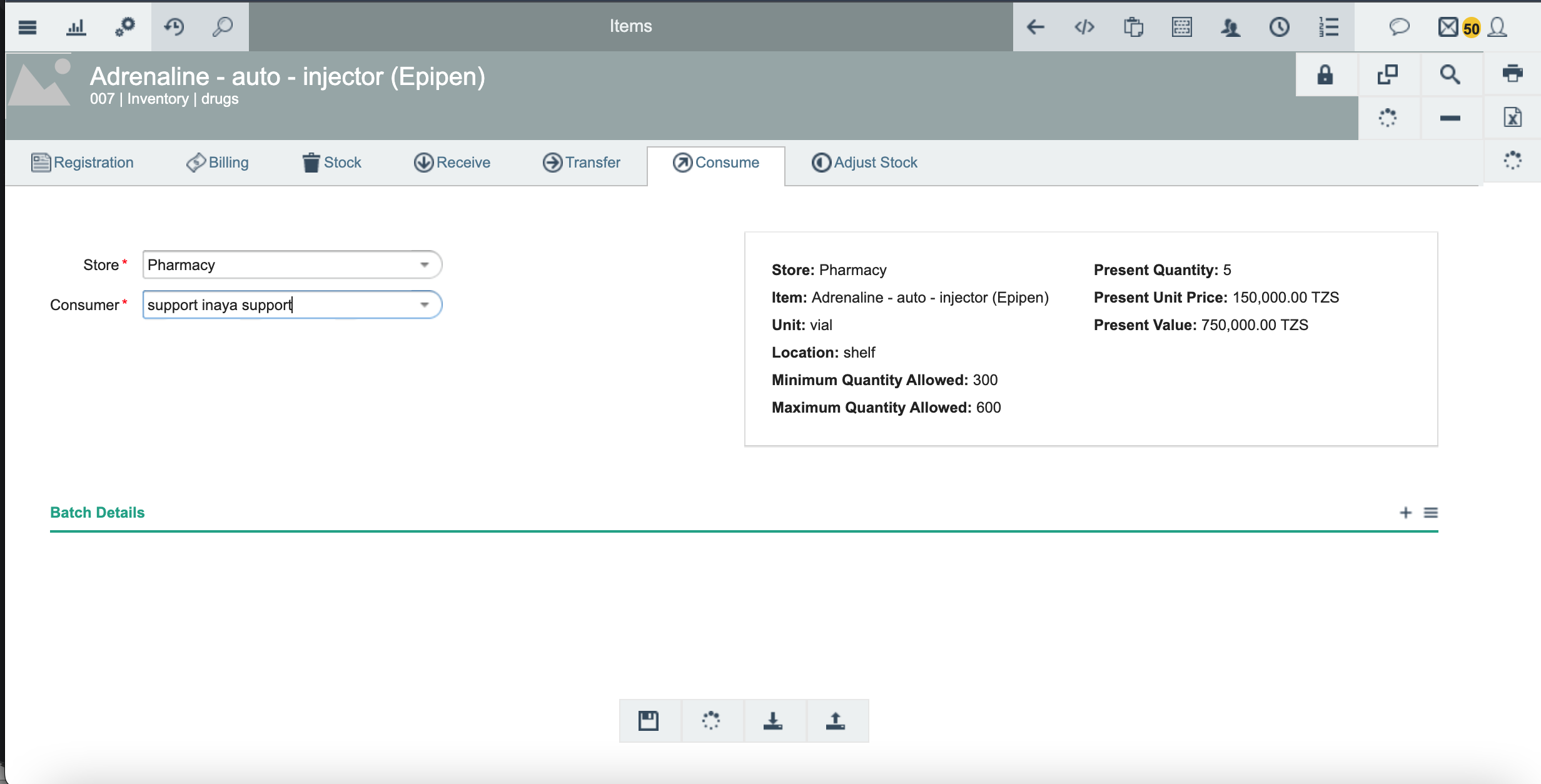
Select the employee who is using the items.
Consumer | Role | Department |
|---|---|---|
John Doe | Pharmacist | Pharmacy |
Mary Smith | Nurse | Ward A |
James Brown | Doctor | Emergency |
Sarah Wilson | Lab Technician | Laboratory |
Robert Taylor | Facility Manager | Maintenance |
Step 7 — Review Item Information
Check the stock details the system automatically displays on the right side of the screen.
Verify stock availability before proceeding to consume the item.
Field | Displayed Value | What It Means |
|---|---|---|
Store | Main Store | Where the item is located |
Present Quantity | 200 pairs | Current stock available |
Item | Gloves | Item name being consumed |
Present Unit Price | 1,500.00 TZS | Current cost per unit |
Unit | pairs | Measurement unit |
Present Value | 300,000.00 TZS | Total value of current stock |
Location | Shelf A | Physical location in store |
Minimum Quantity Allowed | 10 | Alert when stock falls below this |
Maximum Quantity Allowed | 500 | Maximum storage capacity |
Step 8 — Enter Batch Details
Locate the Batch Details section.
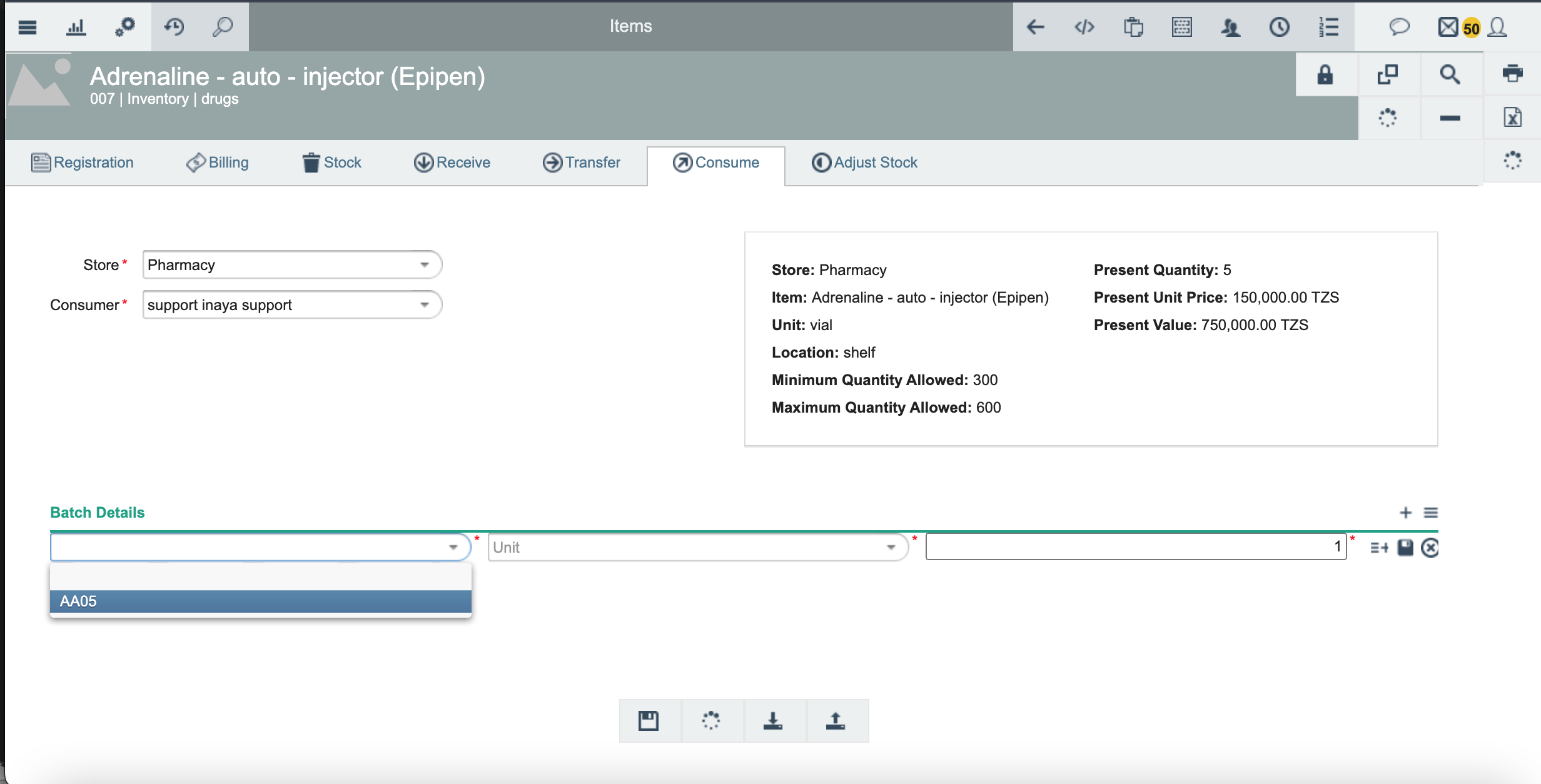
Batch Number: Enter the batch number. Example:
GLOVE-2026-001.Unit: Enter or confirm the unit. Example:
pairs.Quantity: Enter how many units to consume. Example:
50.
Step 9 — Save the Consumption
Review all the information you entered and confirm the quantity is correct.
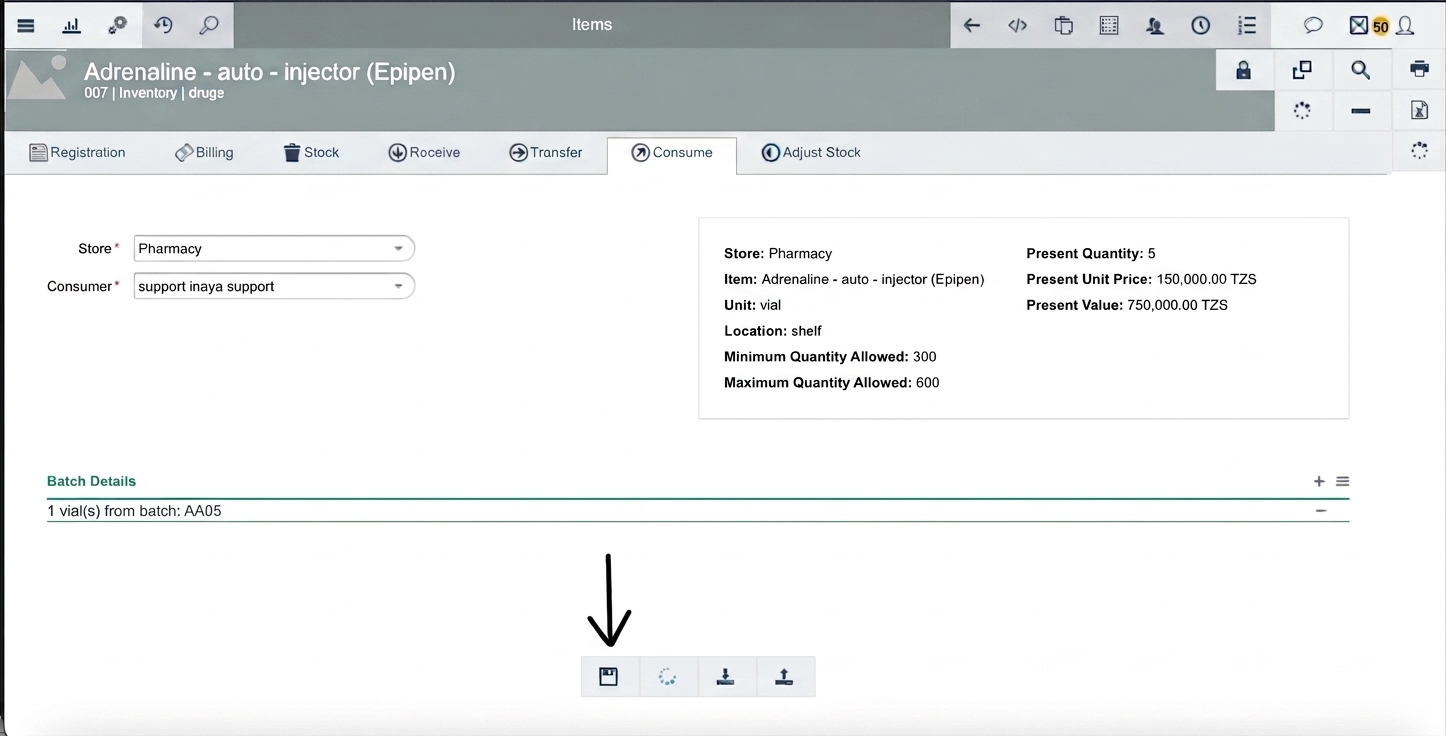
Click the Save button.
Pre-Save Checklist | ✓ |
|---|---|
Store is selected correctly | ☐ |
Consumer is selected | ☐ |
Quantity is correct | ☐ |
Unit is correct | ☐ |
6. What Happens After Saving?
SN | Action | Result | Impact |
|---|---|---|---|
1 | Stock Reduction | Present Quantity decreases in the selected store | Inventory levels updated |
2 | Value Decrease | Present Value reduces proportionally | Financial records updated |
3 | Consumption Record | A record is created and logged | Full audit trail established |
4 | Employee Record | Shows which employee consumed the items | Accountability documented |
5 | Batch Record | Shows which batch was consumed | Traceability maintained |
6 | Report Available | Appears in consumed items report | Reporting and analysis |
Complete Example — Consuming Gloves
Scenario: John Doe needs to consume 50 pairs of gloves from the Main Store.
End-to-End Walkthrough
Main Menu → Items: navigate to the items list.
Search for the item: type "gloves" in the search bar.
Click on gloves: select gloves from the list.
Click the Consume tab: navigate to the consume section.
Select Store: Main Store.
Select Consumer: John Doe (from dropdown).
Review stock: check Present Quantity — 200 pairs.
Enter batch details: Batch GLOVE-001, Unit pairs, Quantity 50.
Click Save to record the consumption.
Before Consumption
Present Quantity: 200 pairs
Present Value: 300,000.00 TZS
After Consumption
Present Quantity: 150 pairs
Present Value: 225,000.00 TZS
Consumption Record: John Doe consumed 50 pairs
Batch: GLOVE-001
7. Consumption vs. Other Transactions
Transaction | Description | Is This Consumption? |
|---|---|---|
Selling items to customers | Items leave the facility through sales | ❌ No — this is Sales |
Moving items between stores | Items are transferred internally | ❌ No — this is Transfer |
Giving items to another facility | Items are sent to external locations | ❌ No — this is Issuing |
Returning items to supplier | Items are sent back to vendor | ❌ No — this is Return |
Using items internally | Employees use items within the facility | ✅ Yes — this is Consumption |
Staff using supplies for work | Office or medical supplies used | ✅ Yes — this is Consumption |
8. Where to Find Consumption Reports
View Consumption Reports
Open Reports from the Main Menu.
Select Inventory & Assets.
Click Movements.
Choose Consumed Items Report.
9. Configuration Reference
9.1 Store Settings Affecting Consumption
SN | Setting | Purpose | Where to Configure |
|---|---|---|---|
1 | Store Name | Identifies the storage location | Stores module |
2 | Store Type | Defines the store category | Stores module |
3 | Location | Physical storage area | Stores module |
4 | Minimum Quantity | Alert threshold | Items → Store settings |
5 | Maximum Quantity | Capacity limit | Items → Store settings |
9.2 Batch Settings Affecting Consumption
SN | Field | Purpose |
|---|---|---|
1 | Batch Number | Unique identifier for batch tracking |
2 | Expiry Date | Ensures expired items aren't consumed |
3 | Manufacture Date | Tracks production date |
4 | Unit | Measurement unit for the batch |
5 | Quantity | Available quantity in the batch |
10. Common Problems and Solutions
Troubleshooting
Cannot find item — Error: "No items found". Cause: incorrect spelling or search term. Solution: check spelling or try searching by code.
Cannot see Consume tab — Tab not visible in navigation. Cause: no consumption permission. Solution: contact your system administrator.
Consumer dropdown is empty — Error: "No options available". Cause: no registered employees in the system. Solution: contact HR or your system administrator.
Item not showing in store — Error: "Item not available". Cause: item not received into that store. Solution: select a different store, or receive items first.
Cannot save — Error: "Please fill all required fields". Cause: missing mandatory information. Solution: check that all required fields are completed.
Insufficient quantity — Error: "Quantity exceeds available stock". Cause: consuming more than is available. Solution: reduce the quantity, or receive more stock.
11. Quick Reference
11.1 Checklist Before Consuming
☐ | Check |
|---|---|
☐ | Item is available in the system |
☐ | Item has stock in the selected store |
☐ | Selected consumer is a registered employee |
☐ | Quantity does not exceed available stock |
☐ | Unit of measurement is correct |
☐ | All required fields are filled |
11.2 Quick Step Reference
Consumption at a Glance
Main Menu → Items.
Search for the item.
Click the item to open its details.
Click the Consume tab.
Select the Store.
Select the Consumer (employee).
Review stock information.
Enter Batch Details (Batch, Unit, Quantity).
Click Save.
11.3 Key Terms
SN | Term | Definition |
|---|---|---|
1 | Consumption | Internal use of items by employees within the facility |
2 | Consumer | The registered employee who uses the items |
3 | Batch | A group of items produced or received together with the same batch number |
4 | Present Quantity | Current available stock in the store |
5 | Present Value | Total monetary value of current stock |
6 | Store | Location where items are physically stored |
7 | Unit | Measurement unit for the item (e.g., pairs, tubes, tablets) |
8 | Consumption Record | Log entry tracking what was consumed, by whom, and from which batch |