How to Integrate Procurement with Accounting
Overview / Introduction
By default, procurement (purchase orders, bills, payments) and accounting (ledgers, accounts payable, expense tracking) can operate as separate processes. Integrating procurement with accounting connects these two sides of the system, so that every procurement transaction creating a bill, processing a payment, closing a PO, voiding a payment automatically reflects in the accounting records, without needing to be entered twice.
Why Do Integration with Accounting
Eliminates double entry: Without integration, procurement transactions may need to be manually re-entered into the accounting system, increasing workload and risk of error.
Real-time financial accuracy: As soon as a bill is created or a payment is processed, the accounting ledgers update automatically, giving finance an accurate, real time picture of liabilities and cash flow.
Consistent audit trail: Every procurement action (bill, payment, void, closure) is reflected in the accounting system with a clear, traceable link back to its source transaction.
Better financial reporting: With procurement and accounting connected, reports (accounts payable, expenses by category, vendor balances) are complete and reliable, since nothing is left out or entered inconsistently.
Supports proper account categorization: Every procurement transaction can be automatically mapped to the correct accounting category, instead of relying on manual classification.
Account Categories Linking with Procurement Transactions
When integration is enabled, procurement transactions typically map to accounting categories such as:
Procurement Transaction | Typical Linked Accounting Category |
|---|---|
Purchase Order created | Reserved no account is affected |
Bill created | Accounts Payable (amount owed to vendor) |
Payment processed | Cash/Bank account (decrease) and Accounts Payable (decrease) |
Payment voided | Reversal entry restoring Accounts Payable and Cash/Bank balances |
Purchase order closed | Release |
Items/services received | Expense or Inventory account, depending on what was purchased |
This linkage ensures that anyone reviewing the accounting side can see exactly which account was affected by which procurement action, without needing to manually trace it back.
Scenarios
Enable procurement–accounting integration in situations such as:
Your organization wants procurement and finance teams to work from one connected system instead of separate records.
You are setting up the system for the first time and want all future procurement activity to automatically post to accounting.
Your finance team has flagged discrepancies between manually recorded procurement activity and the accounting ledger.
You want to reduce manual data entry and the errors that come with it.
Requirements / Permissions
Before enabling this setting, confirm the following:
You have administrator or settings-level access, since this is a system wide configuration, not a per-transaction action.
You understand this setting affects all future procurement transactions, not just a single purchase order or bill.
Your chart of accounts structure is already set up correctly, so that procurement transactions have valid categories to map to once integration is switched on.
Link all goods or services with the appropriate account, most of them are pulled from the linked category e.g drugs.
If you're unsure whether your organization's accounting setup is ready for this, check with your finance lead before enabling it.
Step-by-Step Guide
Check required modules are switched on Before enabling the integration, make sure the Accounting, Billing, and Inventory modules are switched on. If any are off, follow these steps:
Go to the search panel and search for Module Manager.
Hover over each module and turn them on one by one if not already active,turn them on based on their dependencies.
Once all required modules are on, log out and log back in for system sync.
Go to the search panel At the top search bar, search for Settings.
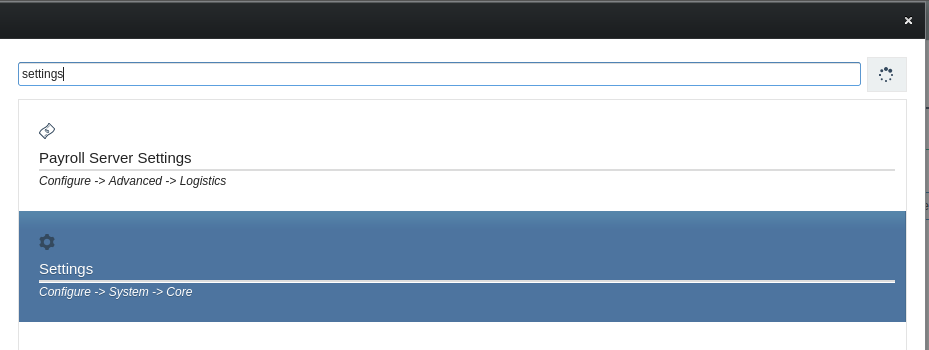
Search for the integration setting Within the Settings search panel, search for "Procurement: Integrate with Accounting."

Check the current status You'll see this setting currently reading False, meaning integration is switched off.
Turn it on Change the value from False to True.

While integrating, also make sure to integrate with Billing and Inventory — set both of these to True as well, just as done with Accounting.
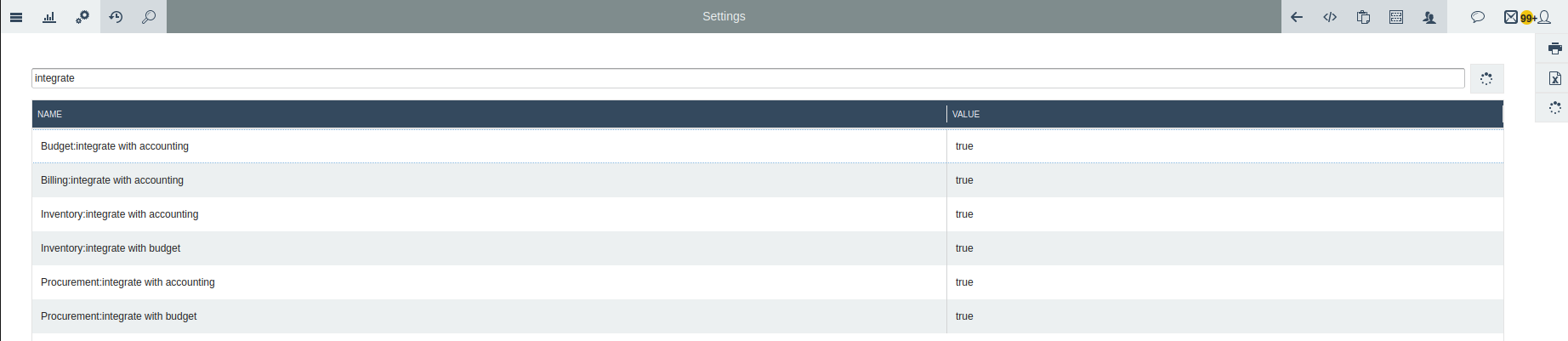
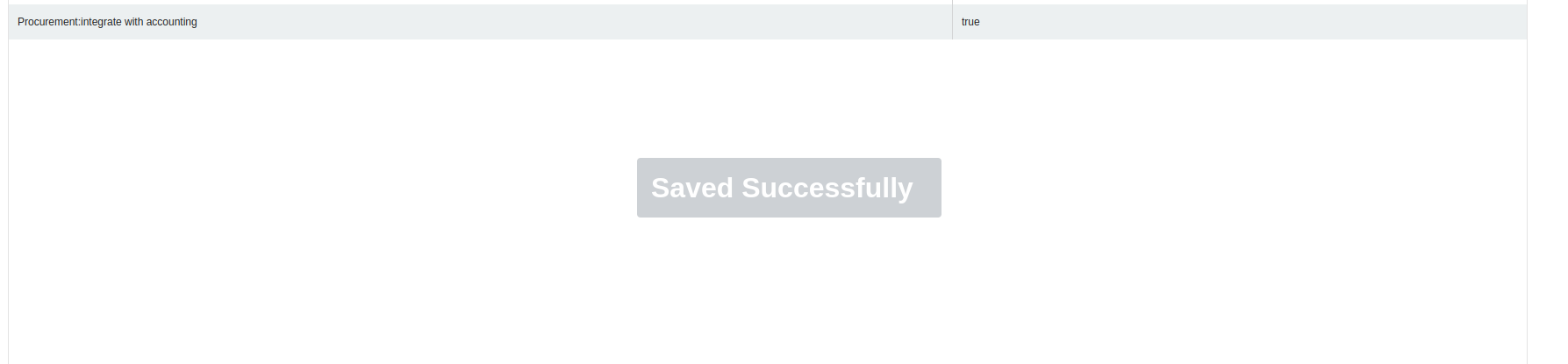
Save the setting Click Save to apply the change.
Confirmation Once saved, you will have successfully switched on Procurement: Integration with Accounting.
Link services and goods to the appropriate account When integrating with accounting, you should also link your services and goods to the appropriate account so they're recorded correctly during transactions. This is done from the items registration, where each item, good, or service has to be linked to a specific account:
Inside the purchase order, when adding an item or service.
Fill in the details and choose the account to link it to, for services.
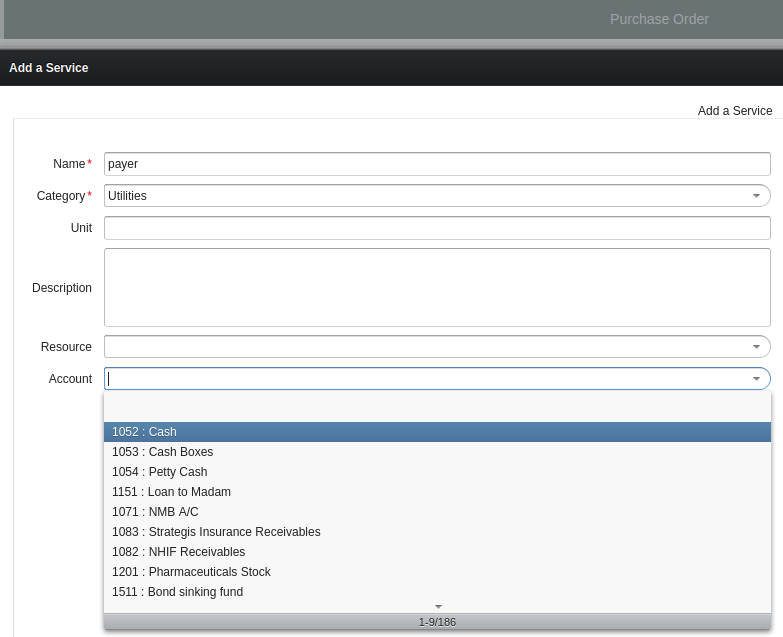
For items is done the same, most can be linked to a specific account directly, but the item category can also help link them to the account set there.
Once done, you are all set for transactions.
What Happens After the Integration
All new procurement transactions (bills, payments, voids, PO closures) will now automatically post to their corresponding accounting categories.
Accounts Payable, cash/bank, and expense accounts will update in real time as procurement actions occur.
Finance teams will be able to see procurement-driven entries directly in the accounting ledgers, without manual re-entry.
Existing/past procurement transactions made before integration was switched on are typically not retroactively synced — the integration usually applies going forward, from the point it was enabled.
Troubleshooting Tips
Issue | Likely Cause | What to Do |
|---|---|---|
Can't find the setting in search | Search term slightly different, or missing permissions | Try searching just "Integrate with Accounting" or "Procurement"; confirm you have settings/admin access |
Setting won't change from False to True | Lack of permission, or setting is locked | Confirm you have administrator rights; contact your system admin if it's greyed out |
Saved but integration doesn't seem active | Page/cache not refreshed | Refresh the page and check a new transaction to confirm it appears in accounting |
Past transactions missing from accounting | Integration only applies going forward | This is expected behavior; for older transactions, manual reconciliation with accounting may be needed |
Transactions posting to the wrong account category | Chart of accounts / category mapping not set up correctly | Review your accounting category mappings with your finance team before relying on the integration |