How to Integrate Procurement with Inventory
Overview
The Procurement and Inventory modules work together to keep purchasing records and store stock quantities synchronized.
When procurement and inventory integration is enabled, completing a receiving transaction can automatically create the corresponding inventory movement for the selected store.
For example, when goods are received against a Purchase Order, the system records the received quantity in Procurement and adds the received quantity to the selected store's inventory.
Why Integrate Procurement with Inventory?
Procurement and Inventory integration connects the purchasing process with the actual movement of goods into and out of stores.
The integration helps you:
Automatically increase stock when purchased goods are received.
Reduce stock when purchased goods are returned.
Keep procurement quantities and inventory quantities synchronized.
Record stock movements against the appropriate store.
Maintain traceability between purchasing transactions and inventory movements.
Improve the accuracy of available stock balances.
Procurement and Inventory Transaction
The important point is that the receiving transaction is the point where the purchased quantity becomes available in inventory.
Procurement Activity | Procurement Result | Inventory Result |
|---|---|---|
Create Purchase Order | Order quantity recorded | No stock movement |
Approve Purchase Order | Purchase approved | No stock movement |
Receive Purchase Order | Received quantity recorded | increase stock to selected store |
Partially Receive Purchase Order | Part of the order received | increase received quantity only |
Purchase Return | Returned quantity recorded | decrease stock from store |
Requirements
Before using Procurement and Inventory integration, make sure that:
The Procurement module is available.
The Inventory module is available.
Procurement–Inventory integration is enabled.
The purchased item exists in Inventory.
Enable Procurement and Inventory Integration
By default, Procurement–Inventory integration is enabled under:
Advance Setting → Setting
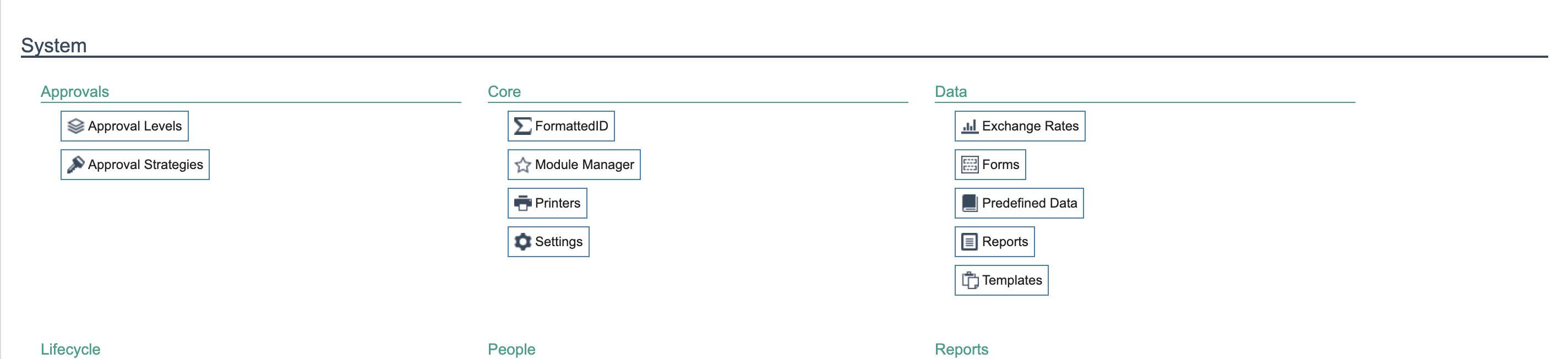
Step 1: Open Settings
Navigate to Setting via search

Or you can navigate to configuration setting under system to open setting.
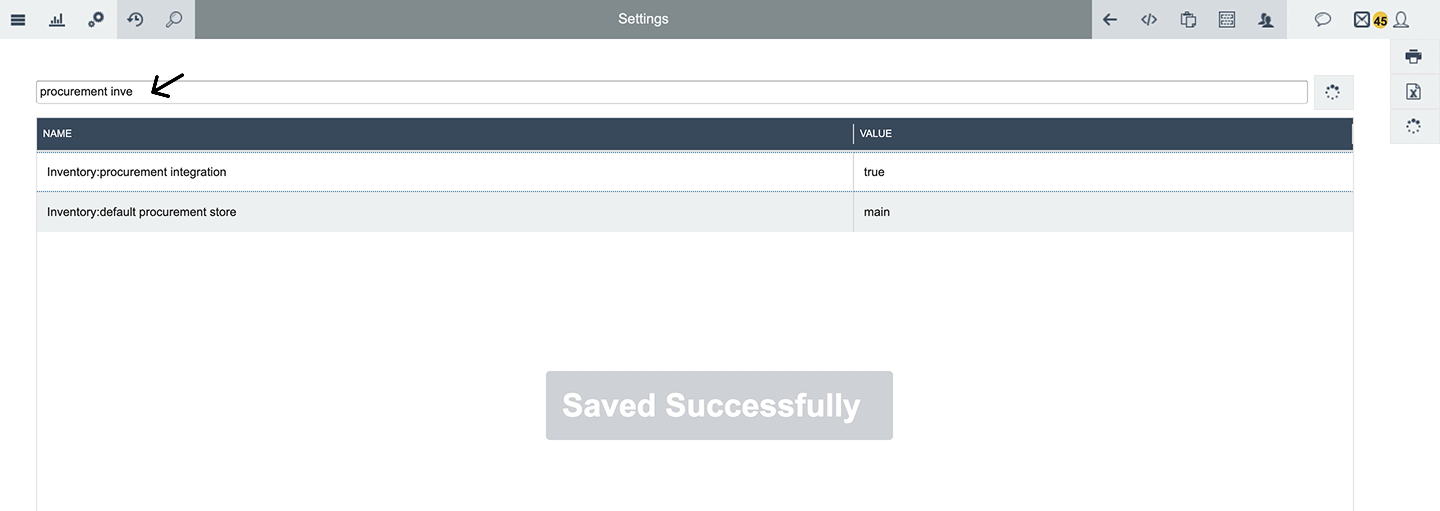
Step 2: Locate the Integration Setting by searching
Find the setting responsible for connecting Procurement with Inventory.
Verify that the integration is enabled.

Step 3: Modify the Setting
Click plus icon, and then you can change to either true or false to enable integration

Confirm that Procurement transactions are configured to update Inventory when goods are received or returned you can set to true by update.
Important Rules and Considerations
1. Creating a Purchase Order Does Not Increase Stock
A Purchase Order records an intention to purchase goods.
Procurement Status | Inventory Effect |
|---|---|
PO Created | No Inventory Increase |
Inventory is updated when the goods are actually received through the receiving process.
2. Approval Does Not Increase Stock
Approving a Purchase Order allows the purchasing process to proceed, but it does not mean the goods are physically available.
Procurement Status | Inventory Effect |
|---|---|
PO Approved | No Inventory Increase |
Waiting for Delivery | No Inventory Increase |
3. Receiving Updates Stock
Once the receiving transaction is confirmed:
Step | Inventory Effect |
|---|---|
Goods Received | Goods are physically received |
Receiving Confirmed | Receiving transaction is completed |
Inventory Updated | Received quantity is added to the selected store |
4. Partial Receipts Update Only Received Quantity
If 300 units are received from an order of 500 units, Inventory should increase by 300 units, not 500.
Quantity | Amount |
|---|---|
Ordered | 500 |
Received | 300 |
Inventory Added | +300 |
Pending | 200 |
Quick Reference
Procurement Activity | Inventory Action |
|---|---|
Create Purchase Order | No stock movement |
Approve Purchase Order | No stock movement |
Receive Purchase Order | + Store Stock |
Partially Receive Purchase Order | + Received Quantity |
Direct Purchase Order | + Store Stock |
Purchase Return | - Store Stock |
Vendor Return | - Store Stock |
Close Purchase Order | No additional stock movement |