How to Duplicate a Purchase Order
1. Overview
The Duplicate Purchase Order feature allows users to create a new Purchase Order (PO) using an existing PO as a template.
This is useful when an existing PO needs to be corrected, resubmitted, or reused without changing the original purchase record.
When a PO is duplicated
The original PO remains unchanged.
A new PO number is automatically generated.
The new PO starts as a Draft.
Existing vendor and item information is copied to the new PO.
The user can modify the required information before submitting the new PO.
2. Why Is Duplicating a Purchase Order Important?
Duplicating a PO provides several important benefits. Mean while it is important The original record should remain unchanged so that users can see exactly what happened during the original transaction.
3. Requirements to Duplicate a Purchase Order
Before duplicating a Purchase Order, ensure that:
The original PO exists.
The user has permission to duplicate Purchase Orders.
The original PO can be accessed.
The required vendor and item information is available.
The user knows which information needs to be corrected in the new PO.
4. Scenarios and Examples
Scenario 1: Correcting a Finalized PO
Suppose the original PO contains an incorrect quantity.
Original PO | Item | Quantity | Status |
|---|---|---|---|
PO-AA-AA-15-92 | Syringes | 500 | Completely Delivered |
The original PO should not be changed.
Instead, duplicate it:
Original PO | Item | Quantity | Status |
|---|---|---|---|
PO-AA-AA-15-93 | Syringes | 500 | Draft |
The user can then correct the quantity in the new PO.
Original Quantity | New Quantity | Change |
|---|---|---|
500 | 450 | -50 |
5. Step-by-Step Guide
Step 1: Open Purchase Orders
Navigate to Main menu:
Purchase → Purchase Orders
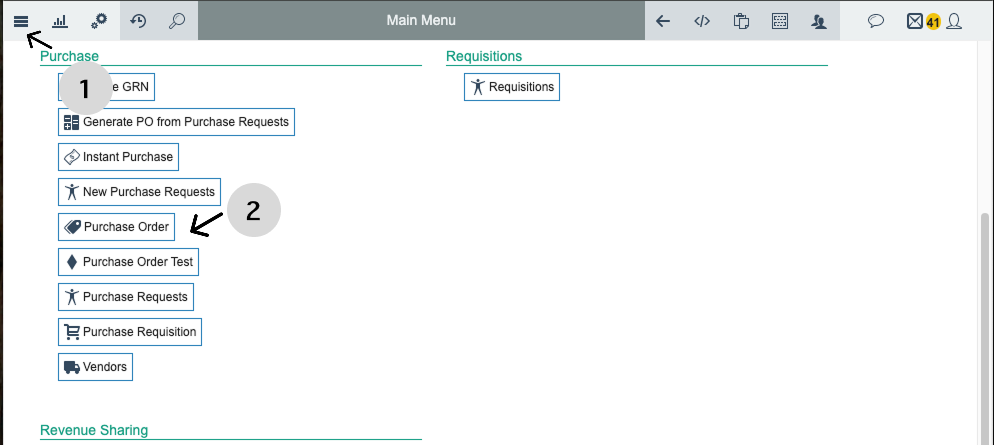
The Purchase Orders list displays the available POs and their current statuses.
Step 2: Open the Purchase Order
Locate the Purchase Order that you want to duplicate and Open the PO to view its details by tap the column.

Step 3: Locate the Duplicate Icon
Look at the top-right corner of the Purchase Order details page.
The Duplicate action is represented by an icon showing two overlapping/curved sheets of paper.

Step 4: Click Duplicate
Click the Duplicate icon.
The system will display a confirmation prompt asking whether you want to create a duplicate of the Purchase Order.
Review the confirmation message.
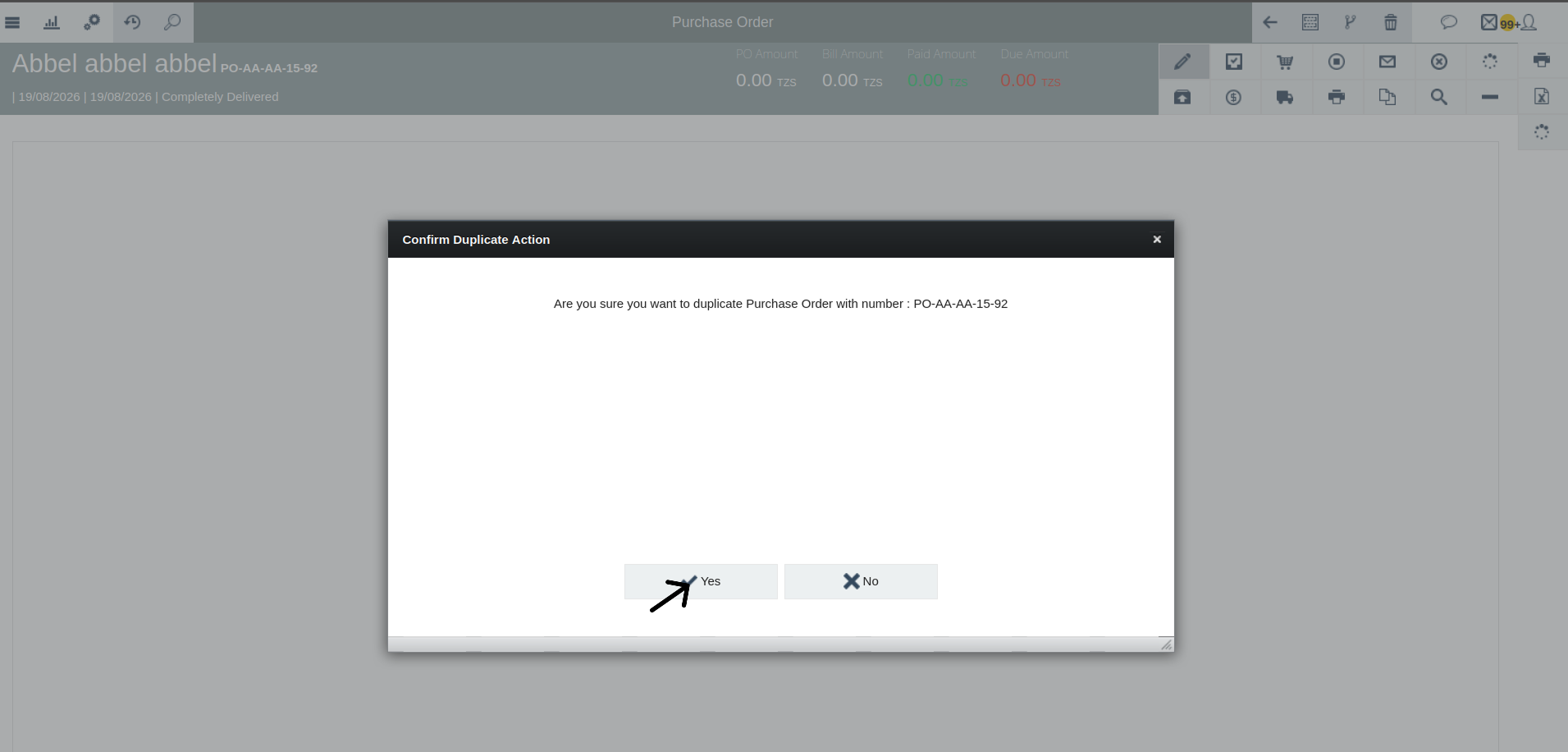
Step 5: Confirm Duplication and You can see the New Purchase Order generated in the PO list
Select Confirm to proceed.
The system creates a new Purchase Order based on the original.

Step 6: You can open the new duplicate purchase Order
Open the newly created Purchase Order.
The new PO should be in: Draft from there you can open it and correct the Required Information
Review the duplicated PO and update the information that needs to be corrected.

6. What Happens After Duplicating?
When a Purchase Order is duplicated, the system creates a new PO record.
Original PO | New PO |
|---|---|
PO-AA-AA-15-92 | PO-AA-AA-15-93 |
Existing record | New record |
Original status retained | Draft |
Historical record | Editable |
Original data preserved | Data copied from original |
Original PO number | New PO number |
8. Common Problems and Solutions
No. | Problem | Possible Cause | Solution |
|---|---|---|---|
1 | User cannot find Duplicate | The user does not know where the action is located. | Open the PO details page and check the top-right corner for the icon showing two overlapping papers. |
2 | Duplicate icon is not visible | User does not have permission to duplicate POs. | Check the user's Purchase Order permissions. |
3 | Duplicate confirmation does not appear | The action may not have been selected correctly. | Click the Duplicate icon again and review the confirmation prompt. |
4 | New PO was not created | Failed to confirm duplicate Po due to network. | Repeat the duplication process and confirm the action. |
5 | New PO has a different number | The system automatically generates a new PO number. | This is expected behaviour. Use the new PO number when processing the corrected order. |
6 | New PO is in Draft status | Duplicated POs start as Draft. | Review and correct the PO, then submit it for approval. |
Quick Reference
Action | What to Do |
|---|---|
Find the PO | Go to Procurement → Purchase Orders. |
Open the PO | Select the Purchase Order you want to duplicate. |
Find Duplicate | Check the top-right corner of the PO details page. |
Identify the Icon | Look for the icon showing two overlapping papers. |
Duplicate | Click the Duplicate icon. |
Confirm | Confirm the duplication request. |
New PO | The system generates a new PO number. |
Draft | The duplicated PO starts in Draft status. |
Correct | Update quantities, prices, items, dates, or other required details. |
Submit | Save and submit the corrected PO through the normal workflow. |