Stock Adjustment
1. Overview
Stock Adjustment in Inaya is used to correct the quantity of an inventory item when the physical stock does not match the quantity recorded in the system.
2. Why Is Stock Adjustment Important?
Stock Adjustment helps maintain accurate inventory records and ensures that the quantity in Inaya reflects the actual physical stock.
Benefit | Description |
|---|---|
Inventory Accuracy | Keeps system quantities aligned with physical stock. |
Traceability | Records the reason and details of each adjustment. |
Audit Control | Provides a history of inventory corrections. |
Stock Visibility | Keeps inventory balances and reports accurate. |
Loss Management | Records damaged, expired, lost, or missing stock. |
3. Requirements to Adjust Stock
Before creating a stock adjustment, ensure that:
Requirement | Description |
|---|---|
Item | The inventory item exists in Inaya. |
Store | The correct store is identified. |
Batch | The correct stock batch is selected. |
Physical Quantity | The stock has been physically verified. |
Unit | The correct inventory unit is selected. |
Reason | An appropriate adjustment reason is available. |
Description | A clear explanation can be provided. |
Permission | The user has permission to adjust stock. |
4. Scenarios and Examples
Counting Error
The system shows 100 bottles, but the physical count shows 97 bottles.
Adjustment: -3 bottles
Reason: Counting Error
Damaged Stock
The system shows 50 units, but 4 units are damaged.
Adjustment: -4 units
Reason: Damaged Stock
Description:
Expired Stock
A physical inspection identifies 10 expired units that are still included in the system quantity.
Adjustment: -10 units
Reason: Expired Stock
Description:
Stock Recount
The system shows 75 units, but an authorised recount confirms 80 units.
Adjustment: +5 units
Reason: Stock Balancing
Adjustment Values
Value | Action | Example |
|---|---|---|
Positive (+) | Adds stock | +5 bottles |
Negative (-) | Removes stock | -5 bottles |
5. Step-by-Step Guide
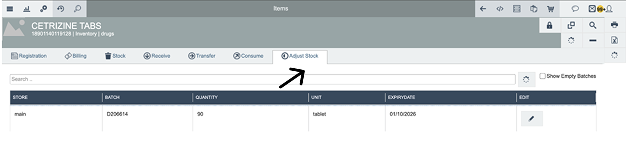
Step 1: Open Adjust Stock
Navigate to:
Items → Adjust Stock
Inaya displays the available stock batches.
Step 2: Select the Stock Batch
Select the batch that requires adjustment.
For example:
Batch 000 → Main Store
Verify:
Store
Batch
Current quantity
Unit
Expiry date
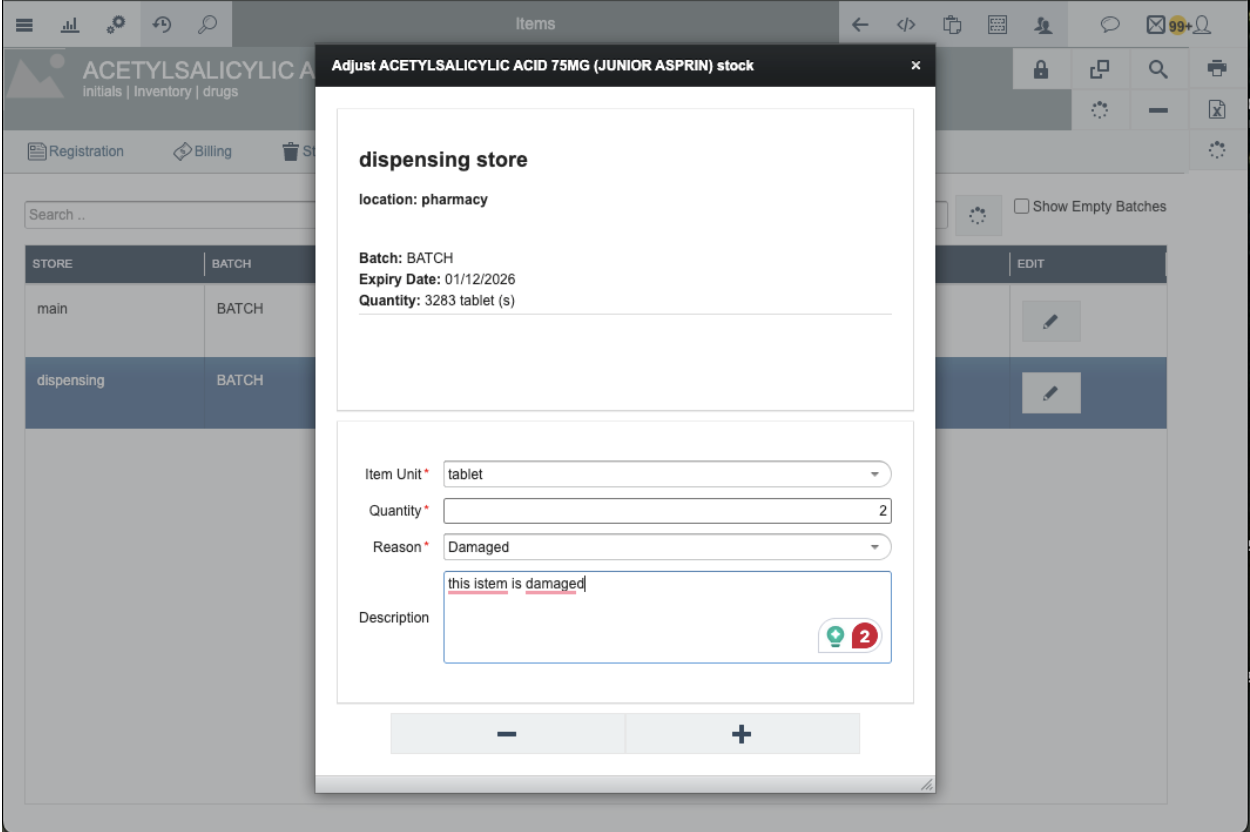
Step 3: Enter the Adjustment Quantity
Enter the quantity to add or remove.
To add stock:
To remove stock:
Step 4: Select the Unit
Select the unit that matches the item's configured inventory unit.
Examples:
Bottle
Piece
Box
Pack
Tablet
Kilogram
Step 5: Select the Adjustment Reason
Select the reason that best explains the adjustment.
Examples:
Stock Balancing
Counting Error
Damaged Stock
Expired Stock
Lost Stock
Theft
Other Inventory Correction
Step 6: Enter a Description
Enter a clear explanation of why the adjustment is required.
Example:
A good description should explain:
What happened + Why it happened + What was corrected
Step 7: Review the Adjustment
Before saving, verify:
Field | Check |
|---|---|
Store | Correct store |
Batch | Correct batch |
Quantity | Correct positive or negative value |
Unit | Correct unit |
Reason | Appropriate reason |
Description | Clear explanation |
Step 8: Save
Click Save to apply the adjustment.
Step 9: Verify the Updated Stock
Example:
The adjustment is also recorded in the inventory movement history.
6. What Happens After Saving?
After saving, Inaya updates the stock balance and records the adjustment transaction.
Event | What Happens |
|---|---|
Stock Quantity | The current stock quantity is updated. |
Inventory Movement | The adjustment is recorded as an inventory movement. |
Reason | The selected adjustment reason is recorded. |
Description | The adjustment explanation is stored. |
User | The user who performed the adjustment is recorded. |
Timestamp | The date and time are recorded. |
Reports | The transaction becomes available in relevant inventory reports. |
Audit History | The adjustment remains traceable for review. |
Before Adjustment
100 bottles
Adjustment
-4 bottles
After Adjustment
96 bottles
7. Configurations
Stock Adjustment relies on the item's inventory and store configuration.
Configuration | Description |
|---|---|
Item | The inventory item being adjusted. |
Store | The location where the stock is held. |
Unit | The item's configured inventory unit. |
Batch | The batch containing the stock. |
Expiry Date | The expiry information for applicable items. |
Adjustment Reasons | Reasons available when recording an adjustment. |
User Permissions | Controls who can perform stock adjustments. |
Quantity Limits | Optional minimum and maximum stock levels. |
Stock Quantity Limits
Stock Quantity Limits define the minimum and maximum quantity that should normally be maintained for an item in a specific store.
Limit | Description |
|---|---|
Minimum Quantity | The lowest recommended stock level. |
Maximum Quantity | The highest recommended stock level. |
Field | Value |
|---|---|
Allow Quantity Limits | Enabled |
Store | Main Store |
Unit | Bottle |
Minimum Quantity | 1 |
Maximum Quantity | 100 |
8. Common Problems and Solutions
No. | Problem | Possible Cause | Solution |
|---|---|---|---|
1 | Wrong quantity entered | Physical stock was not verified | Recount the stock and confirm the adjustment. |
2 | Stock increased instead of decreased | Positive value was entered | Use a negative value to remove stock. |
3 | Stock decreased instead of increased | Negative value was entered | Use a positive value to add stock. |
4 | Wrong batch selected | Multiple batches exist | Verify the batch number, store, quantity, and expiry date. |
5 | Incorrect unit | Wrong unit selected | Select the item's configured inventory unit. |
6 | Adjustment cannot be saved | Required information is missing | Complete all required fields. |
7 | User cannot adjust stock | Insufficient permission | Contact an authorised administrator. |
8 | Adjustment is not visible in a report | Incorrect report filters | Check the item, store, date range, and report filters. |
9 | Quantity limits are incorrect | Store limits are not configured correctly | Review the item's minimum and maximum quantities. |
Quick Reference
Step | Action |
|---|---|
1 | Go to Items → Adjust Stock |
2 | Select the stock batch |
3 | Verify the current quantity |
4 | Enter the adjustment quantity |
5 | Select the unit |
6 | Select the adjustment reason |
7 | Enter a description |
8 | Review the adjustment |
9 | Click Save |
10 | Verify the updated stock quantity |